
 Costs Introduction
The schedules that IC WFM produces are the result of a complex series of calculations. During this process, IC WFM:
· Considers the anticipated demand placed upon the Interaction Center and its staff. This demand is itself the result of a separate series of entries and calculations that occur before the schedule is calculated.
· Weighs the demand against the constraints around which the Interaction Center functions. These constraints fall in three separate categories:
¡ Absolute
¡ Hard
¡ Soft
Absolute Constraints
Absolute Constraints are the realities of the business environment that cannot be ignored. For instance, a schedule could easily satisfy demand using just a few agents if the agents could be scheduled 168 hours per week. Obviously, there are significant practical reasons why such a schedule would not be acceptable. Likewise, a schedule that calls for thousands of agents to work simultaneously in a facility that holds just a few hundred is equally useless. Absolute constraints define the non-negotiable aspects of your business environment. IC WFM never produces a schedule that violates absolute constraints.
The following table summarizes the absolute constraints you can define in IC WFM.
|
Constraint |
Description |
|
Job Eligibility |
IC WFM will not schedule an agent to work a job (or Work Area) in which he or she is not qualified. |
|
Capacity |
IC WFM will not schedule more agents than can be accommodated in the physical working environment for each Work Area. |
|
Availability |
IC WFM will not schedule an agent when he or she cannot work. |

Fixed Shifts by Work Area and Split Shifts by Work Area are not bound by the constraints that scheduled shifts are. If you define a fixed shift for an agent that includes time outside his / her availability, IC WFM redefines the agent’s availability to include the time required by the shift.
Hard Constraints
Hard constraints represent the significant business rules by which schedules must adhere. IC WFM will never violate a hard constraint unless honoring it results in the violation of an Absolute constraint or a more significant hard constraint. Where multiple hard constraints conflict, IC WFM uses a ranking order to determine the precedence order in which the constraints are met. The following table summarizes the hard constraints you can define in IC WFM, and their rank relative to each other. Lower numbers in the rank column indicate higher levels of precedence.
|
Constraint |
Rank |
Description |
|
Fixed Shifts by Agent |
1 |
While Fixed Shifts do not have to adhere to other Scheduling Limits (see Soft constraints for a definition of Scheduling Limits), IC WFM will not schedule a Fixed Shift by Agent if a Fixed Shift by Work Area overlaps. |
|
Maximum Number of Shifts |
2 |
IC WFM does not prevent scheduling more Fixed Shifts than the maximum number of allowed shifts for an agent. In all other circumstances, however, IC WFM will not produce a schedule that includes more shifts agents are allowed to work per week. |
|
Consecutive Days Off |
3 |
Organizations commonly require that agents be scheduled for two or more consecutive days off. |
|
Disallowed Shift Length |
3 |
IC WFM will not schedule a shift of lengths you prohibit. |
|
Minimum / Maximum Hours per Shift |
4 |
IC WFM will not schedule shifts that are shorter than the minimum hours you define for a shift, nor will it schedule shifts that are longer than the maximum hours you define for a shift. |
|
Maximum OT Hours Per Shift |
4 |
IC WFM will not schedule a shift that results in more OT hours than are allowed by your organization for a single shift. |
|
Maximum Shifts per Period |
4 |
IC WFM will not schedule an Agent to work more shifts for a schedule period than are allowed by your organization. |
|
Maximum Hours per Segment |
5 |
When an agent works multiple jobs, his or her time spent on a single job is called a “segment.” IC WFM will not schedule a segment longer than the maximum allowed by your organization. |
|
Minimum Hours per Segment |
6 |
IC WFM will not schedule a segment shorter than the maximum allowed by your organization. |
|
Contract Minimum / Maximum per Period |
6 |
IC WFM will not schedule an agent for less than the minimum or more than the maximum number of hours during a specified contract period. |
|
Minimum Hours per Period |
6 |
IC WFM will not schedule an agent for fewer hours than the minimum you specify for a schedule period. |
|
Maximum OT per Period |
7 |
IC WFM will not schedule an agent for more overtime hours than the maximum overtime you define for a schedule period. |
|
Meetings |
8 |
Meetings cannot overlap segment transitions. IC WFM attempts to schedule meetings without breaking segment rules (Minimum / Maximum Hours per segment), but when it cannot do so, the Maximum Hours per segment rule will be violated in order to schedule the meeting. |
|
Flex Shifts by Work Area |
9 |
In order to accommodate demand, IC WFM uses flex shifts. Flex periods define intervals during which an agent must be scheduled. Flex shifts allow the agent to be scheduled to start before the Flex shift interval begins, and extend past the end of the Flex shift interval. |
Soft Constraints
IC WFM will violate soft constraints if and only if honoring the constraint results in a violation of a hard or absolute constraint. Soft constraints are penalty-based. That is, there is a numeric value associated with violating a Soft constraint. Once absolute and hard constraints are accommodated, IC WFM uses the cost / penalty values associated with Soft constraints to prioritize which of those will be met, and which will be violated. When IC WFM cannot simultaneously meet two or more Soft constraints, it will accommodate whichever constraint has the greatest associated penalty or cost. In order to favor one constraint over another, you must increase its cost relative to the other constraints. Soft constraints are relative to each other. Lockstep changes to all cost values will not significantly change the schedule IC WFM calculates.
You can define the following soft constraints in IC WFM:
|
Scheduling Priority |
Description |
|
Alloc Filler |
Tasks can be defined as filler tasks. Filler time represents time indeterminate work, or work that can be accomplished at any time, rather than work that needs to be completed at a specific time. Filler periods are allocated during the scheduling process. The cost represents the importance of this type of work relative to other workload. |
|
Alloc Filler Blocks |
During filler talk definition the user can specify minimum and maximum time spent in the task. This creates blocks of filler and this setting represents the importance cost of staffing this type of task. |
|
Min Average Skill |
You can define Average skill or proficiency in work Areas. When scheduling, IC WFM attempts to ensure all employees scheduled at a given time period have, on average, the skill/proficiency rating specified or above. This represents the importance of the feature in the scheduling process. |
|
Qualified Workload |
Additional importance to be applied to demand generated from workloads you define as “Qualified.” An example of a qualified workload might be a Spanish-speaking agent. |
|
Shift Characteristic |
Importance of honoring shift characteristics and non-transition zones |
|
Contract/set min/max |
Importance of honoring minimum and maximum contract hours per period. |
|
Min gap btwn shifts |
Importance of honoring minimum gap between shifts. Minimum gap is the minimum amount of time between the end of one shift and the beginning of the next. This is particularly important in environments with extended hours or 24-hour environments. . |
|
Seniority Pref Unmet |
When scheduling to preferences based on employee seniority, this cost is applied to hours of preference time that are not met by the schedule solver. |
|
Seniority Preference |
When scheduling to preferences based on employee seniority, this cost is applied to portions of a scheduled shift that fall outside of employees’ preferences. |
|
Special Day Part Min |
Importance of honoring configurable minimum day part work rules. |
|
Special Day Part Max |
Importance of honoring configurable maximum day part work rules. |
|
Max hrs/day with OT |
Importance of honoring the maximum hours per day work rule when a schedule exceeds the daily overtime threshold. |
|
Max hrs/wk with OT |
Importance of honoring the maximum hours per week work rule when a schedule exceeds the weekly overtime threshold. |
Adjusting Cost Values in IC WFM
You can adjust how constraints are handled in IC WFM. How you make cost adjustments depends on whether the cost represents an Absolute Constraint, Hard Constraint, or Soft Constraint.
Adjusting Costs Related to Absolute Constraints
Absolute constraints cannot be enabled or disabled from a functional standpoint. That is, there is no check box where you enable or disable the constraints. IC WFM will meet absolute constraints, and there is no way to communicate to the Calculation Server that you want it to ignore them. However, you can make adjustments to the values to which the constraints are tied. For instance, consider employee availability, an absolute constraint. If you define an agent’s availability as 24 hours, 7 days a week, this essentially nullifies the availability constraint for that Employee. The absolute constraint related to that agent’s availability would always be met, since the agent is available to work at all times during the schedule period. Likewise, if you defined work area capacity as sufficient to accommodate your entire agent roster simultaneously, the absolute constraint related to capacity would never be violated, even if all of your agents were scheduled to work at the same time.

Do not, however, create inaccurate definitions for the costs related to Absolute Constraints in a production environment. The values you enter for Capacity, Availability, and Work Area Eligibility should be as accurate as possible, to guard against creating schedules that are not viable. Once you have defined these values in a production (I.E., non-testing) environment, adjust them only when the business environment dictates that you do so.
The following table describes how to maintain the cost values related to absolute constraints.
|
Absolute Constraint |
Cost Value Maintenance |
|
Eligibility |
Work Area Eligibility is defined for each agent. To maintain eligibility information, log into the Interaction Center Manager’s Portal, select Workforce Management ® Employee Maintenance ® Work Areas & Qualifications. |
|
Capacity |
Capacity is defined for each Work Area. To maintain Work Area information, use transaction code CRM_WFM_WORKLOAD or access the following menu path from the SAP Easy Access menu: SAP Menu ® Interaction Center ® Interaction Center Workforce Management ® Forecasting Settings ® Define Workloads. Define capacity by the field Max People. |
|
Availability |
Availability is defined for each agent. To maintain availability information, log into the Interaction Center Manager’s Portal, select Workforce Management ® Employee Maintenance ® Schedule Rules, then click on the Availabilities and Shifts tab. |
Enabling Schedule Exceptions Associated with Absolute Constraints
Schedule exceptions can occur when the resulting schedule does not exactly match the schedule rules or break rules for an employee for either a calculated or manually edited schedule.
You determine the schedule exceptions to use within your implementation of IC WFM at this location using this activity. IC WFM only displays the enabled exceptions.
The following schedule exceptions correspond to absolute constraints:
|
Schedule Exception |
Description |
|
Outside Availability |
An agent was scheduled outside of his or her availability. |
|
Outside Work Hours |
An agent was scheduled outside of the work area or location work hours. |
Adjusting Costs Related to Hard Constraints
You define cost settings related to hard constraints when you configure your IC WFM implementation. Since hard constraints represent the business rules to which your organization must adhere, these settings should require only minimal adjustment thereafter.
In general, hard constraints are defined in IC WFM as Work Rules.
Defining IC WFM Work Rules
Work rules govern how IC WFM can schedule an employee. They contain specific definitions that IC WFM uses when calculating schedules, such as whether the employee can work weekends or the fewest hours for which they can be scheduled. You associate work rules to employees using the Employee Maintenance iView accessible through the Interaction Center Manager’s portal.
You define work rule values for each employee. Follow these steps to maintain work rules:
1. You have the ability to use 12 work rules to meet the specific needs of your location without having to perform any processing customization typically grouped as pairs of minimum and maximum values. You use this activity to define the work rule text to appear on the Work Rule page of both the Schedule and Employee Maintenance iViews in the Interaction Center Manager’s Portal. To define special work rules text in the Implementation Guide (IMG) for CRM, select the following path:
Customer Relationship Management à Interaction Center Workforce Management à Schedule Settings à Define Work Rules à Define Special Work Rules Text.
This step is optional and should be used only if you are using special work rules within your implementation of IC WFM.
2. Complete the following fields in the Define Special Work Rules Text table.
|
Field name |
Description |
User action / Notes |
|
Work Rule Type |
The unique identifier for the work rule. |
For display only. |
|
Short Description |
The text to appear on the Work Rule page. |
Can be up to 20 characters long. |
|
Long Description |
Enter a long description of the special work rule. |
|
3. In the Implementation Guide (IMG) for CRM, select the following path to define default work rules:
Customer Relationship Management à Interaction Center Workforce Management à Schedule Settings à Define Work Rules àDefine Default Work Rules
Specific work rules may be valid only for particular locations. Other work rules may be valid for all locations. Use this IMG activity to create work rule templates that can be applied to default groups, and to define which work rules are valid for a given location.
4. To define default work rules:
a. Identify the location profile to which this default work rule profile applies.
b. Define work rules by completing the following fields in the Default Work Rule table:
|
Field name |
Description |
User action / Notes |
|
Work Rule Type |
A unique identifier for the work rule. |
|
|
Minimum Value |
The minimum value allowed for the work rule. |
This field is required if you are defining a work rule using a default value. If you are defining a true/false or date value, leave this field blank. |
|
Maximum Value |
The maximum value allowed for the work rule. |
This field is required if you are defining a work rule using a default value. If you are defining a true/false or date value, leave this field blank. |
|
Default Value |
The default value for this work rule if it is a numeric value. |
If you are defining a true/false or date value, leave this field blank. |
|
True? |
Click on this check box to define the work rule value as “true.” When left blank, the value is “false.” |
|
|
Date Value |
The default value for this work rule if it is a date. |
|
|
Cost Value |
A numeric value that indicates the schedule importance for a scheduling element. |
You use schedule costs to define the importance you want to attach to each scheduling element when the system generates a schedule. |
|
Enabled |
Defines whether or not this work rule is currently valid. |
When checked, this work rule is enabled. When blank, this work rule is disabled. |
c. Define the applicability periods for the work rule by completing the following fields in the Work Rule Interval table:
|
Field name |
Description |
User action / Notes |
|
Start Day |
Defines the first day of the scheduling week for which this work rule applies. |
|
|
End Day |
Defines the last day of the scheduling week for which this work rule applies. |
|
|
Start Time |
Defines the beginning of the validity period for the work rule. |
The start time must not be earlier than the daybreaker, and must not overlap with the end time. |
|
End Time |
Defines the end of the validity period for the work rule. |
The end time cannot overlap the start time. |
To maintain work rule data, log into To maintain eligibility information, log into the Interaction Center Manager’s Portal, select Workforce Management ® Employee Maintenance ® Schedule Rules.
Defining Disallowed Shift Lengths
Some lengths of shifts have no business value or are mandated by corporate, governmental and/or union regulations. By defining disallowed shift lengths, you are assured that IC WFM will generate schedules that only contain valid shift lengths. Follow these steps to define a disallowed shift length in IC WFM.
...
1. In the Implementation Guide (IMG) for CRM, select the following path to define disallowed shift lengths:
Customer Relationship Management à Interaction Center Workforce Management à Schedule Settings à Define Shift Characteristics àDefine Disallowed Shift Lengths
2. Complete the following entries in the Define Disallowed Shift Lengths table.
|
Field name |
Description |
User action / Notes |
|
Location Profile |
The location to which this disallowed shift length definition applies. |
Enter or select the location. |
|
Disallowed Shift Id |
A unique identifier for the disallowed shift length. |
|
|
Start Date |
A beginning date for the disallowed shift length definition. |
IC WFM considers the disallowed shift length definition valid for the range defined by the start and end dates. The date entries must not overlap. |
|
End Date |
An end date. |
If no end date is planned for this disallowed shift length definition, enter 12/31/9999 to specify an open-ended validity range. |
|
Short Text |
A short description of the disallowed shift length. |
|
|
Disallowed Length |
The length of the shift, in hours, that should be disallowed. |
The shift length you enter must be in quarter hour intervals like 10.25, 10.50, and 10.75. This represents the total shift duration, including any meal or break time that might be applied to the scheduled shift. |
|
Time Start |
Defines the beginning of the time range during which the shift length will be prohibited. |
The shift length will be enforced for the time defined by the Time Start and End Time fields. |
|
End Time |
Defines the end of the time range during which the shift length will be prohibited. |
This value must not overlap the daybreaker. |
|
Applies on... |
Select the days to which the disallowed shift length applies by clicking on the corresponding check box. |
Days not having a check mark are not included in the disallowed shift length definition. |
|
Long Text |
A long description of the disallowed shift length. |
|
Enabling / Disabling Schedule Exceptions Associated with Hard Constraints
Schedule exceptions can occur when the resulting schedule does not exactly match the schedule rules or break rules for an employee for either a calculated or manually edited schedule.
You determine the schedule exceptions to use within your implementation of IC WFM at this location using this activity. IC WFM only displays the enabled exceptions. Schedule exceptions in IC WFM include:
|
Schedule Exception |
Description |
|
Min Hours/Week |
The least hours per week IC WFM can schedule the employee. |
|
Max Hours/Week |
The most hours per week IC WFM can schedule the employee. |
|
Min Hours/Shift |
The least hours per shift IC WFM can schedule the employee. If split shifts are entered as fixed, this rule treats both shifts as one contiguous shift. |
|
Max Hours/Shift |
The most hours per shift IC WFM can schedule the employee. If split shifts are entered as fixed, this rule treats both shifts as one contiguous shift. |
|
Max Sched Day/Week |
The most number of days per week IC WFM can schedule the employee. |
|
Min Hours/Period |
The fewest hours for which the contract employee can be scheduled within the period. Work rules are still considered. |
|
Max Hours/Period |
The most hours for which the contract employee can be scheduled within the period. Work rules are still considered. |
You can enable or disable the schedule exceptions corresponding to these constraints. To enable a particular schedule exception:
...
1. Identify the location profile to which this schedule or break exception applies.
2. Click on the New Entries button to see the exceptions that you can enable for this location.
3. Click on the check box in the Enabled? field for any item in the schedule or break exception lists that you wish to define as valid. Schedule and break exceptions that are not enabled cannot be used by the system.
Disabling a schedule exception associated with a hard constraint is equivalent to telling IC WFM that you do not wish to consider the constraint when calculating a schedule.
Adjusting Costs Related to Soft Constraints
Cost settings related to soft constraints are called Schedule Priorities in IC WFM. Schedule Priorities indicate the importance of the various parameters to the completed schedule. IC WFM uses schedule priorities to create a schedule according to your organization's main concerns. Like the costs associated with hard constraints, schedule priorities are defined during implementation, and should not need to be adjusted very often, if at all, after go-live.
Schedule priorities are defined globally. That is, you define them in the IMG, and their values apply to all employees, shifts, and work areas. Follow these steps to maintain schedule priority definitions:
...
1. In the Implementation Guide (IMG) for CRM, select the following path to define schedule priorities:
Customer Relationship Management à Interaction Center Workforce Management à Schedule Settings à Define Schedule Priorities
2. To define the schedule priorities:
Define the location profile to which the costs apply.
a. Click on New Entries to see the costs that you can enable for this location.
b. Enter a numeric value indicating the relative schedule importance of each scheduling priority.
In order to uniquely identify each schedule priority, IC WFM uses a Cost Type. The following table maps cost types with their associated schedule priorities:
|
Scheduling Priority |
Cost Type |
User action / Notes |
|
Alloc Filler |
1 |
Schedule priority for allocated filler. |
|
Alloc Filler Blocks |
2 |
Schedule priority for allocated filler blocks. |
|
Min Average Skill |
3 |
Schedule priority for minimum average skill. |
|
Qualified Workload |
4 |
Schedule priority for qualified workload. |
|
Shift Characteristic |
5 |
Schedule priority for shift characteristics. |
|
Contract/set min/max |
6 |
Schedule priority for contract/set shift minimum and maximum hours. |
|
Min gap btwn shifts |
7 |
Schedule priority for minimum gap between shifts. |
|
Seniority Pref Unmet |
8 |
Schedule priority for not meeting seniority preferences. |
|
Seniority Preference |
9 |
Schedule priority for not meeting seniority preferences. |
|
Special Day Part Min |
10 |
Schedule priority for special day part minimum agents scheduled. |
|
Special Day Part Max |
11 |
Schedule priority for special day part maximum agents scheduled. |
|
Max hrs/day with OT |
12 |
Schedule priority for maximum hours per day with overtime. |
|
Max hrs/wk with OT |
13 |
Schedule priority for maximum hours per week with overtime. |
Enabling / Disabling Schedule Exceptions Related to Soft Constraints
The following schedule exceptions correspond to soft constraints.
|
Schedule Exception |
Description |
|
Min Time Betw Shifts |
The least time IC WFM can build into the schedule between the Employee’s shifts. Often used in 24-hour environments to avoid a closing shift on one day and an opening shift on the next. |
|
Max Overtime/Day |
The most overtime hours per day IC WFM can schedule the Employee in addition to the Max Hrs/Shift. |
|
Max Overtime/Week |
The most overtime hours per week IC WFM can schedule the employee. |
You can enable or disable the schedule exceptions corresponding to these constraints. To enable a particular schedule exception:
...
1. Identify the location profile to which this schedule or break exception applies.
2. Click on the New Entries button to see the exceptions that you can enable for this location.
3. Click on the check box in the Enabled? field for any item in the schedule or break exception lists that you wish to define as valid. Schedule and break exceptions that are not enabled cannot be used by the system.
Disabling a schedule exception associated with a soft constraint is equivalent to telling IC WFM that you do not wish to consider the constraint when calculating a schedule.
Cost Interactions
When you calculate a schedule in IC WFM, you can use Costs to favor certain business rules. For example:
¡ To favor overstaffing instead of understaffing, to ensure better coverage
¡ To ensure that minimum average skill requirements are met at all times
¡ To favor more senior agents in terms of meeting preferences for work areas and shift times
During testing, you might tailor cost values to create schedules most closely aligned with your organizations business goals. This section examines the relationships between costs, and describes on how cost values should be entered in relationship to each other.
Workload-Related Costs
The workload is cost is the cost of not meeting demand. That is, if the forecast calls for 7 agents to fill a work area for a particular time segment, the workload cost defines the penalty IC WFM places on the schedule for scheduling less than 7 agents.
IC WFM weighs most soft constraints against the workload cost. That is, IC WFM will attempt to create schedules that meet demand, unless the cost of not meeting another soft constraint is higher. For example, it might be more important to you to meet minimum average skill requirements than to meet workload, if the two constraints cannot be simultaneously met.
The only exception to this is Preferences by Seniority, where IC WFM uses pay rates to allocate which employees receive their Preferences. This occurs when all other factors are equal, and some preferences cannot be met. In such cases, IC WFM uses pay rates to schedule less costly employees.
Once the cost of workload gets to 10x the cost of the highest pay rate, it’s effect on the schedule quickly diminishes. If the workload cost is 10x the cost of the highest pay rate, IC WFM will attempt to meet it above all other soft constraints.

The value you enter for workload cost is a ¼ hour value.
Guidelines for Initial Cost Values
This section defines some guidelines that must be considered when entering and testing cost values.
General
Cost values should generally range from 0 to 10,000. The only exception to this guideline is Minimum Gap Between Shifts, which should be set to 10,000 if you want to ensure the constraint is honored.
Capacity
If you do not define a capacity value for a work area, IC WFM defines the capacity as the total number of employees eligible for that work area.
Filler
Filler represents time-indeterminate work. Types of filler could include:
¡ Completing the paperwork associated with order completion
¡ Filing completed orders
¡ Restocking supplies
To maintain cost values related to Filler, select the following path in the IMG for CRM:
Customer Relationship Management à Interaction Center Workforce Management à Schedule Settings à Define Schedule Priorities
Filler is the opposite of flowed, which represents work that must be completed at a specific time. The most common type of flowed task would be responding to customer calls. Workload corresponds to the demand created by flowed tasks.
IC WFM does not schedule filler unless there is demand for it. Assuming there is filler demand, filler could potentially be scheduled at the expense of meeting workload. That is, if the cost of not scheduling filler is higher than the cost of not meeting demand (IE, the workload cost), then IC WFM will schedule filler time even though this could create understaffing periods for a given work area.
To ensure that IC WFM schedules meet flowed demand prior to scheduling any filler, ensure that the cost of meeting filler demand is no greater than ½ the workload cost.
IC WFM schedules filler blocks differently. Block filler will never be scheduled in lieu of meeting the workload.
IC WFM can use filler time to meet requirements of minimum shift lengths, minimum hours per day or week, or fixed shift intervals. That is, if there is a requirement that someone work 4 hours, but there is only 3 hours of demand, then filler could be scheduled for the remaining hour of the shift. In a work area that has no flowed demand, IC WFM will not schedule filler if there are no minimums or fixed shifts to be met. There may be shifts that are strictly filler if that’s what is required to meet schedule rules and these are not covered by flowed demand.
Filler Blocks
Filler Blocks differ from regular periods of filler in that blocks have minimum and maximum periods of time, and can have a required number of people assigned to them. Filler Blocks are scheduled if and only if there exists the potential for overstaffing.
The potential for overstaffing is not required for IC WFM to schedule regular filler. IC WFM schedules regular filler in whatever quantities or lengths that might fit within demand and availability constraints.
To maintain cost values related to Filler Blocks, select the following path in the IMG for CRM:
Customer Relationship Management à Interaction Center Workforce Management à Schedule Settings à Define Schedule Priorities
If there is a period of time where more agents are available than are required by demand, an overstaffing situation may result. Consider the following diagram.
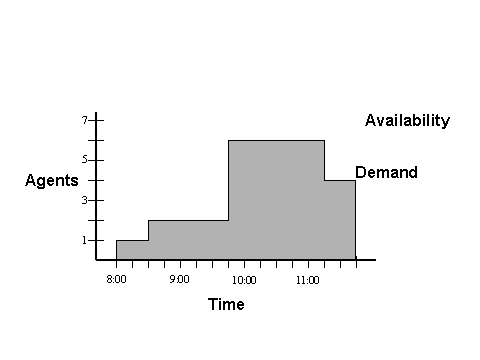
Figure 1. Sample Workload and Availability Graph.
The potential for overstaffing is clearly evident, as there are more available agents (7) for this time period than the demand would otherwise require. In these situations, filler blocks may be scheduled, so that employees can perform filler tasks rather than overstaff a work area.
Filler Bocks can be imagined as rectangular shapes that must be fit into a schedule’s potential for overstaffing. You can define the size of these blocks by defining minimum and maximum lengths. Optionally, you can define a maximum number of people for the filler task, and demand that IC WFM schedule the maximum number of people for the filler task if it schedules any at all. For example, a filler task might require no less than 3 and no more than 4 hours, and require 3 agents. Block filler could not be scheduled, since there is no space that fits a 3-hour by 3-employee filler block.
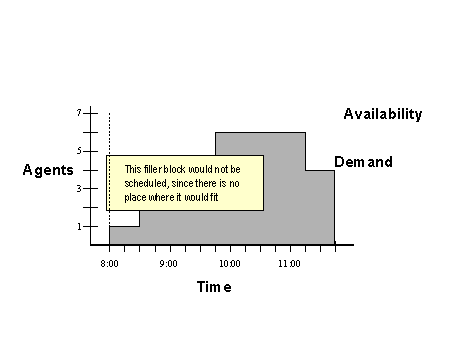
Figure 2. Filler Block that does not fit Demand / Availability Constraints.
This example and those that follow assume that meeting demand is more significant than completing block filler tasks. You can configure your implementation to ensure that filler blocks are scheduled at the expense of meeting demand, should a conflict between the two arise.
However, a filler block whose minimum length is shorter would fit, and therefore would be scheduled. The following diagram depicts a “schedulable” filler block of 3 agents by 1 and ½ hours.
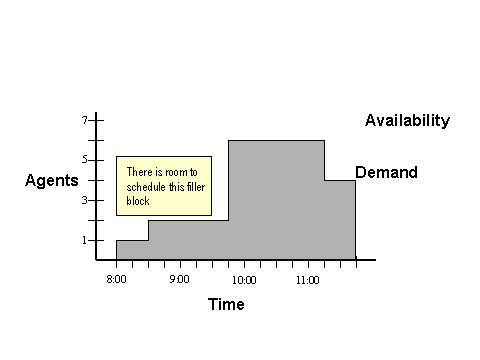
Figure 3. A "schedulable" filler block.
Likewise, a longer filler block might still be scheduled if there were no minimum number of employees attached to it. In our example, a filler block of just a single employee would span the entire range of the depicted interval.
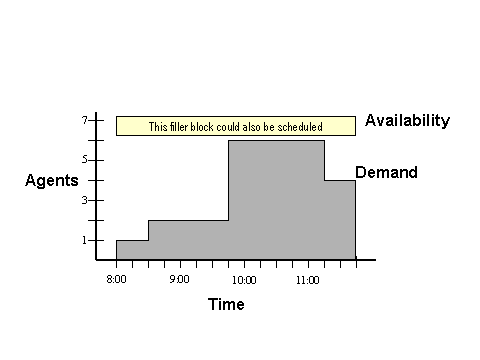
Figure 4. A longer schedulable filler block, with a single employee
Therefore, consider the following when defining filler block characteristics:
¡ Filler Blocks whose minimum lengths are shorter are more likely to be scheduled.
¡ Filler Blocks without minimum employee requirements are more likely to be scheduled
IC WFM can use shift segments with fillers to create a schedule that satisfies other constraints, such as minimum shift lengths, minimum hours per week, and contract periods. In periods where filler blocks can be scheduled (because there is the potential for overstaffing, and there are defined filler blocks that fit potential overstaffing periods), whether or not the filler is scheduled is determined by the cost of scheduling filler tasks versus meeting workload and other constraints.
Contracts
When setting up contract hours, you must ensure that the contract itself is feasible. IC WFM cannot meet an infeasible contract, like the following:
¡ Minimum hours per week: 24
¡ Maximum hours per week: 30
¡ Minimum hours per contract period: 100
¡ Maximum hours contract period: 120
¡ Length of contract period: 3
It is mathematically impossible to meet all the constraints defined by this contract. As such, IC WFM will ignore it. Minimum contract hours should be less than or equal to the product of maximum hours per week times weeks.
To encourage IC WFM to try to meet contract requirements, set the cost of the contract equal to the workload cost.
Minimum Gap Between Shifts
Minimum Gap Between shifts represents the minimum time between the end of one shift and the beginning of the next. In 24-hour environments, it is essential to define this cost in order to avoid scheduling agents for unreasonable shift intervals. Set this cost to 10,000 to ensure that IC WFM factors this constraint into schedule calculations.
Reluctance
Reluctance represents the preferences employees have for one work area over another. To ensure that that IC WFM honors reluctance profiles and definitions, use the following guideline:
Reluctance Cost + Pay Rate > Workload Cost
If the schedule is tightly constrained (perhaps because of a large percentage of fixed shifts), changing reluctance cost values will have little effect. The IC WFM calculation engine must have some “maneuvering room” in order to honor reluctance.
Preferences by Seniority
You can configure IC WFM to honor the most senior employees’ preferences before the preferences of more recently hired employees. Follow these guidelines:
· Seniority preference rank only affects employees who have preferences. Seniority rank will be defaulted to the least senior person if no preferences are received.
· If your organization is willing to overstaff in order to meet seniority preferences, unmet preference cost (the penalty for not assigning shifts during preference periods) should be greater than pay rate. Otherwise, unmet preference cost should be set to 0 to keep IC WFM from overstaffing to meet preferences.
· Outside preference cost (the penalty for assigning shifts outside of preference periods) should be less than workload cost to ensure that demand is covered. This configuration still ensures that the most senior people will have as much of their preferences met within the demand time as possible. In general, outside preference cost should be about half of the workload cost.
Day Parts
To ensure optimal coverage of both workload and filler, the cost of violating day parts should be less than workload or filler costs. If meeting day part requirements is more important than meeting workload or filler demand, then assign a day part cost that is higher than workload or filler costs.
The recommended guideline for cost assignment is:
Day Part Cost = ½ (the lower of workload or filler costs)
Non-Transition Zones
To ensure optimal coverage of both workload and filler, the cost of violating non-transition zones (NTZ’s)should be less than workload or filler costs. If meeting NTZ requirements is more important than meeting workload or filler demand, then assign an NTZ cost that is higher than workload or filler costs.
The recommended guideline for cost assignment is:
NTZ Cost = ½ (the lower of workload or filler costs)
Setting Costs to Handle Understaffing
Understaffing can often be the result of the following conditions:
· A lack of employees to handle demand
· A lack of qualified employees to handle special workloads
· A lack of sufficiently skilled employees to meet minimum average skill requirements
· A work area that has significantly fewer hours of workload in comparison with other work areas.
· Demand that has a lot “spikes”
A demand “spike” is any period of time, shorter than the minimum shift length, of increased demand.
Staffing to Highly Variable Demand
If your demand curve has a lot of spikes in it, the resulting schedule could have unacceptable understaffing. In that case, the understaffing could be the result of IC WFM’s inability to violate minimum shift lengths. To deal with this problem, you could:
· Shorten the minimum shift or segment length. Since minimum shift and shift segment lengths are Hard constraints, IC WFM will honor those constraints before meeting demand (a Soft constraint).If IC WFM can schedule shifts or shift segments that are the same duration as the spikes, it can add available employees to handle the increased load as necessary.
· Decrease the cost of overstaffing. If the expensive of overstaffing is not excessive, IC WFM can have employees work through the spikes into periods of lesser demand.
Staffing to Flat Demand
Ensure that workload cost is higher than the highest pay rate plus any reluctance costs for the job.