Views in SAPconnect Administration
Use
SAPconnect administration provides various views of your communications environment. Each view shows the environment from a certain viewpoint, so that you can have an overview of the area that you want to check.
Activities
To switch between
views, choose View ® System status, Routing,
Nodes or Jobs in SAPconnect administration (transaction SCOT).
You can print the current view by choosing  .
.
Features
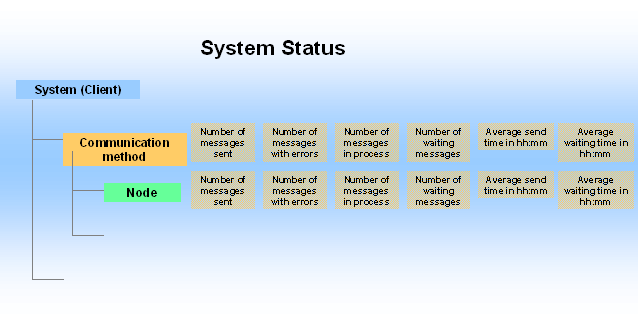
The system status view (View ® System Status) shows you the status of messages that were sent during the specified evaluation period. The status overview is displayed on three levels:
· For each client
· For each communication method in a client
· For each node for a communication method
The display also tells you if a communication method is not available in your system or is processed using another communication type. You can vary the period for which the view is displayed.
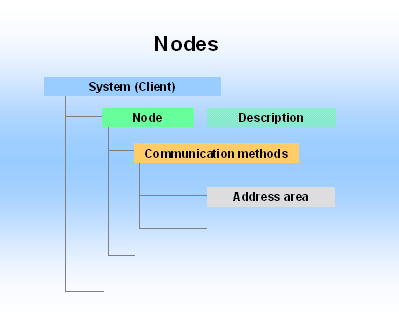
 The nodes view (View ®
Nodes) shows an overview of the nodes that exist in your
communication environment. For each node the communication methods and address
areas are specified that this node processes. In addition, the amount of time
that, on average, the messages have waited in the send queue for and the
amount of time that the transfer of messages from the queue to the external
communication systems has taken is also displayed.
The nodes view (View ®
Nodes) shows an overview of the nodes that exist in your
communication environment. For each node the communication methods and address
areas are specified that this node processes. In addition, the amount of time
that, on average, the messages have waited in the send queue for and the
amount of time that the transfer of messages from the queue to the external
communication systems has taken is also displayed.
The routing view (View ® Routing) shows, for each communication method, which address areas are processed by which node. The display also tells you if a communication method is not available in your system or is processed using another communication type.

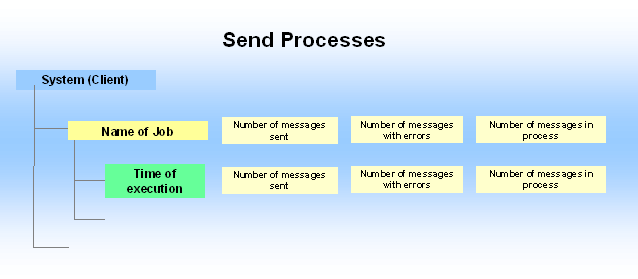
The jobs view (View ®Jobs) shows you the status of the send processes that were started in the specified evaluation period. The status overview is displayed on three levels:
· For each client
· For each scheduled job
· For each individual send process of a periodical scheduled job.
You can vary the period for which the view is displayed and whether you want all jobs to be displayed or to hide those that have not forwarded any messages.

For a quick overview, a simplified job overview is available. To display this simplified view, choose Settings ® Send Jobs or choose the job symbol from the toolbar. The view shows you each scheduled job, together with its address type, period, planned start, number of work processes, server group and status. You can schedule a job from both views.