
 Outbound Processing with WM

Purpose
You can use this business process for your outbound processing with warehouse management (WM). Outbound processing comprises of the preparation of goods to be delivered from a warehouse to a receiving location.
Outbound processing starts with an outbound delivery that has been created either on the fly, or that is more typically based on reference documents such as sales orders or stock transport orders.
Outbound processing in warehouse management typically comprises the following activities:
· The notification of goods to be supplied from a warehouse to a customer for which the outbound delivery serves as the reference document
· Picking (with the WM transfer order in this example)
· Packing
· Physical Goods Issue in warehouse (that is movement to the Goods Issue Zone)
· Loading
· Goods issue and goods issue posting to Inventory Management (IM)
· Advising of advanced shipping notifications to business partners
· Obtaining a Proof of Delivery (POD) from the receiving business partner
Process Flow
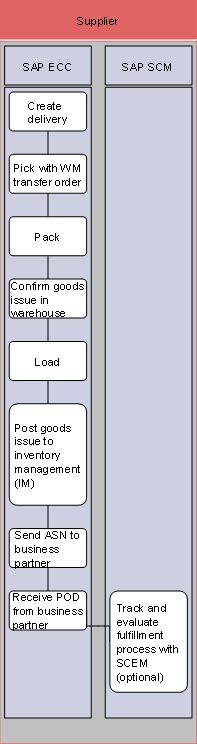
...
1. Create delivery (SAP ECC)
The outbound delivery contains essential information to enable the warehouse to meet outbound fulfillment objectives. It also contains business partner information, data as to materials required and their quantities ordered. The outbound delivery also stipulates delivery deadlines, delivery points and conditions, mode of transport and delivery terms.
An outbound delivery is typically created based on a reference document, such as a sales order (see also Sales Order Processing Process Master), purchase order, and stock transport order, but may also be created on the fly (that is without reference to a reference document).
In its role as central object of the goods issue process, the outbound delivery supports all shipping activities including picking, packing, transportation, and goods issue. During the outbound delivery process, shipping-planning information is recorded, status of shipping activities is monitored, and data accumulated during shipment processing is documented. When the outbound delivery is created, the shipping activities, such as picking or delivery scheduling, are initiated, and data that is generated during shipment processing is included in the delivery. For more information, see Delivery Creation.
2. Pick with WM transfer order (SAP ECC)
Based on the outbound delivery data and subject to the configured picking strategies and activities, a pick transfer order (TO) is created that stipulates which materials in which quantities are to be moved from which source to which destination location. For example, a material required may be subject to a Value Added Service (VAS) if so determined by applied conditions.
In the simplest case, this entails the movement from a storage bin location to the Goods Issue Zone. A simple pick execution in a Handling Unit managed warehouse could create a pick transfer order from a storage bin, assign a pick handling unit, and then move the picked items to the Goods Issue Zone or Area.
For more information, see Picking.
3. Pack (SAP ECC)
Packing the picked items and repacking is frequently required if, for example, an outbound delivery mandates items to be picked:
¡ Delivery items have either more or less quantity than the storage units of these items in the warehouse
¡ Delivery items of different material are to be packed together on to one pallet for transport
¡ The delivery quantity does not fit one pallet and needs to be split over several pallets of equal quantity, with the remaining quantity to be packed in a carton
Packing is part of delivery and shipment processing. When you process a delivery, you can select delivery items for packing and assign them to handling units. You could, for instance, pack delivery items in boxes, pack the boxes on pallets for delivery to the customer, and load the pallets onto a truck.
For more information, see the SAP Library under mySAP Business Suite ® SCM Processes and Business Scenarios ® Generic SCM Processes ® Warehousing ® Outbound Processing ® Packing.
4. Confirm goods issue in warehouse (SAP R/3 Enterprise).
Upon transfer order confirmation of the picked or picked-and-packed items contained in the delivery to the Goods Issue Zone (916), Goods Issue is confirmed. Upon Goods Issue, confirmation, and posting of the outbound delivery is updated.
For more information, see Packing.
5. Load (SAP ECC)
The delivery items in the Goods Issue Zone can now be moved onto a truck or into transport equipment, such as a container using an RF (LE-LMOB) loading transaction.
Using an RF device, you can do the following:
¡ Load handling units (HUs) on – or unload HUs from – a means of transport, if you know the number of the shipment to which the HUs are assigned.
¡ Load HUs on – or unload HUs from – a means of transport, if you know the number of the delivery to which the HUs are assigned.
¡ Perform system-guided loading. You enter a shipment number and the system proposes the load sequence of the HUs assigned to it. In the case of nested HUs, you can enter the higher-level HU, and the respective lower-level HUs are loaded automatically.
Vehicle or transport equipment sealing activity is also supported.
For more information, see Loading.
6. Post goods issue to inventory management (IM) (SAP ECC)
Upon transfer order confirmation of the picked or picked-and-packed items contained in the delivery to the Goods Issue Zone (916), Goods Issue is confirmed and posted to Inventory Management (IM). Upon Goods Issue, confirmation and posting of the outbound delivery is updated. As soon as the goods leave the company, the shipping business activity is finished. This is illustrated using goods issue for outbound deliveries.
For more information, see Goods Issue.
7. Send ASN to business partner (SAP ECC)
Following the Outbound delivery update based on loading confirmation, the business partners (receiving customer, logistics service provider, and trucker or shipping company) can receive an Advance Shipping Notification (ASN) announcing the dispatch. It advises the impending arrival of the delivery. An ASN can be either sent electronically by EDI, XML, or non-electronic means.
In the EDI scenario, you create a message with the delivery which is sent to the customer via EDI as a shipping notification. On your side, the delivery can be initiated automatically by a forecast delivery schedule from the customer, for example.
An Advanced Shipping Notification (ASN) contains logistically relevant data, such as date and time of delivery, material, quantities, and packing information.
For more information, see ASN to Business Partner.
8. Receive POD from business partner (SAP ECC)
The receipt of a Proof of Delivery (POD) marks the end of outbound processing and has the objective of confirming the arrival of the dispatched goods and their associated conditions (damage, differences in orders shipped, ordered, and so on).
A POD is also an instrument involved in business processes in which an invoice is issued only after the customer has confirmed the delivery's arrival. In addition to the proof of delivery itself, you can also record the POD date, POD time, the actual quantity that arrived, and the reason for possible differences in quantities. This is especially important for deliveries in which the delivery quantity varies because of the nature of the goods or for which the exact delivery quantity is unknown from the start.
You can record proofs of delivery in inbound deliveries for which your vendor has sent shipping notifications and send them via IDoc. You have three different options for recording differences and reasons for deviation:
¡ Automatic creation
When you change quantities in an inbound delivery, the system generates the POD data, including the difference quantity, and standard reason in the background. In this case, you cannot change this data or create other data manually.
¡ Partially-automated creation
When you change quantities in an inbound delivery, an input screen appears with the POD data that was generated by the system as suggested values. You can use this screen to add other data or change the reasons manually.
¡ Manual creation
When you change quantities in an inbound delivery, an input screen appears in which you must enter all POD data manually.
For more information, see POD from Business Partner.
9. Track and evaluate process with SCEM (SAP SCM) (optional).
Optionally, you can track and evaluate the process in the Supply Chain Event Management (SCEM) as explained
For more information about SCEM, see Fulfillment Visibility as well as the SAP Library under mySAP Business Suite ® SAP Event Management (SAP EM)® Supply Chain Coordination ® Uses of Supply Chain Event Management and Processes in Supply Chain Event Management.