
 Manage Data Captured Using DB
Capturer
Manage Data Captured Using DB
Capturer

Purpose
This process describes how to capture data in your SAP E-Commerce Web shop using DB Capturer and analyze the captured data in SAP Business Information Warehouse (SAP BW). It also describes how to manage data after it has been uploaded to SAP BW.
Prerequisites
You have installed SAP E-Commerce and SAP BW. In addition:
If You Want to |
Then |
Perform Web event capturing with SAP E-Commerce and DB Capturer |
Install SAP E-Commerce with B2C or B2B scenario. For more information on installing SAP E-Commerce, see the installation guides on the SAP Service Markeptplace at service.sap.com/crm-inst → Installation and Upgrade Guides → mySAP Business Suite Applications → mySAP CRM → SAP CRM 2006s (with SAP CRM 5.1) → CRM Server and Standalone Components. For more information on E-Commerce components and functions, see the SAP Library under Documentation → mySAP Business Suites → SAP Customer Relationship Management → mySAP Customer Relationship Management → Components and Functions → E-Commerce. |
Use UD Connect to upload the business events from database to BW |
You need to install BI JDBC connector on SAP Web AS Java 7.00 (or higher). For more information, see SAP Help Portal under Documentation → SAP NetWeaver → SAP NetWeaver 2004s → SAP Library → SAP NetWeaver by Key capability → Information Integration by Key Capability → Business Intelligence → Data Warehousing → Data Acquisition → Transferring Data with UD Connect. |
Use DB connect to upload the business events from database to BW |
You need to install database shared library (DBSL) on SAP BW. For more information, see SAP Help Portal under Documentation → SAP NetWeaver → SAP NetWeaver 2004s → SAP Library → SAP NetWeaver by Key capability → Information Integration by Key Capability → Business Intelligence → Data Warehousing → Data Acquisition → Transferring Data with DB Connect. |
Perform analyses with SAP Business Information Warehouse (BW)
|
Install SAP BI content for E-Analytics This means SAP BI 7.0 and higher versions including: ● Web Analysis This involves analysis of event data ● Web Site Monitoring This involves technical analysis of Web shop For more information, see SAP Help Portal under Documentation → SAP Netweaver → BI Content → Customer Relationship Management → CRM Analytics → E-Analytics.
|
Process Flow
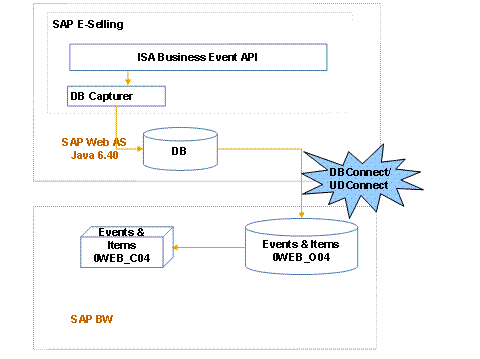
1. Capture Data in SAP E-Commerce
The SAP E-Commerce Web shop contains a set of predefined business events that are specific actions executed by the user in the Web shop. These actions can be identified and recorded. While navigating through the Web shop a user might trigger one of these business events, for example by logging on to the Web shop, viewing a product, placing a product in the shopping basket or placing an order. This information is captured in the SAP E-Commerce Web application via DB Capturer. It is integrated with the SAP BW and has the following advantages:
○ Requires very minimal customizing effort
○ Enables you to directly upload database content into BW, without any normalization or de-normalization of event data
○ Helps to avoid possible performance bottlenecks that might be caused with text file upload in BW (due to parsing overhead)
To configure the DB Capturer in SAP E-Commerce Web shop:
...
a. Go to Extended Configuration Management (XCM), http://<servername>:<port>/<application>/admin.
b. Select Extended Configuration Management (XCM) Administration
c. Go to General Application settings → customer → wec
d. Click on Component Documentation and maintain the configuration as required.
2. Analyze Data Using SAP Business Information Warehouse
A new DataSource needs to be created and it should be assigned to the InfoSource 0WEB_EVENTS_DB.
a. Create a new DataSource
Business event data captured using DB Capturer is uploaded into SAP BW via UD Connect (Universal Data Connect) or DB connect. You have an option to choose between one of these two technologies:
■ Data Extraction Using UD connect :
i. Create an RFC destination from ABAP to JCO RFC server program running on SAP Web AS Java server.
ii. Create a UD Connect source system.
iii. For the source system created above, create a DataSource from the source database table.
For more information about how to configure the SAP Web AS Java server and BI Java components, see SAP Help Portal under Documentation → SAPNetWeaver → SAP NetWeaver 2004s → SAP Library → SAP NetWeaver by Key capability → Information Integration by Key Capability → Business Intelligence → Data Warehousing → Data Acquisition → Transferring Data with UD Connect.
■ Data Extraction using DB connect :
...
i. Create a DB connect source system.

Make sure that database shared library is installed in SAP BW for the source database.
ii. For the source system created above, create the DataSource from the source database table.
For more information about how to create a DataSource connecting to the database, see SAP Help Portal under Documentation → SAPNetWeaver → SAP NetWeaver 2004s → SAP Library → SAP NetWeaver by Key capability → Information Integration by Key Capability → Business Intelligence → Data Warehousing → Data Acquisition → Transferring Data with DB Connect..
b. Create data transformation process between DataSource and InfoSource Web Analysis Event Data (technical name: 0WEB_EVENTS_DB) and activate the transformation.
Choose the default transformation mapping proposed by the system.
c. Create an InfoPackage and trigger the upload.
Data is uploaded into Persistent Staging Area (PSA).
d. Upload data from PSA to Data Store Object 0WEB_004.
Select create data transfer process for 0WEB_004, fill out the required fields, and trigger the update.
e. Update Data Store Object 0WEB_004 to InfoCube 0WEB_C04.
Select Update 3.x Date to Targets and trigger the upload.
f. Use the Web analytics business content of SAP BW for performing analysis.
3. Manage Captured Data after Upload to BW
Since Web analytics data volume on the database could grow enormously based on the traffic in the Web shop. There is a task delivered with SAP E-Commerce application which enables you to delete the data after it has been uploaded to SAP BW, on a regular basis.
a. Plan the frequency of the data cleanup task:
...
i. Observe the data capture rate in the database.
ii. Plan the upload frequency to BW appropriately, for example, once in a day
iii. Based on the frequency of upload to BW, configure the data deletion task.
b. To configure the data deletion task:
...
i. Go to XCM, application administration user interface. For example, http://<servername>:<port>/<application>/admin.
ii. Click on Scheduler Administration
iii. Create a new task by choosing Create
iv. Provide com.sap.isa.isacore.BusinessEventDBCleanupTask as Task Implementation class.
v. Configure the task based on business demands. For more information, see example.
vi. Go to Extended Properties tab and configure the task based on your requirements.

This example provides a rough estimate as to how frequently content needs to be uploaded. It also provides an estimate on how frequently the uploaded content should be deleted.
Number of customer orders/hr ~ 50
Each order consists of ~20 events (LOGIN + LOGOUT + 4 ADD/REMOVE/UPDATE_TO_BASKET + PLACE_ODER + 10 BROWSE_CATALOG).
Events/hr. ~ 1000, that is 1000 records/hr)
Number of data records/day ~ 24000.
Average record length ~ 836 Bytes.
Expected data volume of the captured content ~ 19 MB/day
If the allowed data volume on the database is 100 MB, data can be uploaded once every 3 days to BW. And deleted from the database once every 4 days.
After the successful configuration of the task, content will be deleted periodically based on the assumption that the content has been uploaded into BW. This will ensure the proper functioning of the DB Capturer.
See also: