
 Managing Workforce Forecast – Open
Access
Managing Workforce Forecast – Open
Access

Purpose
You create a forecast to calculate your expected overall business volume and workload. The process uses your activity together with parameters and other historical information to establish trends. You then have the opportunity to tune this data to ensure that it accurately reflects the current business situation. After the volume forecast is generated, it projects the workload, the number of employees needed per work area for each quarter hour.
Process Flow
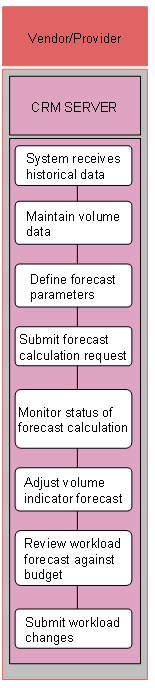
The following process takes place in SAP CRM.
1. System stores historical data
The system uses historical data for forecasting. You must load this historical data from your internal systems before forecasting.
2. Start new forecast
The location manager selects the week for which the forecast is to be generated when choosing Workforce Deployment ® Forecasts from the store manager’s portal.
3. Select forecast parameters
You enter the forecast parameters within the forecast parameters page by choosing Workforce Deployment ® Forecasting ® Forecast Parameters. Forecast parameters include such information as:
a. The indicator groups you want to include in the forecast
b. The type of forecast, either a trended forecast or a weighted average forecast
c. The week (or weeks) of historical data
d. Specify the weight (that is, the importance) to be applied to each day selected week
e. Special history to be included
f. Save the collection
You repeat these steps until all indicator groups have been put into a collection. If you choose to use a forecast template, the information from the template replaces what you would enter for steps a through e above.
4. Submit forecast calculation request
You launch the request for the forecast. The system generates a volume forecast and a demand forecast based on the entered parameters. The volume forecast drives the expected business activity; the demand forecast drives the workload.
5. Monitor status of forecast calculation
You monitor the status of the forecasting calculation request through the status page by choosing Workforce Deployment ® Forecasts ® Status.
6. Review volume indicator forecast
After the forecast is completed, you review the volume indicator forecast by accessing the view/modify forecast page by choosing Workforce Deployment® Forecasts ® View/Modify Forecast. This is also where you update the forecast with your changes.
...
7. Review workload
You can also review the workload based on the volume forecast by choosing Workforce Deployment ® Forecasts ® Workload.