
 Providing
Services
Providing
Services 
The Jar files provide predefined services that are required for executing object-based navigation.
Searching for Required Jar Files
Search for the following Jar files locally on your portal or have someone with appropriate administrative authority give you them.
1.
C:\usr\sap\<<Name of J2EE Engine>>\JC100\j2ee\
cluster\server0\apps\sap.com\irj\servlet_jsp\irj\
root\WEB-INF\portal\portalapps\com.sap.portal.unification.
objectbasednavigation\lib\com.sap.portal.unification.
objectbased
navigation_api.jar
2.
C:\usr\sap\<<Name of J2EE Engine>>\JC100\j2ee\
cluster\server0\apps\sap.com\irj\servlet_jsp\irj\root\
WEB-INF\portal\portalapps\com.sap.portal.unification.
objectbasednavigationservice\lib\com.sap.portal.unification.
objectbasednavigationservice_api.jar
3.
C:\usr\sap\<<Name of J2EE Engine>>\JC100\j2ee\cluster\
server0\bin\ext\com.sap.security.api.sda\
com.sap.security.api.jar
4.
C:\usr\sap\<<Name of J2EE Engine>>\JC100\j2ee\cluster\
server0\apps\sap.com\irj\servlet_jsp\irj\root\WEB-INF\portal\lib\
prtapi.jar
Importing Jar Files
...
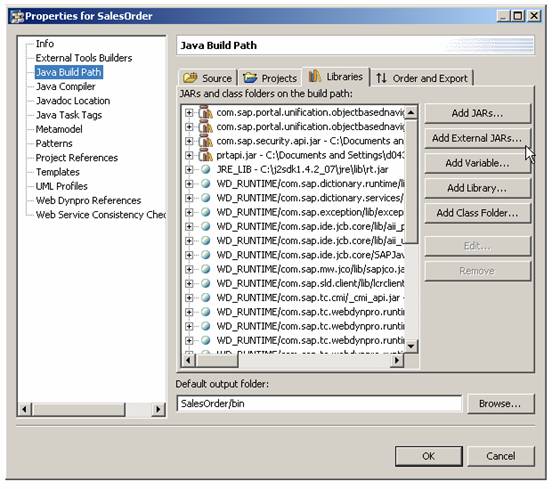
1.
 In the next step, you can define the
authentication.
In the next step, you can define the
authentication.