
 Creating a Client Servlet
Procedure
To create a servlet that calls the deployable proxy, proceed as follows:
...
1. In the EJB Explorer tab of the Web Services perspective, choose File ® New ®Project ® J2EE ® Web Module Project.
2. In the dialog window that appears, enter the name of the Web project and choose Next ® Finish.
3. Select the name of the WEB project and choose New ® Servlet from the context menu. Enter the required data, select which methods of the servlet you have to implement and choose Finish.

4. Add a Web service client API.
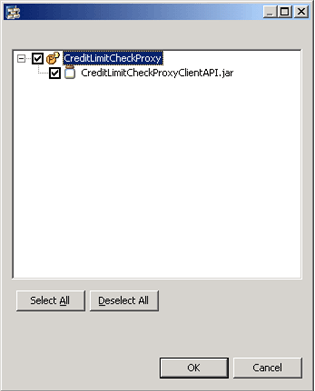
Select the name of the project and choose Add Web Service Client API Library from the context menu. This enables you to use the client API of the deployable proxy. Choose OK.
5. Implement the servlet.
Open your Web project and then open the source section. You will find the servlet that was created under the package you defined in step 3. Double-click the file to open the source screen.
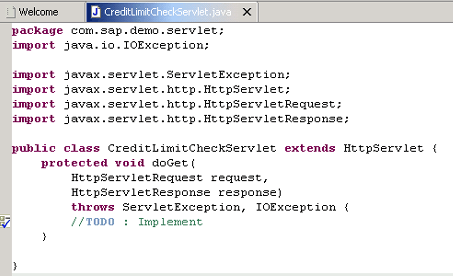
Implement the servlet:
a. Create an instance of InitialContext for accessing the proxy bound in the J2EE Engine Naming System. Use the InitialContext constructor without any parameters:
InitialContext ctx = new InitialContext();
b. Look up the proxy using the context name with which it is bound in the Naming System. It must contain java:comp/env prefix
c. Get a logical port for accessing a service endpoint. You can find the available service endpoints in your Proxy Project; under the proxy you created, open the SEIs.
To get the logical port, use:
CreditLimitCheckViDocument port = (CreditLimitCheckViDocument) obj.getLogicalPort(CreditLimitCheckViDocument.class);
Alternatively, you can specify which logical port to get by passing the name as a parameter:
CreditLimitCheckViDocument port = (CreditLimitCheckViDocument) obj.getLogicalPort("DEFAULTPort_Document", CreditLimitCheckViDocument.class);
d. Invoke the business method
CreditLimitCheckResponse result = new CreditLimitCheckResponse();
result = port.creditLimitCheck(request.getParameter("idNumber"));

package com.sap.demo.servlet; import java.io.IOException; import java.io.PrintWriter;
import javax.naming.InitialContext; import javax.servlet.ServletException; import javax.servlet.http.HttpServlet; import javax.servlet.http.HttpServletRequest; import javax.servlet.http.HttpServletResponse;
import com.sap.demo.proxy.CreditLimitCheck; import com.sap.demo.proxy.CreditLimitCheckViDocument; import com.sap.demo.proxy.types.CreditLimitCheckResponse;
public class CreditLimitCheckServlet extends HttpServlet { protected void doGet(HttpServletRequest request, HttpServletResponse response) throws ServletException, IOException { try { InitialContext ctx = new InitialContext(); CreditLimitCheck obj = (CreditLimitCheck) ctx.lookup("java:comp/env/CreditLimitCheckProxy"); CreditLimitCheckViDocument port = (CreditLimitCheckViDocument) obj.getLogicalPort("DEFAULTPort_Document", CreditLimitCheckViDocument.class); CreditLimitCheckResponse result = new CreditLimitCheckResponse(); result = port.creditLimitCheck(request.getParameter("idNumber")); if (result.getScore() == null) { result.setScore(" "); } if (result.getCreditLimit() == null) { result.setCreditLimit(" "); } if (result.getLimitCurrency() == null) { result.setLimitCurrency(" "); } if (result.getValidTo() == null) { result.setValidTo(" "); } } |
6. Add JNDI mappings
You have to define a reference from your servlet to the J2EE Engine interface or service components. This way, components of your Web application can look up server components and use their functions. Alternatively, you have to create a reference from the servlet to the proxy.
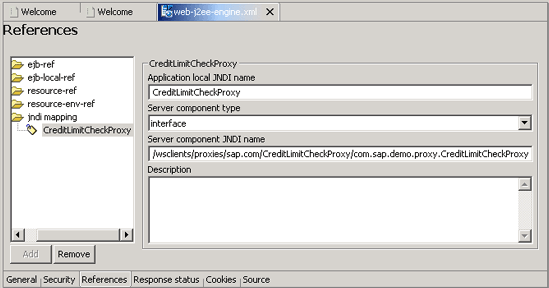
Open the web-j2ee-engine.xml file and choose References. Then, select the JNDI mapping folder and choose Add to add a new server component reference. Enter the required data:
a. Application local JNDI name – This is the name that you use in the servlet code to look up the server component. It is relative to the java:comp/env context.
b. Server component type – Choose the type of the reference. The types can be service or interface depending on the referenced component type.
c. Server component JNDI name – Enter the name with which this component is bound to the J2EE Engine Naming System. The following convention is used:
/wsclients/proxies/<ProviderName>/<ApplicationName>/<ProxyName>
<ApplicationName> is the name of the proxy application generated during the build of the Enterprise Archive file of the Deployable Proxy Project. The application automatically gets the same name as specified for the proxy project. If the application name contains slash (/), it must be replaced with a tilde (~).
<ProxyName> is the fully-qualified proxy name, that is, the proxy package name and the proxy application name.
d. Optionally, enter a description in the Description field.
7. Add a URL Pattern
Open web.xml, choose Mapping ® Servlet Mappings followed by Add. In the dialog box that is displayed, select your servlet and choose OK. Enter “/” in the URL Pattern field.

8. Build the Web archive (WAR) file.
Select the Web project and choose Build Web Archive from the context menu.
9. Create an Enterprise Application Project from which the servlet can be generated in the form of an EAR file and deployed.
Choose File ® New ® Project ® J2EE ® EnterpriseApplication Project. Enter the required data and choose Next. In the dialog box that is displayed, select the Web project to create a reference to it and choose Finish.
10. Create a reference to the proxy.
After step 6, you have defined the reference that is to be bound to your Web application’s naming environment. However, to be able to load classes of the referenced proxy interface, you must also set a reference at classloader level. That is, you must set a reference to the corresponding server component in the application-j2ee-engine.xml descriptor in your Enterprise Application Project. To do this, open the application-j2ee-engine.xml editor of the created EAR project and choose General ® References ® Add ® Create New.
Enter the corresponding data:
a. Reference target – this is the component to which you want to create a reference.
b. Reference type – hard means that your application will not be started if the component is not started. Weak means that it will be started whether the proxy is deployed or not, but it will not be useable until the proxy is started.
c. Reference target type – this is the type of the component to which you are creating a reference.
d. Provider Name – enter sap.com

11. In the EAR project, select application.xml ® Modules and select the WAR file from the modules list. In the Context Root, enter a new value.

12. Build and deploy the EAR file.
Select the EAR project and choose Build Application Archive from the context menu. Then select the generated EAR file and choose Deploy on J2EE Engine from the context menu.
You can test the servlet under http://<host>:<port>/<contextRoot>.