
 Specifying Authentication for Access to the
Web Service
Specifying Authentication for Access to the
Web Service 
Use
In the last step, you configured your application to use authentication, which for Web Dynpro, is the use of logon tickets. The next step is to activate authentication on the Web service.
Prerequisites
|
|
The J2EE perspective is displayed in the SAP NetWeaver Developer Studio. |
|
|
The quick car rental projects are displayed in the J2EE Explorer. |


Procedure
...
1. If you are not already in working in the J2EE perspective, then switch to it.
2. Expand the J2EE_QuickCarRentalEjb project.
3. Select Web Service Configurations with a double-click.
The WS Deployment Descriptor sheet appears.
4. Expand Web Service Configurations ® QuickCarRentalService ® Config1.
5. Select Security.
The security options appear in the right pane.
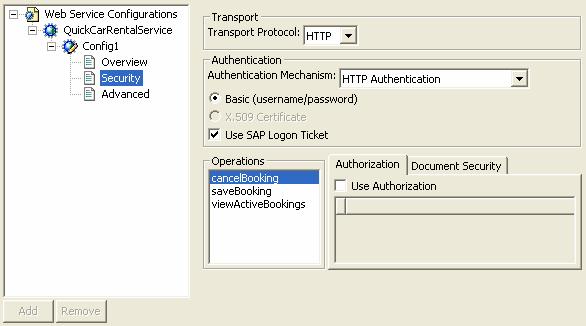
6. Select the Authentication Mechanism: HTTP Authentication.
7. Select the Use SAP Logon Ticket option.
The Basic (username/password) option is selected automatically.

Because the permissions will be checked in the EJB methods in the backend, the Web service will not require any authorizations. Document security is also not needed for this tutorial.
See the figure below.
8. Save the data.
Result
The Web service will also require authentication.
Next Step: