
 Binding the Table to the Context
At the current time, the contexts of the views and the component controller are bound with one another. To be able to display the data in the user interface, you will – in the next step – bind the table with the context of its view.
Procedure
1. If you have not done so already, double-click the TableCompBasketView and choose the tab Layout.
2. With the right mouse key, click the table ShoppingBasket and choose Create Binding.
3. Select the required value attributes ARTICLE, COLOR, PRICE, QUANTITY, and TOTAL_PER_ARTICLE and confirm by pressing Next >. In the next window, you can adapt the layout of the table.
4. Change the editor of the value attribute QUANTITY to InputField and confirm with Next >.

5. In the lower window, go to the Properties tab and change the property visibleRowCount of the table to 10 in order to be able to always display 10 lines.

You can process the titles of the columns by selecting the Header in the Outline under the required column, and then adapting its text property.
6.
Save the
current status of your project by choosing  Save all
Metadata.
Save all
Metadata.
Result
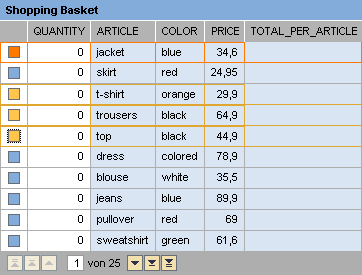
After you have started the application with Deploy New Archive and Run in the context menu of the application TableApp, you will see the table displayed below.
When the table was bound to the context, a column was generated for each value attribute and the data can now be displayed. The lead selection of the component controller enables you to select several data records.
Next Step:
Creating and Binding the Detailed Form