
 Implementing the View Composition
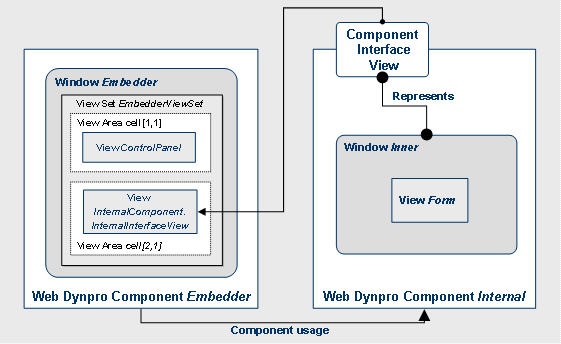
Now you have determined the basic project structure, which basically consists of two Web Dynpro components, you can implement the view composition of the application. To include the visual representation of a Web Dynpro component B into the view composition of a Web Dynpro component A, you use the Component Interface View provided by B. This is the outer representation of a window within the Web Dynpro component B. If this window contains only a single view, the component interface view directly corresponds to this one view.
To embed this component interface view, the usage of Web Dynpro component B must be declared within Web Dynpro component A. The associated component interface view can then be integrated into the view composition of the embedding Web Dynpro component. Only after declaring a component usage at design time, can you program a creation of the corresponding Web Dynpro component at runtime.
The eventing example application is based on a simple view composition: the component interface view of the Internal Web Dynpro component is integrated into a view area that belongs to the window of the embedding Web Dynpro component Embedder. The component interface view is called InternalComponent.InternalInterfaceView, because the usage of the Internal Web Dynpro component within the embedding Web Dynpro component is called InternalComponent.
Procedure
The visual implementation of the view composition using the Navigation Modeler is divided into the following steps:
· Defining the component usage: this defines the usage of the Internal Web Dynpro component within the Embedder Web Dynpro component.
· Integrating a view set consisting of two view areas into the window that is part of the Embedder Web Dynpro component.
· Embedding views into two view areas.
Defining Component Usage
...
1. Switch to the Web Dynpro Explorer and select the node WebDynpro_Eventing ® Web Dynpro ® Web Dynpro Components ® Embedder ® Used Web Dynpro Components.
2. In the corresponding context menu, choose Add Used Component.
3. In the wizard that appears, enter InternalComponent as the name for the used Web Dynpro component.
4. Choose Browse… to select the Web Dynpro component to be used.
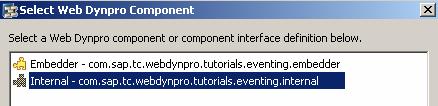
5. Select the Internal Web Dynpro component and choose OK to confirm.
6. Under Lifecycle, select manual.
7. To complete the component usage definition, choose Finish.
Integrating a View Set in a Web Dynpro Window
...
...
1.
In the Web Dynpro
Explorer, choose WebDynpro_Eventing ® Web Dynpro
® Web Dynpro Components ® Embedder
® Windows
®
Embedder or choose  Open Navigation
Modeler in the relevant context
menu. The Navigation Modeler is opened in the
Diagram perspective view.
Open Navigation
Modeler in the relevant context
menu. The Navigation Modeler is opened in the
Diagram perspective view.
2.
In the left toolbar
of the Navigation Modeler, choose  Create Viewset. This is then shaded in grey.
3. Click anywhere in the Navigation Modeler work area.
4. Enter the name EmbedderViewSet for the new view set.
5. As the ViewSetDefinition, select the entry GridLayout and confirm with Finish.
6. In the Navigation Modeler, click on the title bar of the view set EmbedderViewSet to select it.
7. In the corresponding context menu, choose Properties.
8. Make the following settings:
¡ Properties – columns: 1
¡ Properties – rows: 2
Embedding Views in View Areas
Fill the view areas in the EmbedderViewSet with views as follows:
View Area |
View |
Default Property |
cell[1,1] |
ControlPanel |
true |
cell[2.1] |
InternalComponent.InternalInterfaceView |
true |
...
...
1. Switch to the Navigation Modeler again.
2.
In the
toolbar, choose  Embed View and move the mouse pointer
marked by a plus sign across the position in the upper view
area called cell[1,1] and click with the
mouse.
Embed View and move the mouse pointer
marked by a plus sign across the position in the upper view
area called cell[1,1] and click with the
mouse.
3. In the wizard, choose Embed Exisiting View and then Next.
4. In the table Embed View – Select View you want to embed, select the ControlPanel view and confirm with Finish.
Repeat this procedure for the component interface view of the Internal Web Dynpro component.
5.
Choose Embed View again and move the mouse
pointer across the lower view area named cell[2,1]. Click with
the mouse.
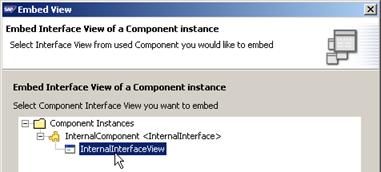
6. In the wizard, choose Embed Interface View of a Component instance and then Next.
7. Select the component interface view Component Instances ® InternalComponent <InternalInterface> ® InternalInterfaceView and confirm with Finish.

Make sure that the Form view is integrated into the window of the same name within the Internal Web Dynpro component.
Result
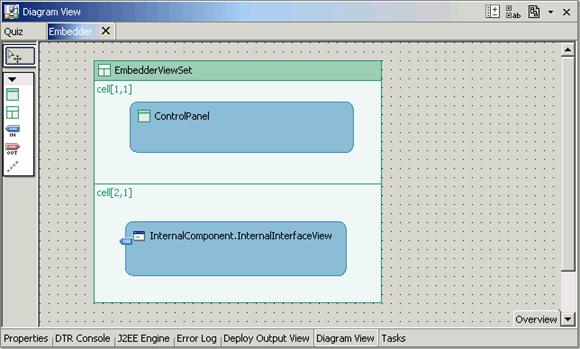
You have implemented the view composition of the eventing application and can now continue with the detailed design of the different view layouts.
In the Navigation Modeler, the view composition now looks as follows (with adjusted sizes):
 Proceed with Developing the
Internal Web Dynpro Component.
Proceed with Developing the
Internal Web Dynpro Component.