
 Dynamically Creating the Form
In every Web Dynpro view controller, method wdDoModifyView is implemented; it is called by the Web Dynpro runtime environment to modify the view layout. For all visible views, this takes place at a time immediately before the closing response rendering.
wdDoModifyView(…)contains the following parameters:
● firstTime of type boolean: This is only true when wdDoModifyView is called for the first time during the life cycle of the corresponding view.
● view: Reference to the view’s layout controller.
● wdThis: Reference to the IPrivate interface for the view controller. wdThis allows access to the controller context; it also allows triggering outbound plugs and events and access to action objects as well as controllers used.
● wdContext: Reference to the root context node of the view controller (for the current context).

In accordance with the MVC paradigms, this method should be used solely for dynamic creation of user interface elements. This means that you are not allowed - in the wdDoModifyView method - to call outbound plugs, issue messages, or write to the context. Furthermore, no access to user interface elements in the event handler code is allowed – that is, no references to user interface elements that were used in the controller code can be stored here.
Prerequisites
The layout of the DynamicView contains statically declared user interface elements. In the steps below, the form input fields for the user interface element InputGroup are added dynamically.

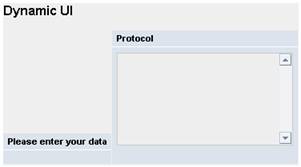
The example data for the form fields are stored in class SomeBackEnd.java. They contain information on how to dynamically build the following form:

Procedure
Since the user interface elements to be created dynamically have to be entered in the statically declared group InputGroup, you will require a pointer to these. An instance of class SomeBackEnd will also be required in order to access the information for the various user interface elements. This information is contained in the FieldDescriptor array and processed in a for loop. In addition to the respective user interface element, a corresponding text field is created. The text field and the user interface element are created at the end using addChild() of the InputGroup.
...
1. In the wdDoModifyView() method, add the following (still incomplete) source code:
wdDoModifyView() |
public static void wdDoModifyView(IPrivateDynamicView wdThis, IPrivateDynamicView.IContextNode wdContext, com.sap.tc.webdynpro.progmodel.api.IWDView view, boolean firstTime) { //@@begin wdDoModifyView
//Dynamic UI creation
// This flag is set to TRUE when this method is called the // first time. Since Web Dynpro runs stateful on the server // it is necessary to create the UI elements only once per // view instance. if (firstTime) { // get container for inputfields and labels IWDGroup theGroup = (IWDGroup)view.getElement("InputGroup");
// establish backend connectvity SomeBackEnd theBackend = new SomeBackEnd();
// loop through all fields for(int index=0; index<theBackend.getNumberFields(); index++ ) { // get field meta data SomeBackEnd.FieldDescriptor fld = theBackend.getField(index);
IWDUIElement theUIElement = null; IWDLabel theLabel = null;
//Create UI Elements:
//To be continued
// add UI elements to container theGroup.addChild(theLabel); theGroup.addChild(theUIElement); } } //@@end } |

Since they only need to be created once, the user interface elements are created in the if(firstTime)block .
Error source: The group that contains
the input fields must have the ID group.
In the following steps, the user interface elements are created on the basis of the information contained in FieldDescriptor. This includes input fields, radio buttons, a checkbox, and a selection list.
Creating the Input Field
2. To create an input field, add the following program code under the comment “// Create UI Elements”.
wdDoModifyView() |
// loop through all fields for(int index=0; index<theBackend.getNumberFields(); index++) { // get field meta data SomeBackEndTest.FieldDescriptor fld = theBackend.getField(index);
WDUIElement theUIElement = null; IWDLabel theLabel = null;
//Create UI Elements:
// create input field if(fld.getUIType().equals("InputField")) { IWDInputField theInput = (IWDInputField) view .createElement(IWDInputField.class,"inp"+index); // bind value to attribute created in wdDoInit theInput.bindValue("DynamicNode." + fld.getName()); theInput.setLength(20); theUIElement = theInput; } |
An input field is created with the ID: “inp” + (index of the “for“ loop) and length “20”. This field is mapped against the corresponding context attribute that is stored in the DynamicNode.
Error source: The dynamically created
source node must have the name DynamicNode; the context attribute must have
the name fld.getName().
Creating the Checkbox
3. To create the checkbox, enter the following program code in the wdDoModifyView.
wdDoModifyView() |
if(fld.getUIType().equals("InputField")) { ... } // create checkbox else if (fld.getUIType().equals("CheckBox")) { IWDCheckBox theCheckBox = (IWDCheckBox) view .createElement(IWDCheckBox.class,"inp"+index); // bind value to attribute created in wdDoInit theCheckBox.bindChecked("DynamicNode." + fld.getName()); theUIElement = theCheckBox; } |
A checkbox is created with the ID: “inp” + (index of the “for“ loop). This field is mapped against the corresponding context attribute that is stored in the DynamicNode.
Creating the Selection List
4. To create the selection list, enter the following program code:
wdDoModifyView() |
if(fld.getUIType().equals("InputField")) { ... } else if (fld.getUIType().equals("CheckBox")) { ... } else if (fld.getUIType().equals("DropDownByKey")) { IWDDropDownByKey theDropDown = (IWDDropDownByKey) view.createElement(IWDDropDownByKey.class, "inp"+index); // bind value to attribute created in wdDoInit theDropDown.bindSelectedKey("DynamicNode." + fld.getName()); theDropDown.setWidth("113"); theUIElement = theDropDown; } |
A selection list is created with the ID: “inp” + (index of the “for“ loop) and length 113px. This field is mapped against the corresponding context attribute that is stored in the DynamicNode. The context attributes for a dropdown list require a Simple type; this can be found in package com.sap.workshop.dynamicprogramming.simpletypes.
Creating the Radio Buttons
5. To create a radio button, enter the following program code in wdDoModifyView.
wdDoModifyView() |
if(fld.getUIType().equals("InputField")) { ... } else if (fld.getUIType().equals("CheckBox")) { ... } else if (fld.getUIType().equals("DropDownByKey")) { ... } else if (fld.getUIType() .equals("RadioButtonGroupByKey")) { IWDRadioButtonGroupByKey theRadioGroup = (IWDRadioButtonGroupByKey) view.createElement( IWDRadioButtonGroupByKey.class, "inp"+index); // bind value to attribute created in wdDoInit theRadioGroup.bindSelectedKey("DynamicNode."+ fld.getName()); //theRadioGroup.setColCount(2); theUIElement = theRadioGroup; } |
A group is created with the ID: “inp” + (index of the “for“ loop). This group is mapped against the corresponding context attribute that is stored in the DynamicNode.
Creating the Label and the Quick Info
All user interface elements have their own label and quick info text.
6. To dynamically create the label and quick info, enter the following program code:
wdDoModifyView() |
if(fld.getUIType().equals("InputField")) { ... } else if (fld.getUIType().equals("CheckBox")) { ... } else if (fld.getUIType().equals("DropDownByKey")) { ... } else if (fld.getUIType().equals("RadioButtonGroupByKey")) { ... }
// set a tooltip theUIElement.setTooltip(fld.getTooltip());
// create label theLabel = (IWDLabel)view .createElement(IWDLabel.class,"lbl"+index); IWDGridData layout = (IWDGridData) theLabel .createLayoutData(IWDGridData.class); layout.setVAlign(WDCellVAlign.TOP);
theLabel.setText(fld.getLabel()); // bind label to input field for accessibility and // usability reasons theLabel.setLabelFor(theUIElement.getId());
// add UI elements to container theGroup.addChild(theLabel); theGroup.addChild(theUIElement); } } //@@end } |
A label is created with the ID: “ibl” + (index of the “for“ loop). To ensure that the vertical alignment of the label is top, a GridLayout with the alignment Top is assigned to the label. For reasons of accessibility and usability, the corresponding user interface element is assigned to the label using setLabelFor().
Next step:
Dynamically Creating Pushbuttons with Corresponding Actions