
 Controlling the Lifecycle of a Component
Instance
Controlling the Lifecycle of a Component
Instance 
In the final part of the tutorial, you enhance the implementation of the view controller CompControlView.java by adding source text lines to control the lifecycle of a component interface controller.
The lifecycle of a component interface controller is based on the Lifespan property of the corresponding component usage. This property can have the value createOnDemand or manual.
For component usages of type createOnDemand, the Web Dynpro runtime environment automatically instantiates the component interface controller (and visible components of the component interface view controller) when necessary.
For component usages of type manual, the application developer controls the component interface controller lifecycles using the IWDComponentUsage interface.
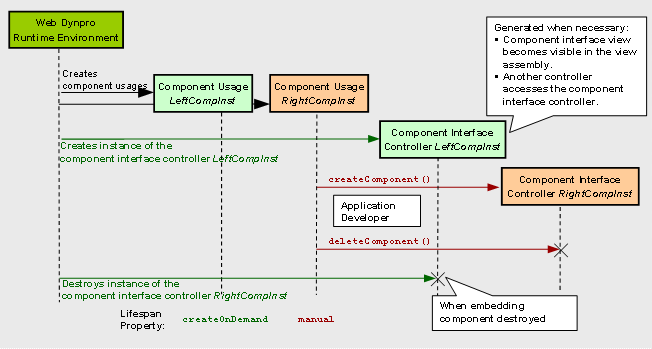
In our example application, the component usage LeftImageCompInst (the component interface view embedded on the left in the Navigation Modeler) has been defined with the Lifespan property manual. Accordingly, the control of the lifecycle of the corresponding component interface controller is the responsibility of the application developer. A component interface view contained in the current view assembly can only be displayed in the browser window if the component interface controller has been instantiated using the IWDComponentUsage method createComponent().
Procedure
Defining the Use of the Component Usages
To be able to access the component usage LeftImageCompInst in the controller of the CompControlView view, you must declare the corresponding use in the Properties perspective view.
...
1. In the Web Dynpro Explorer, choose the node TutWD_ViewComposition_Init à Web Dynpro à Web Dynpro Components à MainComp à Views à CompControlView.
2. Switch to the Properties perspective view. Under Required Controllers, add the uses of the component usage LeftImageCompInst.

3. Switch to the Implementation perspective view of the CompControlView view.
Creating a Component Instance
4. To create the component instance displayed on the left in the view controller class CompControlView.java, implement the following source text. The instance is not created until the user chooses Create Left Image Component in the browser window. This action is handled by the method onActionCreateLeftImageComponentInstance()in the view controller.
... //@@begin javadoc:onActionCreateLeftImageComponentInstance(ServerEvent) /** Declared validating event handler. */ //@@end public void onActionCreateLeftImageComponentInstance( com.sap.tc.webdynpro.progmodel.api.IWDCustomEvent wdEvent ) { //@@begin onActionCreateLeftImageComponentInstance(ServerEvent)
// because we set the 'lifecycle' property of the left component usage // as 'manual' the corresponding component instance must be created here wdThis.wdGetLeftImageCompInstComponentUsage().createComponent();
wdThis.wdGetCreateLeftCompInstanceAction().setEnabled(false); wdThis.wdGetDeleteLeftCompInstanceAction().setEnabled(true);
// navigate to the left Component Interface View, pass name of the // component usage wdThis.wdFirePlugShowLeftCompOut("LeftImageCompInst");
//@@end } ... |
Destroying a Component Instance
5. To terminate the lifecycle of the component instance created earlier, the interface IWDComponentUsage provides the method deleteComponent(). Add the missing source text line to the method onActionDeleteLeftImageComponetInstance():
... //@@begin javadoc:onActionDeleteLeftCompInstance(ServerEvent) /** Declared validating event handler. */ //@@end public void onActionDeleteLeftCompInstance( com.sap.tc.webdynpro.progmodel.api.IWDCustomEvent wdEvent ) { //@@begin onActionDeleteLeftCompInstance(ServerEvent)
// delete left instance/usage of Component ImageComp wdThis.wdGetLeftImageCompInstComponentUsage().deleteComponent();
wdThis.wdGetDeleteLeftCompInstanceAction().setEnabled(false); wdThis.wdGetCreateLeftImageComponentInstanceAction().setEnabled(true); //@@end } ... |
Result
In the context menu
of the node TutWD_ViewComposition_Init à Web Dynpro à Applications à ViewCompositionApp, choose  Deploy new archive and run to call the
application and redeploy it in the Web browser.
Deploy new archive and run to call the
application and redeploy it in the Web browser.
After creation of the left instance of the Web Dynpro component ImageComp and navigation to the interface view of the second instance, the browser window displays the following screen:

Whereas you can create and destroy the first component instance (displayed on the left) by choosing Create Left Instance of Image Component and Delete it, respectively, in the second instance (displayed on the right), you can only navigate between the component interface view and the empty view.
Once you reach this stage, you have successfully completed the tutorial for modeling view compositions.
The final step is to briefly explain why the two component interface views display different contents (title texts, picture sources) in the example application.
 Why Do
the Two Interface Views Display Different Contents?
Why Do
the Two Interface Views Display Different Contents?
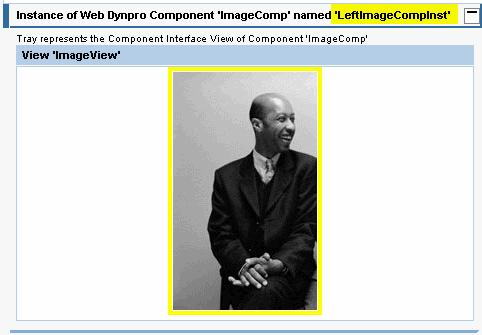
You will notice that the two component interface views in the browser window display different contents. Firstly, the view titles contain the name of the underlying component usage, and secondly, two different pictures are displayed. The reasons for this are as follows:
...
1. Parameter transfer using inbound and outbound plug: In both cases, the method wdThis.wdFirePlugShow<Left or Right>CompOut(java.lang.String name) is called to navigate to the display of a component interface view.
The string parameter name (name of the component usage) transferred from the outbound plug is received by the inbound plug event handler in the component interface view controller:
public void onPlugDefault(
com.sap.tc.webdynpro.progmodel.api.IWDCustomEvent wdEvent,
java.lang.String name )
Once this string value has been saved in the context of the component controller, the name of the underlying component usage is available to the view controller by means of context mapping.
2. Calculated context attribute: In the context of the ImageView view, two context attributes are declared as calculated context attributes of type readOnly=true:
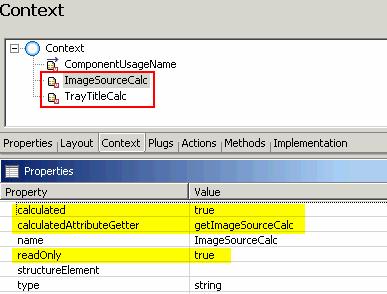
This means that the value of these two attributes is not saved in a separate value attribute, but is calculated in the view controller when necessary (the value is required for data binding to display a view).
//@@begin javadoc:getTrayTitleCalc(IPrivateImageView.IContextElement) /** * Declared getter method for attribute GroupTitleCalc of node Context * @param element the element requested for the value * @return the calculated value for attribute GroupTitleCalc */ //@@end public java.lang.String getTrayTitleCalc(IPrivateImageView.IContextElement element) { //@@begin getTrayTitleCalc(IPrivateImageView.IContextElement) String groupName = "Instance of Web Dynpro Component 'ImageComp' named '" + wdContext.currentContextElement().getComponentUsageName() + "'"; return groupName; //@@end }
//@@begin javadoc:getImageSourceCalc(IPrivateImageView.IContextElement) /** * Declared getter method for attribute ImageSourceCalc of node Context * @param element the element requested for the value * @return the calculated value for attribute ImageSourceCalc */ //@@end public java.lang.String getImageSourceCalc( IPrivateImageView.IContextElement element) { //@@begin getImageSourceCalc(IPrivateImageView.IContextElement) if (wdContext.currentContextElement() .getComponentUsageName().equals("LeftImageCompInst")) { return "leftperson.jpg"; } else { return "rightperson.jpg"; } //@@end } |
In this way, the correct title text and a different picture source are calculated according to the underlying component usage.