
 Importing a Project Template
To restrict the development of our example application to the aspects set out in the objectives, a preprepared Web Dynpro project template is available in the SAP Developer Network (SDN) at http://sdn.sap.com.
The following steps take you through the procedure for enhancing this initial project template to a complete Web Dynpro project, which is also available to download separately.
· TutWD_ViewComposition_Init.zip: initial Web Dynpro project template
· TutWD_ViewComposition.zip: complete Web Dynpro project for view composition
The projects are available for download in corresponding zip files under the category Home ® Developer Areas ® Web Application Server ® Web AS Topics ® Web Dynpro.
Prerequisites
· You have a user ID and password to access the SAP Developer Network (http://sdn.sap.com).
· You have installed the SAP NetWeaver Developer Studio.
Procedure
Importing the Project Template to the SAP NetWeaver Developer Studio
...
1. Call the SAP NetWeaver Developer Network by using the URL http://sdn.sap.com and log on with the corresponding user ID and password. If you do not have a user ID, you must register before you can proceed.
2. Download the zip file TutWD_ViewComposition_Init.zip containing the initial Web Dynpro project WDTut_ViewComposition_Init and save the zip file to any local directory or directly in the work area of the SAP NetWeaver Developer Studio.
3. Extract the content of the zip file TutWD_ViewComposition_Init.zip in the work area of the SAP NetWeaver Developer Studio or to any local directory.
4. Call the SAP NetWeaver Developer Studio.
5. Import the Web Dynpro project TutWD_ViewComposition.

For a detailed description of the procedure for importing Web Dynpro projects, see Importing a Project.
6. The Web Dynpro project TutWD_ViewComposition_Init appears in the Web Dynpro Explorer for further processing and completion of the tutorial.
Initial Project Structure
Once the Web Dynpro project template TutWD_ViewComposition_Init has been imported, the following project structure is displayed in the Web Dynpro Explorer:
Web Dynpro Project Structure |
|
The application ViewCompositionApp displays the interface view of the Web Dynpro component MainComp in the browser window. |
A Web Dynpro component that is used twice by the outer component MainComp. |
¡ The ImageView view displays a picture. The picture source and the title text displayed in the view are bound to calculated context attributes. The user uses the ImageComp component to transfer a parameter value (name of the component usage) to the component interface view controller. The parameter is required to calculate these context attributes . As a result, both uses of the Image component have a different appearance in the browser window. |
The window only contains the ImageView view. |
|
· CompControlView: View for controlling the lifetime of a component instance. A second instance of the same Web Dynpro component is displayed using the corresponding component interface view, or hidden by using EmptyView. · ContainerView: View for embedding views and view sets by means of a ViewContainerUIElement. · ExplanationView: The ExplanationView view displays the view composition modeled in the tutorial as a graphic, as it is displayed in the Application Modeler. · LeftView: View embedded in the ViewContainerUIElement. · RightView: Second view embedded in a ViewContainerUIElement. |
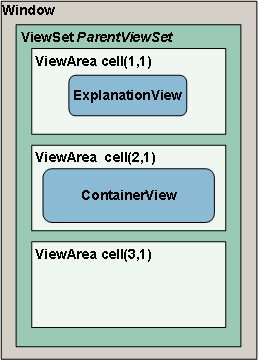
Initially contains a view set with three view areas (ViewSetDefinition: GridLayout with a column and three rows). The two views ContainerView and ExplanationView are already embedded in it. |


 Views: ImageView
In the Navigation Modeler, the initial Web Dynpro project is displayed schematically as follows:
|
The upper view area only displays a single view with a graphic. In the ContainerView, the view composition is enhanced by a ViewContainerUIElement. The view area that is still empty is for embedding an inner view set, in which two instances of a Web Dynpro component (ImageComp) can be displayed using component interface views.
|
 Next step:
Developing the Example Application for a View Composition