
 Creating a Web Service Client
Use
You can use the SAP NetWeaver Developer Studio to create Web service clients by discovering and getting the WSDLs of Web services or Web service definitions that are already published in UDDI as tModels or business services.
Prerequisites
A deployable proxy or standalone proxy is created.
Procedure
...
1. In the Developer Studio, select your client project and choose New ® Client Proxy Definition from the context menu.
2. Enter a package name, a proxy name, and select UDDI or URL for the WSDL source.
3. In the next window that is displayed, choose UDDI.
The UDDI client appears.
4. Select the registry you want to search in.
Creating a Client from a tModel
...
1. Choose the tModel tab page.
2. Search for a tModel by name.

If you are not sure about the name of the tModel, you can use the percentage sign (%). For example, enter “My%” and this displays all tModel names beginning with “My”.
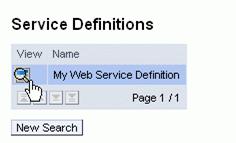
3. In addition, you can enter tModel identifiers and categories to filter the results. When the result list is available, choose View to view the details of the tModel.
4. Choose OK.
If Overview URL is specified in the service definition details of the tModel, the OK button is enabled.
The WSDL URL field is filled automatically with the URL of the tModel.
5. Complete the proxy definition wizard.
Create a Client from a Web Service
...
1. Choose the Service tab page.
2. Search for a service by name.
If you are not sure about the name of the service, you can use the percentage sign (%). For example, enter “My%” and this will display all services names beginning with “My”.
When the result list is available, choose View to view the details of the service.
3. Select Binding Template and choose View Template.
4. Select the Details tab page and choose the instance of your tModel.
5. Choose View Info, and if the Address Point info is entered, the OK button is enabled.
6. Complete the proxy definition wizard.
Create a Client from a Business Entity
...
1. Search for an entity by name.
When the result list is available, choose View to view the details of the business entity.
2. Select the Business Services tab.
Select your Business Service, choose View, and follow the steps for the business service.