
 Adding the ViewContainerUIElement
In principle, you can position views within a view assembly by using either predefined view set layouts such as GridLayout or other TLayouts in the browser window (corresponds to a Web Dynpro window). You define the dimensions of the individual view areas at design time by using corresponding view set properties.
The ViewContainerUIElement gives you more freedom when positioning views in the browser window. You can embed this UI element in the layout of an existing view and position it by selecting suitable container layouts (FlowLayout, GridLayout, MatrixLayout, or RowLayout).
Whereas the layout-specific settings of the ViewContainerUIElement are made in the View Designer, you define its content in the Navigation Modeler. Thus, the content of the ViewContainerUIElement is not restricted to a single view, but can comprise any (inner) view composition. This means that you can also embed view sets in a ViewContainerUIElement.
Procedure
The following steps describe how to enhance the view composition of the initial Web Dynpro project by using a ViewContainerUIElement.
...
1. Expand the node TutWD_ViewComposition_Init à Web Dynpro à Web Dynpro Components à MainComp à Views and select the view ContainerView.
The figure below shows how the view ContainerView looks in the View Designer:
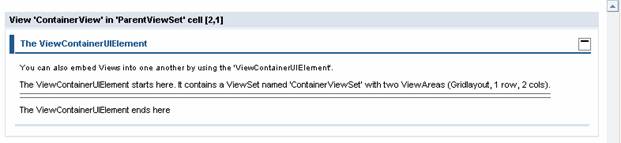
2. In the Outline perspective view, select the UI element ATray and then, in the context menu, choose Insert Child.
3. Add a ViewContainerUIElement called AViewContainerUIElement.

You can embed the ViewContainerUIElement in a view in the View Designer and in the Navigation Modeler. In the Navigation Modeler, you do this by using the context menu entry Create View Container, which is available for all view nodes.
4. Set the property Elementproperties of ViewContainerUIElement – layoutdata to MatrixHeadData.
5. Move this UI element between the UI elements StartViewContainerGutter and StopViewContainerGutter using drag and drop (or the context menu entry Move up).
6.
To
save the new metadata, choose  (Save All Metadata) in the
toolbar.
(Save All Metadata) in the
toolbar.
Result
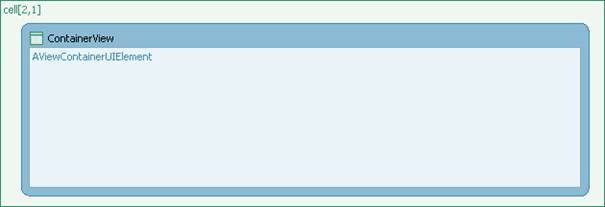
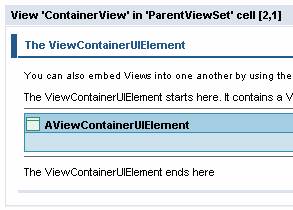
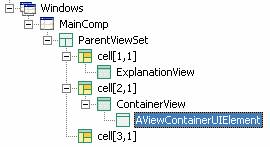
In the Navigation Modeler, the ViewContainerUIElement is displayed as an additional rectangle in the embedding view. It appears as an additional subnode in the Windows area of the Web Dynpro Explorer to enable you to model a view composition (view set with view areas, views, and navigation links) in the ViewContainerUIElement.
Display of a ViewContainerUIElement in the Navigation Modeler |
|
View Layout |
Web Dynpro Explorer |
In the next step, you will enhance the new ViewContainerUIElement by adding a view set containing a view and an EmptyView.
 Next step:
Embedding a View Set in a ViewContainerUIElement