
 Extend the Layout of the
GeoServiceView
Extend the Layout of the
GeoServiceView 
In the View Designer of the Web Dynpro tools, the GeoServiceView looks as follows:
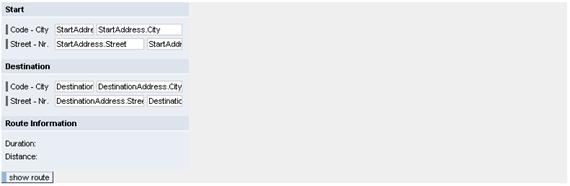
You now extend the view with the GeoMap UI element and bind the data of the corresponding UI element properties.
Procedure
1. Create the UI Element GeoMap in the GeoServiceView:
Extend the layout of the view with the following UI elements or properties:
Property |
Value |
||||||||
Map GeoMap of type GeoMap |
|||||||||
- bottom (bottom latitude) - top (top latitude) - right (right border: longitude) - left (left border: longitude) define the world map sector to be visualized. In this example, it is the sector Germany:
|
|||||||||
igsUrl
|
<URL on IGS with GeoServices> |
||||||||
height |
400 |
||||||||
width |
500 |
||||||||
|
|||||||||
geoObjectSource
|
|
||||||||


2. Create Action ShowRoute
In the action handler of action ShowRoute, you implement the steps required for calculating the route.
...
1. Define this action in the controller of the GeoServiceView under the Actions tab page.
Name of the Action |
Without Validation |
Event Handler |
ShowRoute |
unchecked |
onActionShowRoute |
2. Switch to the Layout tab page and bind the onAction event of UI element Button_ShowRoute to the previously defined action.
UI Element Name |
Event Name |
Action |
Button_ShowRoute |
onAction |
ShowRoute |
3. Display the Route Information
In the interface element Container_Information, you find the TextViews Duration and Distance. After the route calculation, these fields shall display the duration and distance of the journey.

...
1. Bind the TextViews Duration and Distance to the appropriate context attributes:
Property |
Value |
TextView - Duration |
|
Text |
|
TextView - Distance |
|
text |
|
Result
You have added a map, created action ShowRoute, and bound it to the pushbutton. In addition, you have bound the TextView user interface elements to the context attributes for the route information.
Next step:
Implement the Action Handler onActionShowRoute