Executing and Testing the
Application
Executing and Testing the
Application 
Now that you have reached this stage, you can start the fully developed example application in the Web Browser as described below.
Prerequisites
 You have made sure that the SAP J2EE Engine has been launched.
Procedure
...
1.
Save the current state of the metadata for your project by choosing  Save All Metadata.
2.
In the Web Dynpro Explorer, open the
context menu for the project node TutWD_Language_Init and choose  Reload.

The newly added xlf files are only included in the deployment if you explicitly execute Reload.
3.
Open the context menu and choose  Rebuild
Project.
Rebuild
Project.
4.
In the Web Dynpro Explorer, in the context menu of the application object  LanguagesApp, choose Deploy New Archive and
Run.
LanguagesApp, choose Deploy New Archive and
Run.
Making Language Settings in the Web Browser
...
1. In the Web browser, add the languages English and German.
In the Internet Explorer browser, you can set the language by choosing Tools à Internet Options... On the General tab page, choose Languages... You can now add and delete languages.
2. Start the application again.
Result
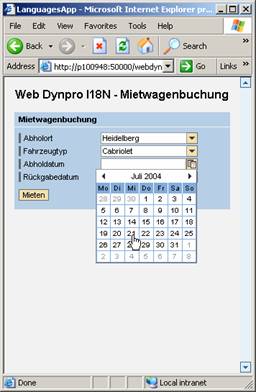
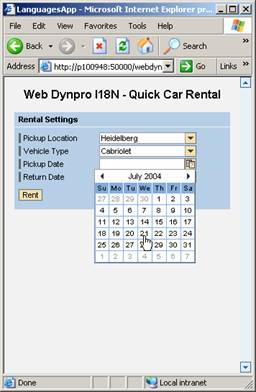
The English or German variant of the example application is displayed in the Web browser, depending on your language setting and the priority of the language.
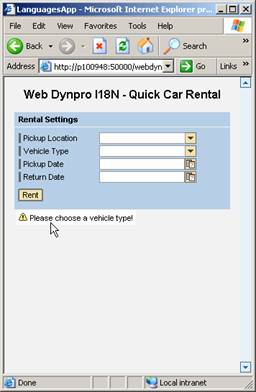
The QuickCarRental application opens in the browser window:
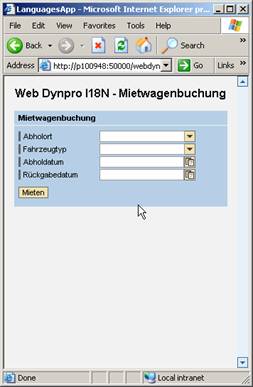
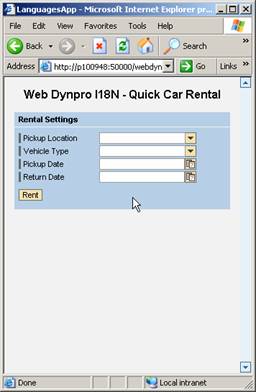
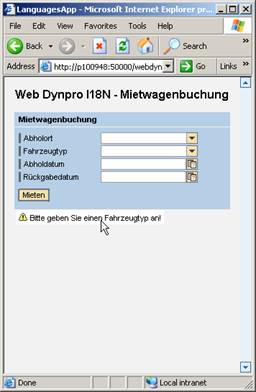
If you choose Rent (English) or Mieten (German) without selecting a vehicle type, an appropriate error message appears at the bottom of the window:
Rent a vehicle.
Use the calendar. It is also language-specific.
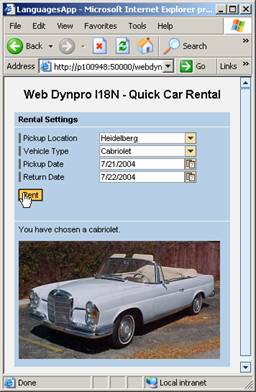
After you confirm your booking, the rented vehicle is displayed.