
 Defining the Connection Factory and
Destination Wrapper Objects
Defining the Connection Factory and
Destination Wrapper Objects 
Go to the JMS Connector service from the leftmost panel. In the Runtime tab you will see the available resources (factories, destinations and JMS libraries).
...
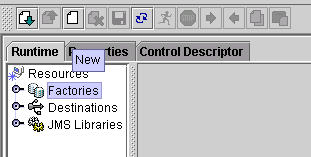
1. Create your factory: mark the Factories element in the Runtime tab and choose New:
2. In the dialog that appears, specify the following settings of the connection factory. In the General tab of the new dialog enter:
○ Application Name. The factory is configured on the server to be used by some application. Specify a name for the application. For example com.sap/JMSTestApplication.
○ Factory Name. This is the name of the connection factory as you look it up. For example, as name of the factory specify QueueConnFactory.
○ Client ID. Do not enter anything here. The Client ID is not a required field. The default is the client ID of the connection factory from the JMS provider.
In this field stands a client identifier. It is also assigned to the connection that is created with this ConnectionFactory.
○ User. This has to be a user defined on the AS Java – for example, Administrator.
In this field stands a username for authentication to the JMS provider. This is the username that you use to obtain a connection factory from the JMS provider. The JMS provider assigns the same credentials to the connections created by this ConnectionFactory, unless you specify a different username for a connection in the application code. If you use the JMS Provider Service in the AS Java, the user can be any of the users on the server.
○ Password. The password for the user defined above.
○ Description. Provide a description of the connection factory.
○ Factory Type. This field will be automatically filled in with the correct type of the factory.
The type itself will be automatically determined by looking up and checking the object bound in the naming with the JNDI path provided in the JMS Connector’s Runtime tab. Here it is QueueConnectionFactory.
○ Provider Type. Choose JNDI Based from the drop-down menu. Here you can choose from the following types of factories – JNDI Based and Object Factory. SAP JMS Factories are JNDI Based only.
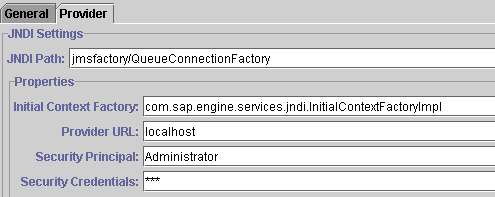
3. In the Provider tab of the panel specify some JNDI relevant settings needed by the AS Java for creating the initial context and finding your factory:
○ JNDI Path. This is the lookup name of the provider JMS connection factory. In our case, the lookup name is jmsfactory/default/QueueConnectionFactory.
○ Initial Contaxt Factory. This is the name of the InitialContextFactory JNDI implementation of the provider. In this case, the provider is SAP. The implementation is the Java class with a fully qualified package name: com.sap.engine.services.jndi.InitialContextFactoryImpl.
○ Provider URL. The URL of the JNDI provider’s name, here localhost.
○ Security Principal. Enter the name of the entity (user, in this case, Administrator) that is authenticated when the connection to the JMS provider is established. The Security Principal and the Security Credentials are included in the naming context when the connection factory is looked up from the naming.
○ Security Credentials. The password of the user specified above.
○ The credentials are typically a password that authenticates the security principal to the JMS provider.
The result is:
4. Save your settings in the General tab..
Here is the result:

Next Step