
 Using Geo Services With Web Dynpro

You can download the Web Dynpro project for the current tutorial from the Software Developer Network SDN (http://sdn.sap.com -> Web Application Server -> Web Dynpro -> Sample Applications and Tutorials) in two versions: one skeleton version you can use for exercises and one final version (solution) for an immediate build, deployment and run on the Java engine of the SAP Web Application Server.
Example Application "Using Geo Services"
To demonstrate the use of geo services in a Web Dynpro application, you need two input blocks to enter the start address and the destination address of a route. In addition, you need text fields to display the duration and distance of the route.
To visualize the map section containing the route, you need the UI element GeoMap. The initial display shows the map of Germany.
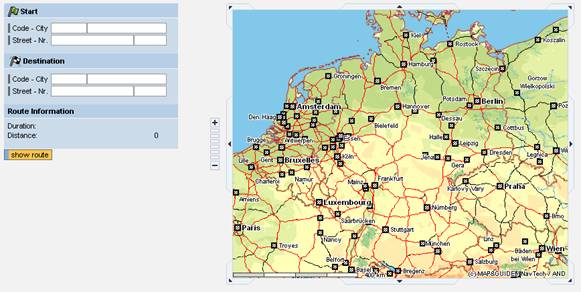
Choose show route to trigger the route calculation.
Route calculation comprises:
1. Determining the geo coordinates for start and destination addresses
2. Calculating the route using the geo coordinates: route, duration, distance
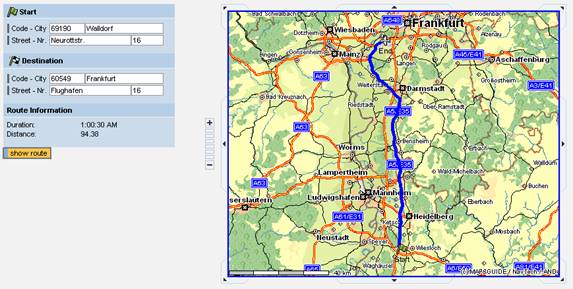
3. Creating geo objects:
- Starting point displayed as a green flag
- Destination displayed as a plane
- Route displayed as a blue line
After completing the calculations, the map is refreshed:
·
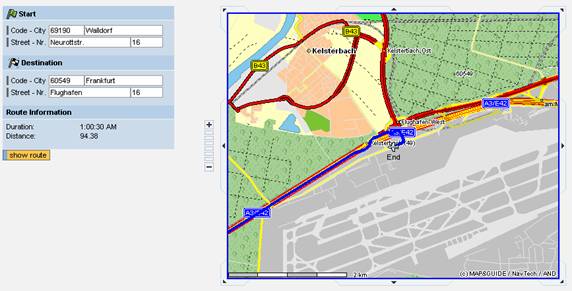
When you select one of the address points, the map zooms in on an area of 3 km surrounding the point.
·
Objectives
|
! |
You create a UI element GeoMap. |
|
! |
You calculate the geo coordinates of the entered addresses. |
|
! |
You implement the calculation of the route according to the addresses. |
|
! |
You create geo objects to be visualized on the map. |
|
! |
You implement the “zooming in” on the geo objects visualized on the map. |
Prerequisites
Knowledge
·
Web
Dynpro programming model: views, controller contexts and data binding,
actions
If you do not have the required basic knowledge, work through the sections
Creating a
Simple Web Dynpro Application and
Creating an
Enhanced Web Dynpro Application.
· Basic knowledge of the Java programming language.
Systems, Installations, and Authorizations
· An IGS is available, which is connected to an external GIS.
· The SAP NetWeaver Developer Studio is installed on your PC.
· You have access to the J2EE engine.
· Next Step:
For more information on geo services and the IGS, read: Overview on Geo Services and IGS
To continue creating the example application "Using Geo Services“, read: Import Project Template.