
 Assigning Business Object
Operations to the iView
Assigning Business Object
Operations to the iView 
To add business object operations to the iViews, proceed for each iView as described below:
1. In the folder Portal Content, choose the entry SalesOrder.
2. Open the iView for which you wish to create a business object operation by double-clicking it.
3. In the right-hand main window, select the entry Object-Based Navigation from the dropdown box Display.
4. Open the overview tree for the business object operations without closing the folder SalesOrder or the iView beforehand.
5. In the context menu of the business object operation, choose the entry Add Operation for IView.
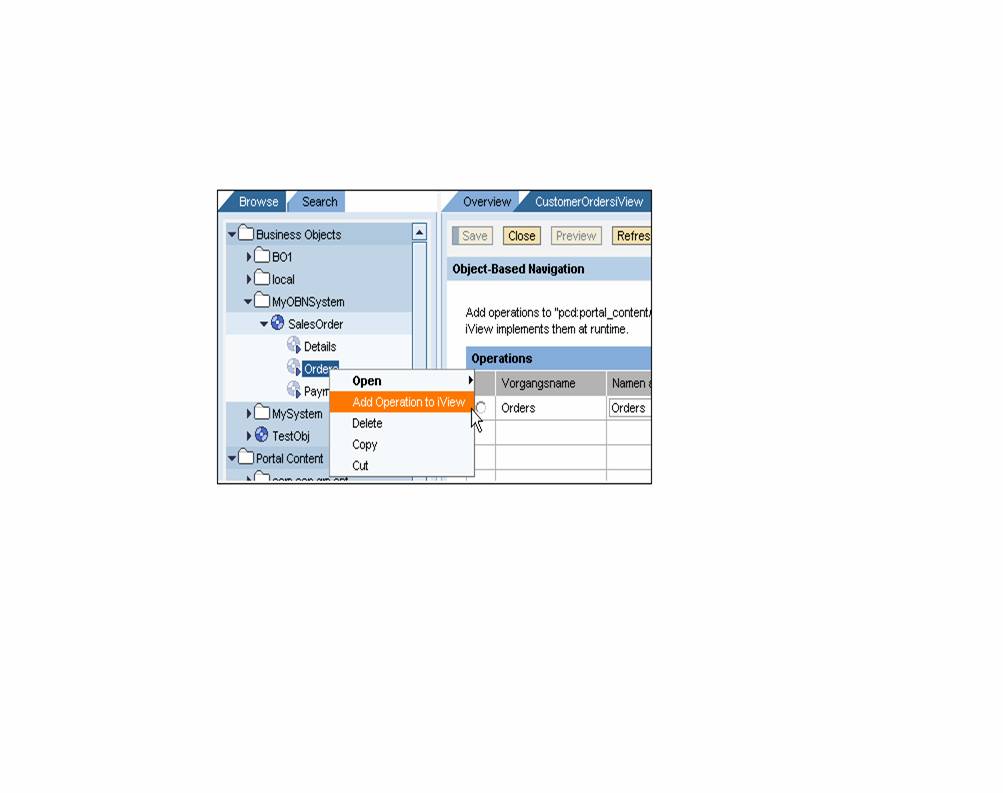
6. Assign the operations to the iViews as follows:
a. DetailsiView: business object operation Details
b. MasterDetailsiView: business object operation Details
c. CustomerOrdersiView: business object operation Orders
d. PaymentHistoryiView: business object operation Payment
7. For each iView, change the entry Display in the main window of Object-Based Navigation. This entry is displayed later on in the dropdown box.
a. Business object operation Details – for example, Customer Details.
b. Business object operation Orders – for example, Customer Details.
c. Business object operation Payment – for example, Payment History.
8. In the Object-Based Navigation Editor, change the JavaScript code. Define the following source code:
return ’DynamicParameter=’ + objValue;
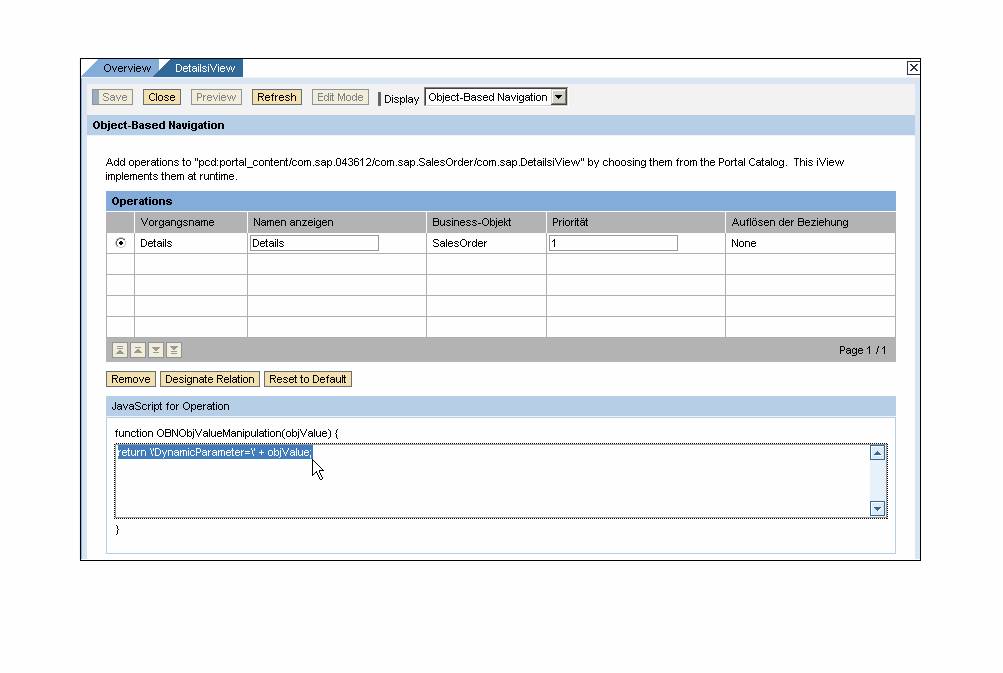
9. Confirm the changes by pressing Save.
10. Add the iViews to the roles.
a. SalesOrder:
Add the StartiView, DetailsiView, and the CustomerOrdersiView as a delta link to this role.
b. SalesOrderMaster:
Assign all existing iViews as a delta link to this role.
 Now switch to the NW Developer Studio in order to create a
DrpdownBoxByIndex.
Now switch to the NW Developer Studio in order to create a
DrpdownBoxByIndex.