
 Defining Controller Contexts
When defining a controller context, you first need to specify which data is variable in the quiz application and therefore must be mapped in an appropriate controller context. There are the following three categories:
...
View-owned business data: This includes data that is only relevant within a single view. For example, the short text that is displayed in the Welcome view and customized at the start and before the termination of the application.
View-owned layout data: Data that is used for customizing UI element layouts, such as the visibility property value of a button UI element. In this way, the layout of UI elements can be controlled at runtime using data binding of UI element properties to value attributes in the view context.
Cross-view business data: If you want to make context data available for several controllers, you must define a corresponding data source by defining a value attribute in the controller context of the component. After defining a value attribute in the controller context of a view, this attribute can be mapped to the attribute in the controller context of the component.

For example, the question-answer text pairs in the quiz example application must be stored in the controller context of the component, to ensure that they are available both in the Question view context and the Answer view context. The context mapping between the controller context of a view and the controller context of a Web Dynpro component is only possible if a controller usage has previously defined in the view controller and this controller usage refers to the component controller.
Procedure: Defining the Controller Context for a View
The Web Dynpro tools provide the Context tab within the View Designer for defining the controller context for a view. To add a new value node, you must open the context menu for the value node (in this case, the root node Context) in which the attribute is to be added. You can then assign a name to the new value attribute by choosing New ® Value Attribute.

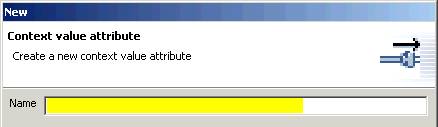
The properties of a selected value attribute are displayed in the Properties tab. Select string as the default data type.

...
Add the following value attributes as the top level value attributes below the root node. The method for setting the data type of the value attributes to Visibility is described below.
View |
Value Attribute Name |
Data Type |
Welcome |
TextMessage |
String |
ExitButtonVisibility |
Visibility (com.sap.ide.webdynpro.uielementdefinitions) |
|
Question |
NextButtonVisibility |
Visibility (com.sap.ide.webdynpro.uielementdefinitions) |
If you need to restrict the values that can fill a value attribute to a set of constants, the data type Simple Data Type must be assigned to the type property of the value attribute. For further information about the data type Simple Data Type, see Data Types.
To select
Simple Datatype Visibility for value attributes ExitButtonVisibility and
NextButtonVisibility, choose
 (in the Value column for property type) to open the input dialog for selecting
a static data type Simple Datatype.
(in the Value column for property type) to open the input dialog for selecting
a static data type Simple Datatype.

Select the DDIC Simple Type radio button and then open the node DtDictionary – com.sap.ide.webdynpro.uielementdefinitions. It contains all data types that refer to specific UI element properties.

Select the
data type  Visibility and close the dialog box by
choosing Finish. You have to adjust
the data type of the value attribute ExitButtonVisibility so that you
can bind the visibility property of
a UI element to this value attribute at a later time.
Visibility and close the dialog box by
choosing Finish. You have to adjust
the data type of the value attribute ExitButtonVisibility so that you
can bind the visibility property of
a UI element to this value attribute at a later time.
Procedure: Defining the Component Controller Context
The question-answer pairs to be displayed in the Question and Answer views must be stored in a superordinate controller context where they can be made available in the controller context of a view using context mapping. The component controller, which is available any time, is such a superordinate controller along with the custom controllers that must be defined by the application development itself. We recommend that you define a context structure in the a Web Dynpro component controller context. This context structure should be is appropriate for a set of the question-answer text pairs. In this case, you do not need to create additional custom controllers.
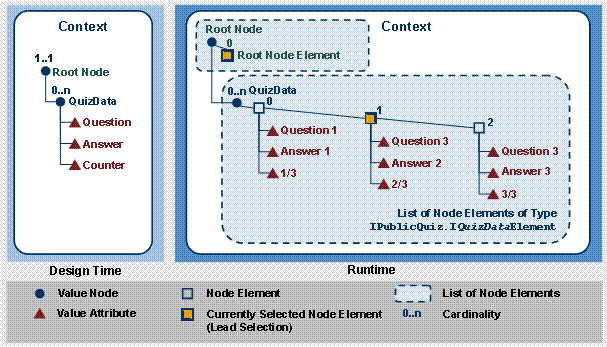
At runtime, a collection of value node elements represents the set of available question-answer pairs. The type of these value node elements is defined at design time using the set of context elements that belongs to a value node (with the cardinality 0..n or 1 ..n). These context elements can be value attributes or value nodes, for example. At design time, the declarative structure of the controller context appears thus:
● QuizData: Value node with cardinality 0..n
○ Question: Value attribute of type string for storing a question text
○ Answer: Value attribute of type string for storing an answer text
○ Counter: Value attribute of type string for storing a counter, such as "1 to 3"
At runtime, the QuizData value node then contains a reference to the collection of node elements of QuizData type, each of them with the attributes question, answer and counter. The following graphic illustrates this:
...
Select the Context tab in the component controller Quiz. Add a new value node QuizData to the root node Context using the context menu. You do not have to customize the properties of this value node.

Add three new value attributes below the value node QuizData (all of type string), as described above:
○ Question
○ Answer
○ Counter
Procedure: Defining Context Mapping
In the controller contexts for the Question and Answer views, you can now use context mapping to define two data drains for the QuizData in the controller context for Web Dynpro component Quiz. The Web Dynpro tools contain Data Modeler, which simplifies declaration of the context mapping.
Carry out the following steps in both controllers of the Question and Answer views.
...
In the
context menu of the WebDynpro_Quiz
node, choose Web Dynpro ® Web Dynpro
Components ®
Quiz and select
 Open
Data Modeler:
Open
Data Modeler:

In the
toolbar on the left, choose  Create a data link. This is then shaded in grey.
Place the cursor on the Question view and left-click, without releasing the mouse button. Drag the data link to the Component Controller and now release the mouse button. The dialog box for defining context mapping appears.
Drag and drop the value node QuizData (in the context of the Quiz component controller) to the root node of the context of the view Question view.
In the following dialog box, select the QuizData value node.
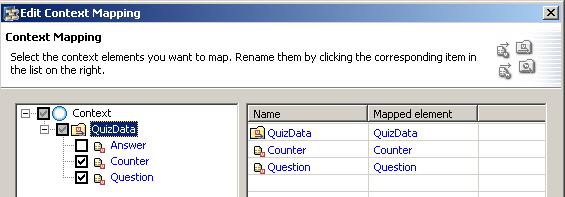
Since the value attributes Answer, in the controller context of the Question view, Counter, and Question in the controller context of the Answer view are not required, you can delete each of these value attributes using the context mapping definition.
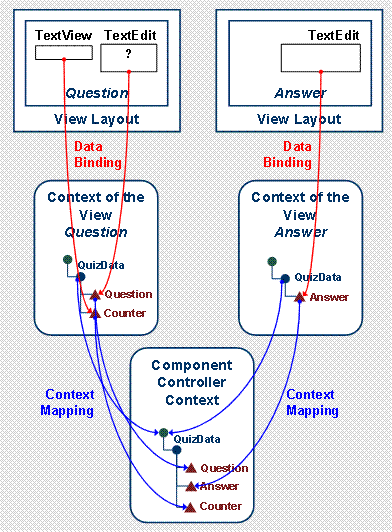
Context mapping between the view controller and the component controller is then graphically represented:

To complete the data link definition, choose Finish. Context mapping requires the declaration of a controller usage (“required controllers”) – listed in the Properties perspectives view of a controller. This declaration is automatically created by Data Modeler. In the example application, the controllers of the Quiz and Answer views use the component controller Quiz.java.

1.
Result
You have learned how to define the view controller context as an information store and how to use the Web Dynpro component controller context to access shared data sources using context mapping. In the following section, individual variable UI element properties are bound to the data sources stored in the controller context for the view.
 In the next step, you can easily define data
binding, which is a purely declarative approach to establish a connection
between the user interface and different controller contexts.
In the next step, you can easily define data
binding, which is a purely declarative approach to establish a connection
between the user interface and different controller contexts.