
 Defining Parameter Transfer
Defining Inbound Plugs and Parameters
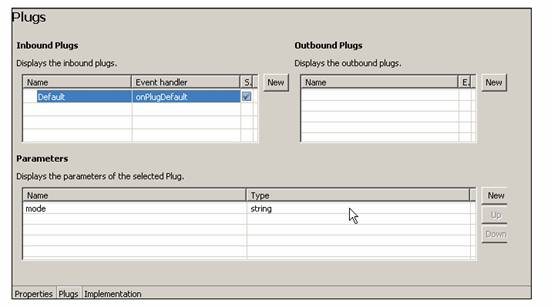
1. In the SalesOrder application, choose the entry SalesOrderInterfaceView. Switch to the tab page Plugs.
2. Press the New pushbutton beside the Inbound Plugs table and assign the name Default to the plug. Then set the indicator for Startup. Choose Next.
3. Create a parameter with the name mode and type string. To confirm your entries, choose Finish.
4. Repeat this procedure for each application and assign the same name for the inbound plug and the parameter in each case.
Filling the Parameter
So that you can read the data from the table in the SalesOrderView, you must import the current Lead Selection as follows. Implement the following source code in the action onActionDropDownAction for the SalesOrderView.
IWDNode naNode = wdContext.getChildNode("Names",0); int leadSel = naNode.getLeadSelection(); IWDNodeElement naEl = naNode.getElementAt(leadSel); String mode = naEl.getAttributeAsText("Cz");
IWDNodeElement newNaEl = naNode.createElement(); IWDNodeElement newNaEl = naNode.createElement(); naNode.addElement(newNaEl);
/*Navigation to currently selected operation and transfer of parameter mode*/ if (wdContext.currentOperationsElement() != null) { WDPortalNavigation.navigateToObjectWithSpecificOperation ("MyOBNSystem","SalesOrder","SalesOrder", wdContext.currentOperationsElement().getName(), wdContext.currentOperationsElement().getName(), } |
...
Defining a Method for Filling the Context
You must create a method in the Component Controller in order to fill the Details context node (this already exists in the supplied application).
1. Start the edit mode for the Component Controller in the Web Dynpro component Customer_Details, and then switch to the Methods tab page.
2. Choose New, followed by Method. Assign the name initializeContext and the type string to the method. Choose Next.
3. Create a parameter with the name mode and the type string, and then confirm your entry by pressing Finish.
4. Switch to the Data Model tool and go to the Diagram View. Draw a data link between the view and the Component Controller.
5. Pass all the attributes of the Component Controller to the view.
6. Repeat this procedure in the applications Customer_Orders, Customer_MasterDetails und Payment_History.
Accessing the Method Through the Interface View
So that you can access the method that you created previously from within the InterfaceView, you must insert the following source code into the method onPlugDefault.
...
1. Switch to the Implementation tab page in the Customer_DetailsInterfaceView.
2. Enter the following source code in the method public void onPlugDefault.
public void |
3. Repeat this procedure in the applications Customer_Orders, Customer_MasterDetails und Payment_History. Change the method name in the same manner for each application.
Example:
Application Customer_MasterDetails: wdThis.wdGetCustomer_MasterDetailsController().initializeContext(mode);
 In the next step, you fill the context
attributes with data in order to display these in the view. You can also
test whether the parameter transfer is working.
In the next step, you fill the context
attributes with data in order to display these in the view. You can also
test whether the parameter transfer is working.