
 Availability Check
Use
The availability check (ATP check) is used to check whether a product can be confirmed as available in a sales order, based on the fact that enough stock is available or can be produced or purchased on time. The product is reserved in the required quantity, and the ATP requirements are transferred to production or purchasing.

You can also carry out availability check in simulation. This is called availability information. For more information, see Availability Information.
Integration
You can perform the availability check using different systems and in different channels:
Availability Check: Systems
You can perform the availability check or obtain availability information using the following systems:
● SAP Advanced Planning and Optimization (SAP APO)
For more information, see Availability Check Using SAP APO.
● SAP ERP Central Component (SAP ECC)
For more information, see Availability Check Using SAP ECC.
● External (non-SAP) systems
You can also use your own ATP system to carry out the availability check or obtain availability information.
For more information, see Availability Check Using External Systems.
You set up the relevant system in Customizing for SAP Customer Relationship Management at Basic Functions ® Availability Check. You can activate the availability check at client level.
Availability Check: Channels
You can use the availability check in the following channels:
● CRM E-Commerce
In CRM E-Commerce, you can use the ATP check using SAP APO or the ATP check using SAP ECC.
● ERP E-Commerce
In ERP E-Commerce, you can use the ATP check using SAP ECC.
● Interaction Center Sales
Features
When you create or change a sales order and enter the product with the requested delivery date, SAP CRM transfers data to the ATP system, where the availability check is performed. The results of the availability check are returned to the sales order in SAP CRM.
You can also carry out the availability check manually by selecting the item(s) to be checked and choosing Availability Check.
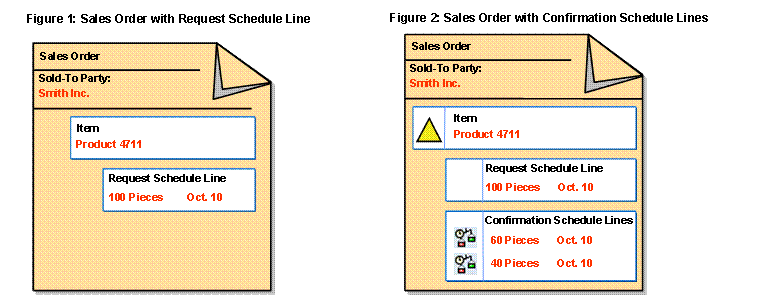
When you create a sales order in CRM Enterprise, it has a header and one or more items. Each item has request schedule lines (see Figure 1). After the availability check has been performed, the system displays the results as schedule lines, for example, confirmation schedule lines, with the confirmed dates and quantities (see Figure 2):
You can see in the ATP column of the sales order item whether a
particular sales order item has been confirmed (see Figure 3).
To see the results of the availability check for the schedule lines of an item, select the ATP column for the corresponding item. You can see in the Confirmed column whether a particular schedule line has been confirmed (see Figure 4).
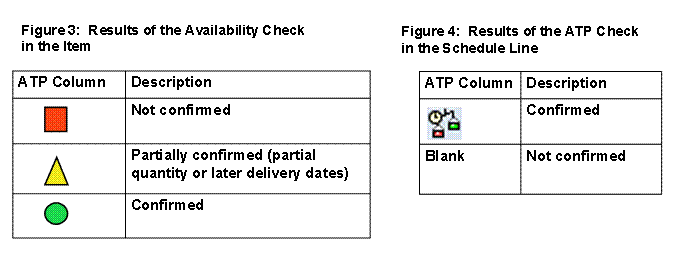
If the ATP system cannot confirm anything for a particular item, the quantity
of the confirmation schedule line is set to 0.
If errors occur during the availability check, you can view them in the sales order in the application log, together with an explanatory long text. For more information about the application log, see Structure and Data for Sales Transactions.
For more
information, see Schedule Lines and
 Structured
Products in the Business Transaction.
Structured
Products in the Business Transaction.