 Toolbar
The application toolbar is located below the application main menu. The toolbar contains icons that you can select to perform frequently used tasks, such as saving your data, printing, and navigating through the application. The toolbar is context-sensitive and displays only those commands that are available to you at a given point in the application.
You can view the tooltip text for each icon by scrolling your cursor over the icon.
Features
Mobile Client Application Toolbar
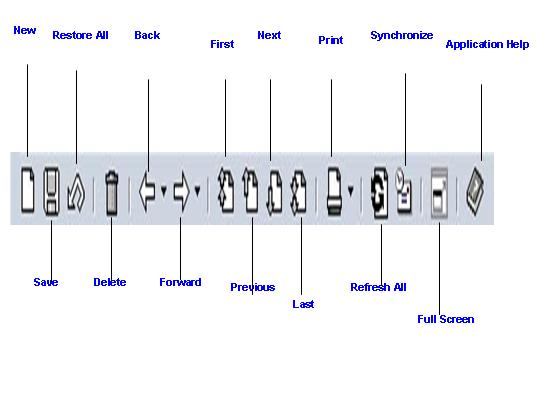
The toolbar contains icons corresponding to the following commonly used functions:
New – Creates new business objects
Save – Saves your business data
Restore All – Cancels the activity and does not save the changes you have made
Delete – Deletes selected business data
Back – Navigates to the tile set you accessed previously in the application history. The name of the tile set appears in a tooltip.
Forward – Navigates to the next tile set in the application history. The name of the tile set appears in a tooltip.
First – Navigates to the first item in a list
Previous – Navigates to the previous item in a list
Next – Navigates to the next item in a list
Last – Navigates to the last item in a list
Print – Prints selected report
Refresh All – Updates the local display of business data in a workgroup setting
Synchronize with Server – Synchronizes your laptop with your company’s central server
Online/Offline – Connects to a workgroup server when you select the online mode
Full Screen – Toggles to display the application in the full-screen mode
Application Help – Provides you with access to the application help
For more information about the functions assigned to the toolbar icons, see Menu and Submenus, Managing Your Business Data.
For more information about navigating in the application, see Navigating.
