
 Selection/Formula Properties
Use
In the Selection/Formula Properties dialog box for a structural component, you can set a range of functions. These settings are valid for the structural component, irrespective of whether the structural component is in the rows or columns.

This section describes the properties of selections and formulas. Once you save a selection or a formula as a reusable object, you have a restricted key figure (selection) or a calculated key figure (formula) that you can use in other queries. The settings options for the properties of these objects are almost identical. Settings that are only possible for certain objects are highlighted.
Features
The Selection/Formula Properties dialog box is divided into tab pages, each offering different settings.
Tab Page: General
Description
The name of the key figure, the restricted key figure (selection), or the formula automatically appears here. You can also change the description here.
In contrast to characteristics and attributes, structural components can contain multiple rows as the description.

The total number of all characters in all rows, including the line-end character, is restricted to 60 characters.
You can use text variables in the description.
Use Standard Text: Here you can set that the default value is always used. The default values are as follows:
● Formula: Formula <Number>
● Selection:
Selection <Number> for an empty selection
<Key Figure Description> for a selection with a key figure
<First Restricted Characteristic Value Description> for a selection with characteristic values
● Calculated key figure: <Technical Name>
● Restricted key figure: <Technical Name>
Technical Name
You can enter a technical name for the structural component. However, this is optional.
Note that the technical name must be unique across all queries.

For access from external interfaces (such as Crystal Reports, from URLs or using OLE DB for OLAP), a technical name is necessary for structural components, since the structural component is considered a table field and has to be uniquely accessible. If you do not enter a technical name, the unique ID (UID) is used for access from external interfaces to uniquely identify the structural component. However, the UID has 25 characters, which can lead to problems when you change queries.
You can also change the technical name. When you do so, a warning appears that tells you that when you use the structural component in external interfaces, the references can be destroyed.
The system generates the technical name for reusable objects, but you can change this name up until you save the object. Once you have saved the object, you can no longer change the technical name. The generation rule is (RKF/CKF)_<date><time>, for example RKF_20050818122045. As long as you have not saved and the generated technical name has not been changed, a warning appears that you should rename the technical name as required.
Last Changed on
This function is only available for restricted and calculated key figures.
This is where you can see details of the owner and person who last changed the structure, as well as the corresponding data and time that the key figure was changed. This information can be useful since calculated and restricted key figures are reusable objects.
Tab Page: Aggregation
Aggregation
This function is only available for formulas and calculated key figures.
Here you can make settings for aggregation and calculation time (for the detail level of the calculated key figure or formula).By default, the aggregation of the data to display level takes place first, followed by the calculation of the formula (= standard aggregation). The exception aggregation settings allow the formula to be calculated before aggregation, using a reference characteristic, and afterwards to be aggregated with exception aggregation.
You can select the following settings in the Exception Aggregation field.
● Use Standard Aggregation: You use this setting to define that aggregation will take place first, followed by calculating the formula. Therefore you do not use exception aggregation.
● Total
● Maximum
● Minimum
● Exception, If More Than One Record Occurs
● Exception, If More Than One Value Occurs
● Exception, If More Than One Value <> 0 Occurs
● Average of All Values
● Average of All Values <> 0
● Average for Calendar Days
● Average for Working Days
You determine the ID of the factory calendar in Customizing. For more information, see the SAP Reference IMG under SAP Customizing Implementation Guide ® SAP NetWeaver ® Business Intelligence ® Reporting-Relevant Settings ® General Reporting Settings ® Set F4 Help and Hierarchies for Time Characteristics / OLAP Settings.
● Count All Values
● Count All Values <> 0
● First Value
● Last Value
● Standard Deviation
● Variance
If you use exception aggregation, you must select a characteristic from the Reference Characteristic field that the system can use to calculate the formula before aggregation. In the Reference Characteristic field, all characteristics that are available in the InfoProvider can be selected.
For more
information about the setting options for exception aggregation, see the
documentation for InfoObject maintenance under  Tab Page: Aggregation.
Calculate After Aggregation: This field only appears for calculated key figures and not for formulas. It is used for display and stipulates that the formula of the calculated key figure is calculated after aggregation. If you use calculated key figures that you defined in SAP BW 3.5, you can use this field to determine whether the calculation of the formula takes place before or after aggregation.
The option of calculating before aggregation is usually bad for performance because the data is read by the database at the most detailed level and the formula is calculated for every record. Often in formula calculations, the single record information for only one or two specific characteristics is required and the rest of the InfoProvider data can be aggregated.
We recommend that you control the calculation level using exception aggregation with the corresponding reference characteristic. If you need more than one exception aggregation and reference characteristic, you can nest the formulas and calculated key figures in one another and specify an exception aggregation for each formula or calculated key figure.
For more
information, see Scenarios for Using Exception
Aggregation.
Tab Page: Display
Display Properties
Hiding
Here you can adopt the following settings to hide the selection or formula:
● If you choose Always Show then the selection or formula is always visible.
● If you chose Hide (Can Be Shown) then the selection or formula is hidden in the report executed, but can be shown there again in future.
This setting is useful for displaying only the necessary information in the start view of the report. You can show additional details if required.
You can show the selection or formula in the report executed in the following ways:
in Web applications
under Select
Filter Value
○
In the BEx Analyzer
under Select Filter
Values
● If you choose Always Hide, the selection or formula is not displayed.
You can use this setting for help columns that are not visible in the executed report and can also not be shown.
Use Standard Value: Here you can determine that the default value is always used. In this case the default value is the setting for the key figure being used. If no key figure is found or if the key figure does not return such a setting, Always Show is used as the default value.
Highlight
Here you can choose whether you want to highlight the selection or formula. The type of highlighting depends on the style used in the BEx Analyzer or in the Web application.
Use Standard Value: Here you can determine that the default value is always used. In this case the default value is the setting for the key figure being used. If no key figure is found or if the key figure does not return such a setting, Do Not Highlight is used as the default value.
Number Display
Number of decimal places
You can set the number of decimal places. The number can have either no decimal places or up to nine decimal places (0, 0.0, 0.00... to 0.000000000).
Use Standard Value: Here you can determine that the default value is always used. In this case, the default value is the setting from the key figure that was determined in InfoObject maintenance. If no key figure is found, the Query Designer cannot determine a default value. This is indicated by Standard Value Not Found.
Scaling factors
You can set a scaling factor of 1 to a billion. If, for example, you set 1,000, the value 3,000 is shown in the report as 3.
Use Standard Value: Here you can determine that the default value is always used. In this case, the default value is the setting from the key figure that was determined in InfoObject maintenance. If no key figure is found, the Query Designer cannot determine a default value. This is indicated by Standard Value Not Found.
+/ - sign change
Select whether the +/- signs are to be kept or if they should be reversed. Upon changing the signs a positive number receives a minus as a sign (for example, 85 becomes –85) or a negative number receives a plus (for example, -38 becomes +38).
The reversal of plus and minus signs is purely a display function. If, for example, the key figure is added to a formula, it is calculated with its correct values.
Use Standard Value: Here you can determine that the default value is always used. In this case the default value is the setting for the key figure being used. If no key figure is found or if the key figure does not return such a setting, Do Not Change Signs is used as the default value.
See also:
Priority Rule with
Formatting Settings
Tab Page: Planning
Here you can determine the changeability of data for BI integrated planning.
Changing Data
The following settings options are available:
● Data Cannot Be Changed: The data is available for BI Integrated Planning as display data.
● Data Can Be Changed by Planning Functions: The data is locked from a technical point of view, and can be changed using planning functions. However it is not input-ready for manual planning.
● Data Can Be Changed by User Input or Planning Functions: The data is locked from a technical point of view, and is input-ready for manual planning. Planning functions can also be used.
The system status can override the setting. Also note that the changeability settings of the data of a structural component made here can be overridden by starting the query with the setting Start Query in Display Mode(see Query Properties ® Planning Tab Page). If you set the structural component so that the data can be changed by user input or planning functions, but the setting Start Query in Display Mode is active in the query properties, the query is not input-ready when it is started. At runtime the user can activate the ready for input settings and they will come into effect for the structural component.
For more information see BI Integrated
Planning.
Tab Page: Enhanced
UID
In this field, the unique ID (UID) that is used for unique identification is displayed. This field is only used for information purposes. For example, you can use the UID in URLs of the Web API to address this element. However, we recommend that you use technical names, because UIDs can change when an object is deleted and then created again.
Selecting Constants
This function is only available for selections and restricted key figures.
You can select a selection as constant.
This means that the selection cannot be changed by navigation or filtering at
runtime and can therefore be used as a reference size. For more information,
see Selecting
Constants.
Formula Collision
This function is only available for formulas and calculated key figures.
When you define two structures that both contain formulas it is unclear to the system how to calculate the formulas at the point where both formulas intersect.

The following example clarifies the concept of formula collision:
|
Column 1 |
Column 2 |
Column 1 x Column 2 |
Row 1 |
Value A |
Value B |
A x B |
Row 2 |
Value C |
Value D |
C x D |
Row 1 + Row 2 |
A + C |
B + D |
? Formula Collision? |
In this example, there are two rows and two columns with simple values. The third row is a simple summation formula and the third column is a simple multiplication. In the cell in which the row and column formulas meet, it is not clear which calculation should be made.
If you calculate according to the column formula in this cell, the cell contains (A+C)x(B+D). If you calculate according to the rows formula in this cell, the cell contains (AxB)+(CxD). The result gives a different value.
If a formula collision occurs, you can, as described in the example above, determine which formula is used in the calculation. You can make the following settings in the Trigger Formula Collision field:
● Nothing defined
If you do not make a definition, the formula that was last saved and defined takes priority in a formula collision.
● Result of this formula
The result of this formula has priority in a collision
● Result of competing formula
The result of a competing formula has priority in a collision
Collisions always occur when point and dash calculations or functions are mixed in competing formulas. If there is only dash calculation or point calculation in both formulas, both calculation directions give the same result. Therefore, no settings are required for formula collision.
Tab Page: Conversion
Currency Translation
This function is only available for selections and restricted key figures.
You create translation keys for currency
translation under SAP
Menu ® Modeling ® Object Maintenance ® Currency Translation Keys. For more
information, see Creating Currency
Translation Keys.
You can set a target currency for a structural component in the Query Designer.
Select a translation key in the Translation Key dropdown box. Depending on how the currency translation key has been created, you have the following options:
● Select the Target Currency When Translating
The target currency is not fixed in the translation key but can be determined when translating. Select the required translation key and enter the required currency in the Target Currency dropdown box. You can also select a currency from the dropdown box.
You can also use the symbol  to call up the input help dialog box and
select a variable target currency. You click on the black arrow to reach the
context menu and can then choose New Variable to create new variables
or Edit to change existing variables. Both choices take you to the variables
editor. When you execute the query, the variables screen appears.
You can choose the target
currency here.
to call up the input help dialog box and
select a variable target currency. You click on the black arrow to reach the
context menu and can then choose New Variable to create new variables
or Edit to change existing variables. Both choices take you to the variables
editor. When you execute the query, the variables screen appears.
You can choose the target
currency here.
● Fixed Target Currency
The target currency was determined the translation key. Select the required translation key with the fixed target currency. In the Target Currency dropdown box, the fixed target currency for this translation key appears.
● InfoObject Determines Target Currency
The target currency is determined in the translation key so that it is determined from an InfoObject. Select the required translation key with the target currency from the InfoObject. The text From InfoObject appears in the Target Currency field when you select this translation type.
● Target Currency from Variable.
In the translation type, a variable was specified for 0CURRENCY. In the Target Currency field, the text from Variable appears during selection of this translation type.
You can find additional information on
currency translation under Currency Translation
in the Business Explorer.
Quantity Conversion
This function is only available for selections and restricted key figures.
You create translation keys for unit
conversion under SAP
Menu ® Modeling ® Object Maintenance ® Unit Conversion. For more information,
see Creating
Quantity Conversion Types.
You can set a target unit of measure for a structural component in the Query Designer.
Select a translation key in the Quantity Translation Key dropdown box. Depending on how the quantity translation key was created, you have the following options:
● Select the Target Quantity Unit When Translating
The target quantity unit is not fixed in the translation key but can be determined when translating. Select the required translation key and enter the required unit in the Target Quantity Unit dropdown box.
You can also use the symbol to call up the input help dialog box and
select a variable target currency. You click on the black arrow to reach the
context menu and can then choose New Variable to create new variables
or Edit to change existing variables. Both choices take you to the variables
editor. When you execute the query, the variables screen appears.
You can choose the target
quantity unit here.
● Fixed Target Quantity Unit
The target quantity unit was determined in the translation key. Select the required translation key with the fixed target quantity unit. The fixed target quantity unit (for example, Gram) for this translation key appears in the Target Quantity Unit dropdown box.
● InfoObject Determines Target Quantity Unit
The target quantity unit was set in the translation key so that it is determined from an InfoObject. Choose the required translation key with the target quantity unit from the InfoObject. The text From InfoObject appears in the Target Quantity Unit field when you select this translation type.
● Target Quantity Unit from Variable
A variable was specified for 0UNIT in the translation type. The text From Variable appears in the Target Quantity Unit field when you select this translation type.
For more information, see Quantity
Conversion.
Tab Page: Calculations
Local Calculations
You use this function to recalculate the results rows and single values that are displayed in the query according to particular criteria.
Also apply to results
You can also use the chosen recalculation on the results rows under Calculate Result As... or Calculate Single Values As...
Note: The following functions cannot be used for hierarchy lists, that is, with an active presentation hierarchy, and do not have an effect on the characteristic with the hierarchy:
○ Calculate ® Result as
○ Calculate ® Single value as ® Ranked list / Ranked list (Olympic)
○ Calculate ® Cumulated
Cumulated
You use this function to cumulate the individual cells of an area. The first value is added to the second value, the result is added to the third value, and so on. In the columns, the cells are cumulated from top to bottom, and in the rows, the cells are cumulated from left to right. With blocks of single values, meaning a drilldown in both the rows and the columns, the values are cumulated from top to bottom and from left to right.
Note that cumulation only operates with characteristic values and not with the structural elements of a characteristic structure. The Cumulated function is only effective if you have a characteristic instead of a characteristic structure in the drilldown. However if you have two structures – the key figure structure and a characteristic structure – then you cumulate using cell-specific definitions. See Defining Exception Cells.
Calculation direction
Default calculation directions are not always as expected. You can change the calculation direction as required:
● Use the default direction (from top to bottom and from left to right)
● Calculate along the rows (from top to bottom)
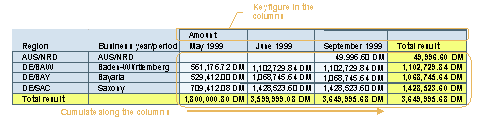
● Calculate along the columns (from left to right)
The Calculate Along the Columns setting is useful, for instance, for all queries for which a time dimension is drilled down in the columns, and that generate a cumulated revenue. This is shown in the following example query:
Activities
Select the structural component. The
Properties dialog box for this structural component appears in the
Properties screen area. You can also select multiple structural
components of the same type and set their properties simultaneously. You can
use Display/Change  to set whether the properties of the
structural component can be changed or not. You can save your settings with
to set whether the properties of the
structural component can be changed or not. You can save your settings with
 Save.
Save.