
 Variant Attributes
To maintain the attributes of a variant, follow the same procedure as described in creating a variant.
Example:
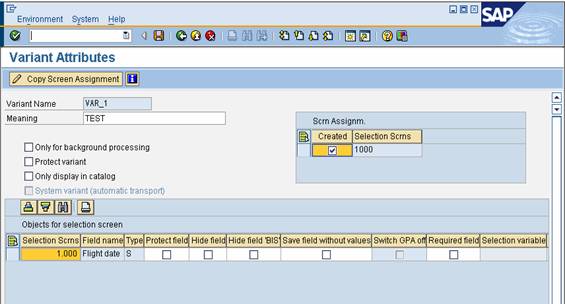
You can enter the following attributes on the ABAP: Save Attributes of Variant … screen:
· Description
Enter a short, meaningful description of the variant. This can be up to 30 characters long.
· Only for background processing
Select this field if you want the variant to be available for background processing but not in dialog mode.
· Protect variant
Select this field if you want to prevent your variant being changed by other users.
· Only display in catalog
Select this field if you only want the variant name to be displayed in the variant catalog (and not when the user calls the F4 value help).
· System variant
This field cannot accept input. It is set automatically when a system variant (beginning with CUS& or SAP&) is created.
You can also assign the following further attributes to the selections in a variant:
· Type
The system indicates here whether a field is a parameter (P) or a selection option (S).
· Protected
Select this column for each selection that you want to write-protect on the selection screen. These fields are visible on the selection screen when the user starts a program with the variant, but do not accept user input.
· Invisible
If you select this column, the system hides the corresponding field on the selection screen. This allows you to change the appearance of the selection screen.
· Selection variable
If you select this column, you can set the value of the corresponding selection dynamically at runtime. The different ways of doing this are explained in the section Variable Values in Variants.
· Without values
If you select this field, the contents of the corresponding field are not saved with the variant.
This is useful if you do not want to overwrite the contents of this field on the selection screen.
For example, suppose you create a report 'SAPTEST', with the parameter 'TEST', for which you create the variant 'TESTVARIANT'. In the variant, you set the 'Without values' flag for the parameter. Then, you run time program and enter the value 'ABCD' in the TEST field. If you now retrieve the 'TESTVARIANT' variant, the TEST field retains the value ABC instead of being overwritten by SPACE.
· SPA/GPA
This attribute only appears if you created the corresponding selection criterion using 'MEMORY ID xxx’. You can switch the SPA/GPA handling on and off in the variant. This means that fields filled using SPA/GPA appear with their initial values after you have loaded a variant in which those fields have an initial value.
Other Functions
Save
When you have entered all of the parameters, save your settings. When you create a new variant, you must enter both values and attributes. You can only save your variant on the attribute screen. However, if you only want to change values or attributes of an existing variant, you can save on the corresponding screen.
Changing the Screen Assignment
The attribute screen lists all of the selection screens for which the variant is defined. While it is possible for the same selection criterion to appear on more than one screen, the selection criterion itself may be a global field in the program. For this reason, it can only be set once, when the selection criterion occurs for the first time.
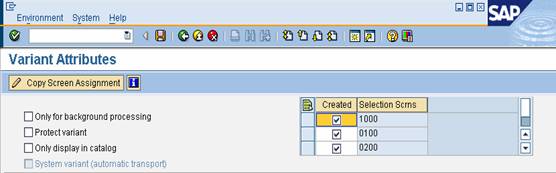
If you want to change the screen assignment later on, check the relevant screen number and choose Copy Screen Assignment.
Defining Selection Variables
See Variable Values in Variants.