
 Creating an RFC Destination with Activation
Type Registration
Creating an RFC Destination with Activation
Type Registration
Use
The following procedure describes how you create an RFC destination with the activation type Registration in an SAP system of Release 6.20 or higher.
Procedure
1. Choose transaction SM59 in the SAP system, and then choose Create.
2. Enter the following data:
Field |
Input |
RFC Destination |
Any. For example, TREXDEFAULT_REG |
Connection Type |
T |
Description |
Any. For example, RFC Destination for TREX |
3. Save your entries.
4. Enter the following data on the tab page Technical Settings:
Field |
Input |
Activation Type |
Registered server program |
Program ID |
Name that the RFC server uses to register with the SAP Gateway: <registration_name>
Use the same lower/uppercase conventions as used in the TREX configuration file <TREX_DIR>/<host_name>/TREXRfcServer.ini or <TREX_DIR>/<host_name>/TREXDaemon.ini. If the lower/upper case is not the same, the connection test will not work. |

5. If you are using the SAP Gateway of the application server, leave the fields Gateway Host and Gateway Service empty. Otherwise, enter the following data:
Field |
Input |
Gateway Host |
Host name (with domain name if necessary) or the IP address of the host on which the gateway is installed. |
Gateway Service |
Name of the gateway in the form sapgw<instance_number> |

If you are using the SAP Gateway of the application server, an RFC server needs to be registered for every application server used. For an example of the required configuration on TREX side, see Configuring the Number of Registered RFC Servers.
The SAP Gateway of the application server has the advantage that it processes the requests more quickly than other SAP Gateways. However, it does lead to greater administration requirements: When a new application server is implemented, you have to make sure that you register additional RFC servers.
6. Save your entries and choose Test Connection.
The RFC connection is established.
If you used
the host name of the target host, and the connection test fails, enter the IP
address for the host instead, and test the connection again. If the RFC
connection still cannot be established, see  Checking an RFC
Connection.
Checking an RFC
Connection.
Example Scenarios on Using the SAP Gateway
The entries in the fields Program ID, Gateway Host, and Gateway Service depend on the following:
· The SAP Gateway that you are using
· The location of the parameters host, service, and instance, which the RFC server uses when it starts (TREXDaemon.ini or TREXRfcServer.ini)
Example 1: Using a Central SAP Gateway
In this scenario, you use a central SAP gateway, through which communication takes place. The gateway can run on any machine. The SAP system sends all requests to this gateway. On the TREX side, all RFC servers are registered with this gateway. The graphic below depicts this scenario:
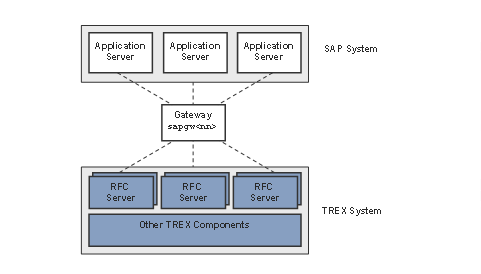
The benefit of this scenario is that the configuration effort on the TREX side is lower. You only have to specify the connection information for one gateway in the TREX configuration.
The configuration file TREXDaemon.ini determines only that the RFC server is started in registered mode (parameter –r).
· Parameter SERVICE
The values that are entered in the TREXRfcServer.iniconfiguration file apply.
· Parameter HOST
Enter the name of the host machine on which the central gateway is running.
· Parameter INSTANCE
Enter the instance number of the central gateway.
You specify these values in the RFC destination.
Configuration Area |
Parameters |
TREXDaemon.ini |
[rfcserver] Windows: executable=TREXRfcServer.exe UNIX: executable=TREXRfcServer.x arguments=-r startdir=<TREX_DIR>/exe instances=<number_of_RFC_servers> |
TREXRfcServer.ini |
[CONNECTION] HOST=<gatewayhost> INSTANCE=sapgw<instance_number> SERVICE=TREXRfcServer_48 |
RFC Destination (SM59) |
Program ID TREXRfcServer_48 Gateway Host <gatewayhost> Gateway Service sapgw<instance_number> |
Example 2: Using the SAP Gateways on the Application Servers
In this scenario, you use the local SAP gateways on one or more application servers. In this scenario, communication takes place over more than one gateway. Each application server in the SAP system sends its requests to its local gateway. On the TREX side, RFC servers are registered with each local gateway. The graphic below depicts this scenario:
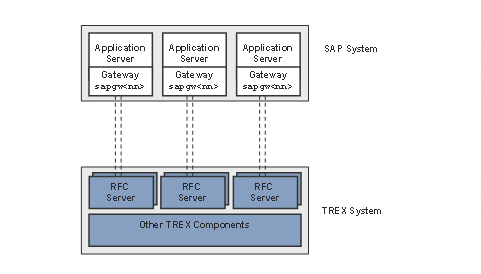
You have changed the configuration file TREXDaemon.ini so that RFC servers register for every application server. You have specified the parameters host, service, and instance in the RFC server selections. You specify the value of the parameter service in the RFC destination.
Configuration Area |
Parameters |
TREXDaemon.ini |
[daemon] programs=nameserver,preprocessor,indexserver,queueserver,rfcserver1, rfcserver2
[rfcserver1] Windows: executable=TREXRfcServer.exe UNIX: executable=TREXRfcServer.x arguments=-r –host=mygatewayhost1
–instance=sapgw47 startdir=<TREX_DIR>/exe instances=<number_of_RFC_servers>
[rfcserver2] Windows: executable=TREXRfcServer.exe UNIX: executable=TREXRfcServer.x arguments=-r –host=mygatewayhost2
–instance=sapgw29 startdir=<TREX_DIR>/exe instances=<number_of_RFC_servers> |
RFC Destination (SM59) |
Program ID TREXRfcServer_48_mytrexhost Gateway Host (this field remains empty) Gateway Service (this field remains empty) |