
 Confirming Bulk Waste Orders
Use
This business process allows you to confirm waste disposal orders for bulk and loose waste.
The confirmation is a part of the waste disposal order and not an independent object in the system. The confirmation results can be used for different purposes:
· Confirmation for billing (such as type, quantity, date and time)
· Confirmation for material flow management (such as waste, quantity, date and waste disposal installation)
· Confirmation for controlling (such as driver, work time, vehicle, kilometers driven)
Prerequisites
You must have defined a corresponding confirmation category in Customizing, along with the fields to be confirmed, and the indicator to determine whether the entry is optional or required. You can use an include to create additional fields for each confirmation category.
Process Flow
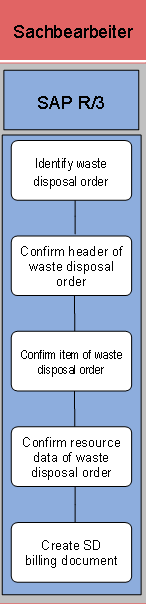
1. Identify waste disposal order
You must identify the waste disposal order before you can confirm it. You can identify a waste disposal order by the route or the order date. You must have defined the waste disposal order first.

You can search for a waste disposal order using the following attributes:
§ Contract data (for example, business partner)
§ Regional structure (for example, postal code)
§ Customer fields (customer-defined attributes)
If you restrict the search to a specific period, you can considerably reduce the runtime.
2. Confirm header of waste disposal order
A waste disposal order is structured as follows:
¡ Header (for example, route, date, start time)
§ Order items (for example, customer, service address, service type)
· Objects per order item for bulk waste (for example, bed, table, refrigerator)
§ 1 to n weighing data records (weighing number, waste, gross weight, weight when empty, and so on) The weighing records are only created during the confirmation.
§ 1 to n resource records (vehicle, driver, loader, and so on). The weighing records are only created during the confirmation.
If you want to confirm all items of a waste disposal order at the same time, you must confirm the order at header level. Proceed as follows:
a. Select the waste disposal order that you want to confirm. In the overview screen, the status is red. This means the item has not yet been confirmed
b. Enter the actual order date or the confirmation date.
c. If required, enter the actual start and end times.
d. Choose the Set Items to Confirmed pushbutton.
e. Save your entries. The status is now green. This means that the order has been confirmed. The of the waste disposal orders items are confirmed.
3. Confirm item of waste disposal order
In this process step, you confirm specific items of a waste disposal order. Proceed as follows:
a. Select the waste disposal order that you want to confirm. In the overview screen, the status is red. This means the item has not yet been confirmed
b. Enter the actual order date or the confirmation date.
c. Choose the Items pushbutton. At this point, you can decide how you want to confirm the items (number of containers, amount of bulk waste, and so on).
d. If required, enter the actual start and end times.
e. Select the item.
f. Choose the Set Status to Confirmed pushbutton.
g. Save your entries. The status is now green. This means that the item has been confirmed.
4. Confirm resource data of waste disposal order
In this process step, you can confirm resources that were used in the execution of the waste disposal order. You can confirm the order at header level. Resources such as vehicles and personnel that you defined in the planning are confirmed.

If resources were used other than those defined in planning, you must update the resources when you confirm them.
You confirm resources as follows:
a. Select the waste disposal order that you want to confirm.
b. Choose the Vehicle/Staff pushbutton. At this point, you can add an item (vehicle or staff), or you can remove an item and replace it with another. For example, you can replace a defective vehicle with another vehicle.
c. If necessary, you can enter the following data:
§ Sum of non-working times or breaks within a waste disposal order. This applies for all staff and vehicles involved in the service.
§ Actual duration. This is the actual working time.
§ Length of route. This is the distance of the route covered.
d. Save your entries. The resources have been confirmed.
5. Create SD billing document
Invoicing takes place at the end of a business transaction. Information on invoicing a process is available at all times during order and delivery processing.
The component includes the following functions:
¡ Create:
§ Bills for provision and services
§ Debit and credit memos for corresponding demands from sales
¡ Reverseinvoicing transactions
¡ Comprehensive price determination functions
¡ Grant bonuses
¡ Transfer invoice data to accounting