
 Working with Tiles
Use
Tiles are the fundamental units for grouping information in the mobile client application. This is why it is so important to understand what tiles are and how they work. For more information on tiles, see Tile.
A group of tiles that appear in the view area at the same time form a tile set. For more information on tile sets, see Tile set.
The following exercise introduces you to the concept of tiles. At the end of this exercise, you will be able to
· Identify a tile
· Activate the tile
· Maximize the tile
Procedure
1.
In the navigation
bar, choose Business Partners.
A list of options appears under the heading Business Partners. Each of these options
represents a tile set that appears in the view area when you select
it.
2.
From the list of
options, choose Search.
The Business Partners/Search tile
set appears in the view area. This tile set consists of two tiles:
...
a. Business Partner Search
b. Business Partners

The name of the tile set appears in the header area.
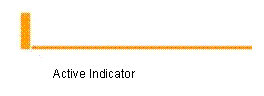
3. You find the name of each individual tile in the upper-left corner of the tile. Next to the name is an indicator that is orange when the tile is active. Only one tile can be active at a time. The tile must be active for you to enter data in the fields on the tile.
4.
Position your
cursor on the Business Partners tile
and select it by either clicking on it or choosing Enter from your keyboard.
The indicator for the Business
Partners tile is orange. This means the tile is active.
5.
To maximize a tile,
select the maximize icon in the
upper-right corner of the tile.
The tile fills the view area when it is maximized. Maximizing a tile is useful
when you are viewing information that does not fit entirely within the
original view area.

6.
Select the
maximize/minimize icon to return the tile to its original size and
position.

7.
Position your
cursor on the Business Partner
Search tile and select it.
The Business Partner Search tile is
now active.
Result
You are now able to activate and maximize tiles.