
 Availability Check in the Sales
Order
Availability Check in the Sales
Order 
Use
You can carry out availability check for items in a sales order when it is created in CRM Enterprise, to confirm the quantity and delivery date for a product to a customer.
You can also change the sales order to carry out availability check again (for example, if the ATP system was unavailable when the sales order was created in CRM Enterprise).
Prerequisites
The product must be relevant for availability check.
Features
When you create or change a sales order and enter the product with the requested delivery date, CRM transfers data to the ATP system, where availability check is carried out. The results of the availability check are passed back to the sales order in CRM Enterprise.
You can also carry out availability check manually by selecting the item(s) to be checked and choosing Availability Check.
Result
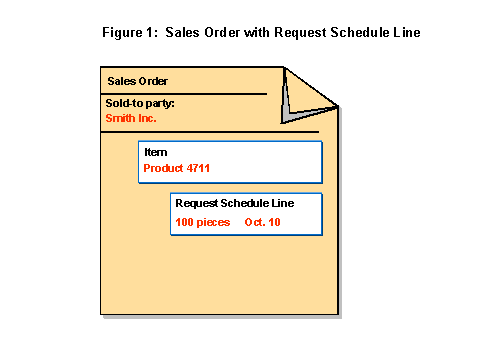
When a sales order is created in CRM Enterprise, it has a header and one or more items. Each item has request schedule lines (see Figure 1):
After the availability check has been carried out, the results are displayed as schedule lines, for example, confirmation schedule lines, with the confirmed dates and quantities (see Figure 2):

In the Sales Order Item
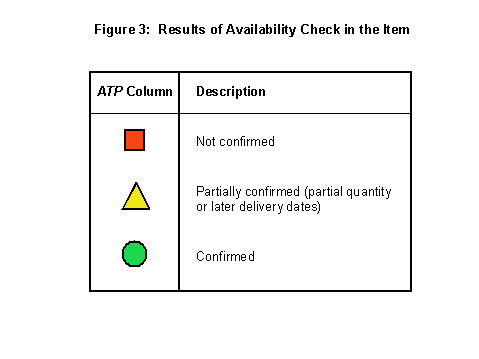
You can see in the ATP column whether a particular sales order item is confirmed (see Figure 3):
In the Schedule Lines
To see the results of the availability check for the schedule lines of an item, click in the ATP column for the relevant item. You can see in the Confirmed column whether a particular schedule line is confirmed (see Figure 4):
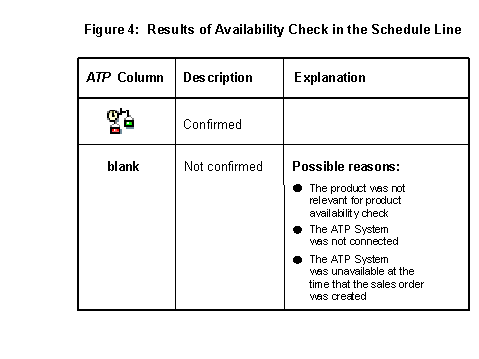
If the ATP System cannot confirm anything for a particular item, then the quantity of the confirmation schedule line will be set to 0.

If there are problems with the ATP system (for example, the ATP system is not running, or the relevant master data is not in the ATP System), then CRM Enterprise will be unable to get confirmation for the item from the ATP system. In this case, all information that can be obtained from the ATP system will be placed in the application log, which is displayed at the top of the screen in the sales order. Errors which are detected by the ATP system are saved in a log, for which you can display the long text.
For more information on the application log in the sales order, see Structure and Data for Sales Transactions.
Display ATP Check Results
For detailed information, you can display the ATP check results in the ATP system. For more information, see Displaying ATP Check Results in the Sales Order.