
 Query with Hierarchically Displayed Axis and
Conditions
Query with Hierarchically Displayed Axis and
Conditions 
You analyze the net revenue for your products in relation to your customers.
You have defined the following query:
Both the Customer and the Product characteristics are located in the rows and the columns contain the key figure Net Revenue. In the rows, you have activated the function Display As Hierarchy, so the axis is displayed hierarchically.

Note that a scaling factor of 1000 is used in this example query. The values in the condition definition refer to the actual values because the scaling factor is not considered in the evaluation of the condition. In the query, the values are displayed with a scaling factor of 1000. For more information, see Background Information on Conditions.
The query looks like this:

Threshold Value Condition for the Customer Characteristic
Now you only want to see those customers with a net revenue greater than $350,000. Define the following condition:
1. When you are defining the condition, choose Single Characteristics and Characteristic Combinations, under Characteristic Assignment.
2. Select the Customer characteristic.
3. Enter the following condition row:
Choose the structure Net Revenue, the operator Greater Than and enter 350,000 as the value.
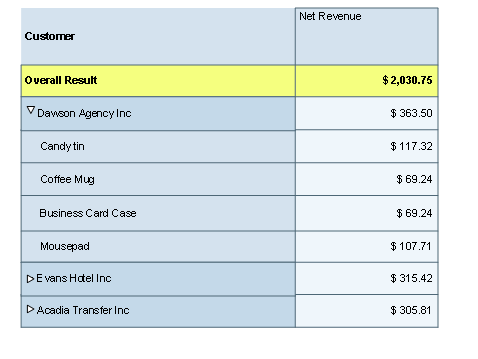
In the query, you only see the customer Dawson Agency Inc with a net revenue greater than $350,000.

Ranked List Condition for the Customer Characteristic
You want to see the three customers with the highest revenues. Define the following condition:
...
1. When you are defining the condition, choose Single Characteristics and Characteristic Combinations, under Characteristic Assignment.
2. Select the Customer characteristic.
3. Enter the following condition row:
Choose the structure Net Revenue, the operator Top N and enter 3 as the value.
You see the three customers with the highest revenues in the query:
The threshold value condition and the ranked list condition in the examples above each refer to the Customer characteristic. In queries with a hierarchically displayed axis, threshold value and ranked list conditions are always possible up to the characteristic to which you have expanded the hierarchical display. In the examples above, the Customer characteristic is the outermost characteristic, thus the condition has an effect. For example, if you now define a condition for the Product characteristic, you have to set Expand to <Product> in the context menu for the associated axis (in this case, the rows) within the Query Designer. You can also make this setting using the Web during runtime. In the context menu for the Web application, choose Data Provider Properties and make the appropriate setting under Formatting of Data (see Data Provider Properties).
Also note that it is not enough to manually expand the appropriate nodes during runtime. The drilldown level must be set using the Expand to function so that the condition can be applied.
Ranked List Condition for the Product Characteristic
You want to see the two products with the highest revenues. In the context menu for the rows, you choose Expand to Product in the Query Designer and define the following condition:
...
1. When you are defining the condition, choose the setting Single Characteristics and Characteristic Combinations under Characteristic Assignment.
2. Select the Product characteristic.
3. Enter the following condition row:
Choose the structure Net Revenue, the operator Top N and enter 2 as the value.
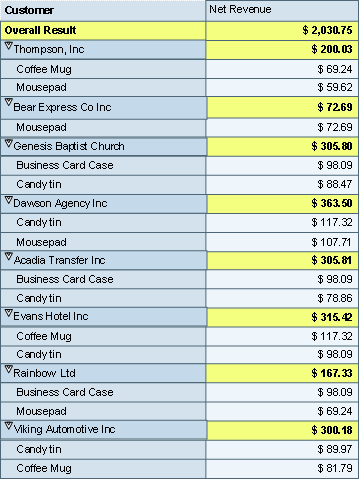
You see the two products per customer with the highest revenues in the query:
Threshold Value Condition for All Characteristics in Drilldown Independent
You want to see all customers and the associated products that have net revenues greater than $100,000. In the context menu for the rows, you choose Expand to Product in the Query Designer and define the following condition:
...
1. When you are defining the condition, choose All Characteristics in Drilldown Independent, under Characteristic Assignment.
2. Enter the following condition row:
Choose the key figure Net Revenue, the operator Greater Than and enter 100,000 as the value.
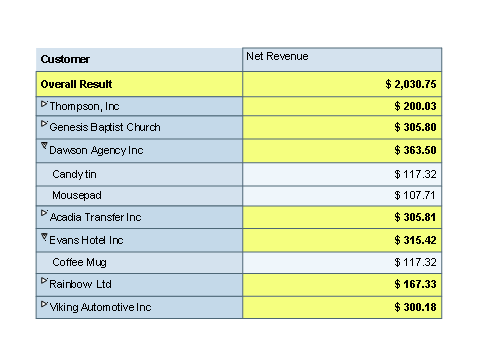
You see all customers and products that have net revenues greater than $100,000.
Ranked List Condition for All Characteristics in Drilldown Independent
You want to see the two customers with the most revenue and the two products with the most revenue for these two customers. In the context menu for the rows, you choose Expand to Product in the Query Designer and define the following condition:
...
1. When you are defining the condition, choose All Characteristics in Drilldown Independent, under Characteristic Assignment.
2. Enter the following condition row:
Choose the key figure Net Revenue, the operator Top N and enter 2 as the value.
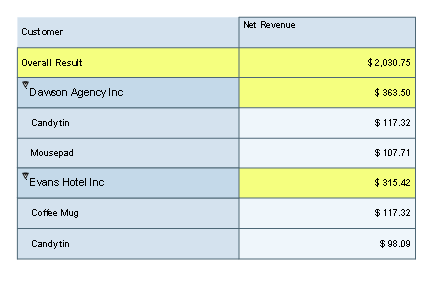
You see the two customers with the most revenue and the two products with the most revenue for these two customers.
Ranked List Condition for Characteristic Combination Customer/Product
If you now want to define a ranked list condition for the characteristic combination Customer/Product (such as top 3 customer/product combinations), the system responds with the status description Not Applicable. Ranked list conditions for characteristic combinations in a query with a hierarchically displayed axis are not possible.
See also: