
 Creating
Bulk Waste Order
Creating
Bulk Waste Order 
Use
You use this business process to process bulk waste. This service is generally planned aperiodically. This means that you agree to a time to collect bulk waste each time the customer requests the service.
This process can also be used for commercial bulk waste.
This process enables you to do the following:
· Order Management
· Status Management
· Workflow Management
· Order Archiving
· Seamless integration of the Waste Disposal component (IS-U-WA) with other SAP components and systems such as Materials Management (MM) and Sales and Distribution (SD)
Prerequisites
· You must have made the Customizing settings.
· You must have created the relevant master data in the system.
Process Flow
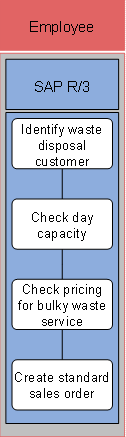
1. Identify waste disposal customer
The bulk waste order is structured as follows: At header level, you can flag the bulk waste order as an express order. This indicator applies to the entire order and - in combination with price determination – enables a unique pricing. You can also define possible removal times for an express order.
You can enter three notes at header level and three at item level. A note could be „Collect from Third Floor” for example. In Customizing, you can allocate the notes to a condition. Notes can cause increased prices, or be used purely as information for the employee collecting the bulk waste. When you create a bulk waste order, the system copies the notes to this order. The allocated conditions are copied to the SD customer order from the SD price determination.

Before you can create a bulk waste order, you have to identify a business partner (contract partner). If the contract partner does not yet exist in the system, you have to enter it.
2. Check day capacity
To create a waste disposal order for bulk waste, a day capacity must exist for a specific service area. The day capacity specifies the available volume and weight of waste that can be carried on a bulk waste route on a given date.
The day capacity must be allocated to at least one route. The route and the day capacity must be allocated to the same service type.
You can also define the percentage portion of capacity reserved for complicated cubic meters and express orders in the bulk waste service area. The system automatically calculates from the routes the total capacity for volume and weight.
You can use the day capacity as a template for the copy transaction.
When you enter the collection date in the bulk waste order, the system automatically displays the available day capacity. The day capacity is determined by the number of vehicles, target volume, distance, weight, and duration, as well as spatial allocations and available capacity for express orders. Once you have determined the day capacity, you can schedule a fixed appointment with the customer. If the volume of the bulk waste order exceeds the available capacity, you can use enhancement EWABLK01 to define the system’s reactions (issue a warning or an error message if the available capacity is exceeded).
3. Check pricing for bulky waste service
In the bulk waste order, you can display an overview of the price and volume of the order.
4. Create standard sales order
Once you have created the bulk waste order, the following processes run in the background:
¡ Create one-off waste disposal order
In the waste disposal order, logistical processes (such as output and confirmation) are executed. This takes place in Waste Management (IS-U-WA).
¡ Create SD customer order
Here, the materials entered are the SD order items. The price of each material is also saved. It is determined when the order is accepted and can be dependent on a number of different attributes (such as conditions, number of materials, difficulties, and so on).