 Modifying the Title Bar

Modifying the Title Bar
Use
On this page, you add links to the title bar so that the user can access the most frequently-used pages from any other page with a single click.
Procedure
Add the links to the layout of the page fragment as follows.
You already have this part:
|
<%@ page language="abap" %> <html> <head> <title>mySAP Bookshop</title> </head> <body BGCOLOR="#B5E1D2"> <h2> <img height="80" width="80" src="../PUBLIC/Tutorial/book2.jpg"> mySAP Bookshop</h2>
<hr> |
Now add the table with the links and the horizontal line, as follows:
|
<table cellpadding=1> <tr height=30> <td bgcolor="#3F4AB3" align="Center" width="110"> <a href="search.htm"> <td bgcolor="#3F4AB3" align="Center" width="110"> <a href="newuser.htm"> <td bgcolor="#3F4AB3" align="Center" width="110"> <a href="basket.htm"> <td bgcolor="#3F4AB3" align="Center" width="110"> <a href="about.htm"> </tr> </table> |
Result
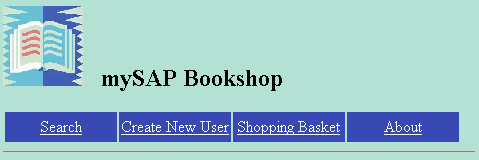
There are now links in the title bar. The topmost part of every page in the bookshop application now looks like this:
 To finish off, go to