
 Trade Promotion Planning with Mobile
Sales
Trade Promotion Planning with Mobile
Sales 
Purpose
You use this process to create a trade promotion and plan the uplift it will create in helping you meet your sales targets. Using information from the quantity planning process, you determine the products, sales area, conditions, and validity dates of the trade promotion.
Prerequisites
You have made all the customizing settings for offline key figure planning. For detailed instructions on how to configure the Mobile-specific customizing settings, see the documentation available in the Solution Manager for the business scenario Trade Promotion Management with Mobile Sales.
Procedure
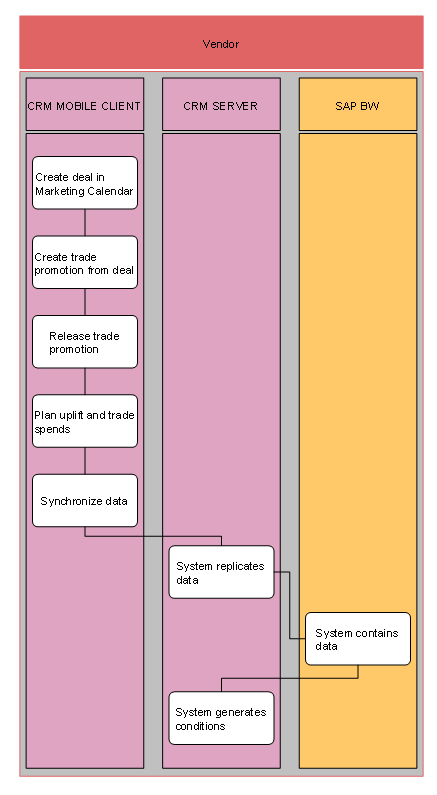
...
1. Create Deal in Marketing Calendar (CRM Mobile Client)
2. Create trade promotion from deal (CRM Mobile Client)
You create the trade promotion on the mobile client. You can either create the trade promotion as an independent business object or use the deal master as a template for the trade promotion.
In the Marketing/Details tile set, enter the details for the trade promotion, including its objectives, assigned planning customer, and validity dates. You also assign products and partners to the trade promotion.
3. Release trade promotion (CRM Mobile Client)
After you have entered the attributes of the trade promotion, you set the status of the trade promotion to released.
4. Plan Uplift and Trade Spends (CRM Mobile Client)
You maintain trade spends and plan for the uplift of the trade promotion so you can determine its impact on meeting your annual sales targets.
5. Synchronize data (CRM Mobile Client)
To load your trade promotion and planning data to SAP CRM Enterprise, synchronize the mobile client with the server. This also makes the trade promotion data available to sales team members.
6. System replicates data (CRM Server)
7. System receives data (SAP BW)
The system receives your planning data.
8. System generates conditions (CRM Server)
During synchronization, SAP CRM Enterprise generates conditions for the trade promotion, based on the trade spends you have entered. These conditions are visible on the mobile client.