Creating a Planning and Consolidation
Connection for SAP NetWeaver
Procedure
- Open Microsoft Office Excel or Microsoft Office PowerPoint.
- Select the EPM tab.
- Click
Log On.
The EPM - Logon dialog box opens.
- Click the browse button next to the
Connection
area.
The EPM - Connection Manager opens.
- Click
Create.
The Create Connection dialog box opens.
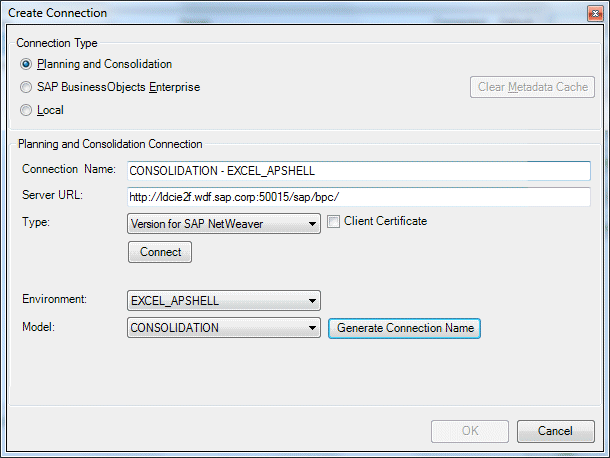
- In the Connection Type area, select the Planning and Consolidation option.
- In the Planning and Consolidation Connection area, enter the Planning and Consolidation Server URL. For example: http://ldcie2f.wdf.sap.corp:50015/sap/bpc/.
- From the
Type menu,
select the
Version for SAP
NetWeaver connection type.
Note If you select the Client Certificate option, you can select a certificate (the private key is installed on the client, the public key on the BW server) so you can connect without entering the user name and password. This is not valid if you connect through an SAP BusinessObjects Enterprise XI platform.Note If you use the SAP Portal credentials to create your Planning and Consolidation Connection for SAP NetWeaver connection, the authentication is performed directly at the SAP Portal level and not at the Planning and Consolidation server level. Beforehand, you must enter the SAP Portal parameters in the Server Configuration tab of the EPM - User Options dialog box.
- Click Connect.
- Enter your User Name and Password and click Log on.
- Select an Environment and a Model.
- Click Generate Connection Name or manually enter a connection name.