Member Sorting and Grouping by
Properties
You can sort the selected members based on property values. To do so, click the Member Sorting and Grouping button and select the Enable Member Sorting options.
- Sort the members based on their names, by ascending or descending order. If the members are organized in a hierarchy, the members are sorted and therefore the hierarchy may be broken. To do so, use the Ascending or Descending options.
- Additionally, you can sort the members based on a property, in ascending or descending order, depending on the option you have selected. The values of the specified property are ordered by ascending or descending order. Inside each node, the members are sorted in ascending or descending order. To do so, select the Group by Property option, then select a property from the dropdown list.
- Create a
grouping local member in the dimension based on the property selected for the
sorting. To do so, follow these steps:
- To position the local member before the set of members (or property group), select the Before Group tab. To position the local member after the set of members (or property group), select the After Group tab.
- In the Create a Local Member Named area, enter a name for the grouping local member (or leave the dafault name). This name is not displayed in the report but in the Local Member Selection tab when defining a specific format for the local member. For more information on how to define a format for a local member, see Dynamic Formatting Template Definition.
- In the Display area, you can enter the name for each grouping local
member that will be displayed in the report. This name can be either
static or dynamic, that is containing the property value or the property
value description (can be selected from the dropdown list), a prefix and
a sufix.
For the Currency dimension,
property values are EUR and USD; property value descriptions are
Euro and US Dollar.
 Note If a property value description cannot be displayed, the property value is displayed instead.
 - You can then define the calculation to be performed for the grouping local member. The calculation is performed the same way as for local members. If you do not enter anything in the Formula area, total and sub-total calculations will be performed for a hierarchy.
Example
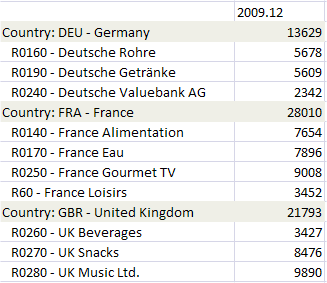
In this example, a grouping local member has been created for the Entities dimension, based on the Country property. All the entities are grouped under the country to which they belong. The following items are specified in the Member Sorting and Grouping area of the Member Selector: the Ascending order option is selected, the Country property is selected in the Group by Property dropdown list; in the Display area of the Before Group tab, the entered prefix is "Country: " and the Property Value is selected from the dropdown list. No formula is entered. Therefore, sub-total calculations are performed on the countries.