
 Quick Search Failed With Error

Problem Description
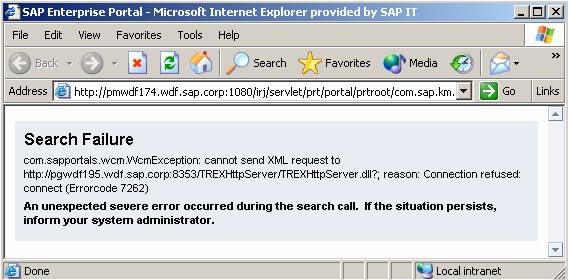
The following error is displayed when a quick search is performed from the portal.
com.sapportals.wcm.WcmException: cannot send XML request to http://pgwdf1195.wdf.sap.corp:8353/TREXHttpServer/TREXHttpServer.dll?;
reason: Connection refused: connect (Errorcode 7262)
|
Scenario Type: |
Error analysis |
|
NetWeaver Component: |
TREX EP |
|
Validity: |
TREX 6.1 on Windows |
Decision Roadmap
Prerequisites
Portal users with authorization to access quick search
Analysis
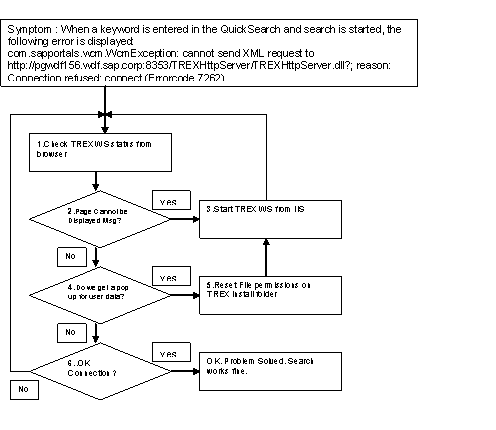
The following graphic gives an overview of the analysis process. The numbers refer to the different steps of the analysis process described in detail below.
Step 1: Check TREX WS (Web Server) Status from Browser
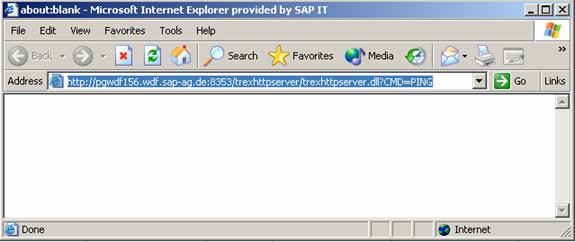
You can check the TREX Web server / TREX HTTP server availability from an Internet browser as follows:
http://<trexserver>:8353/TREXHttpServer/TREXHttpServer.dll?CMD=PING
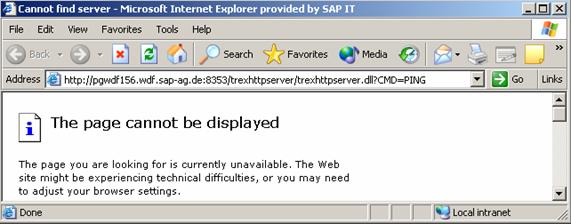
Step 2: Page Cannot be Displayed
If you receive the error Page cannot be displayed as shown in the screen shot, start the TREX Web server from IIS as explained in step3.
Step 3: Start TREX Web Sever from IIS
Go to the Inter Information Services on the server where TREX is installed.
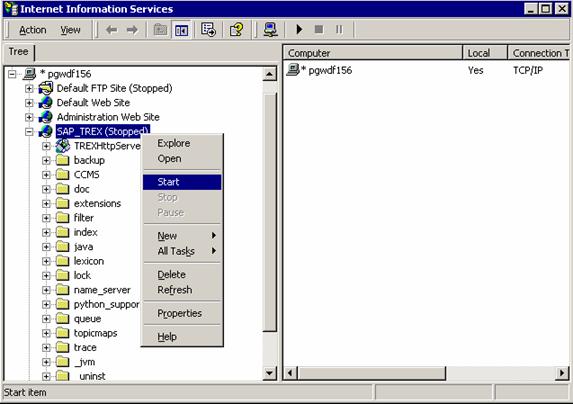
Check if the TREX web site, SAP_TREX_<instance_number> is stopped as shown in the screenshot below. Select the TREX Web site and start the service. You can also start it from a command prompt by using the command iisreset.
Step 4: Popup Asking to Enter Network Logon Credentials
If you get a prompt asking for network logon credentials as shown in the screenshot below, you have to Reset File Permissions on the TREX installation folder as explained in step 5.
This could happen if proper file permissions are not set to certain DLLs, in this case TREXHttpServer.dll during an upgrade of TREX.
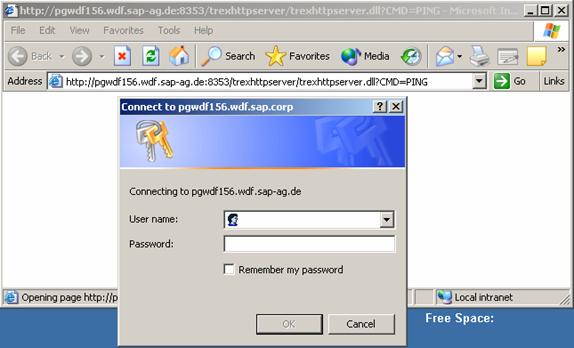
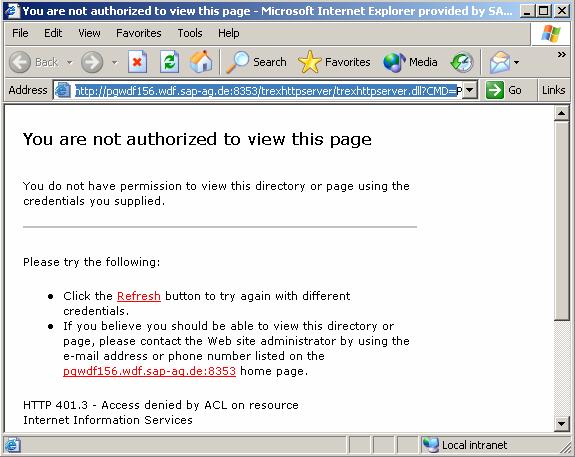
Once you enter logon details or you select Cancel, the following message is displayed saying that you are not authorized to view this page due to file permission issues:
Step 5: Reset File Permissions
...
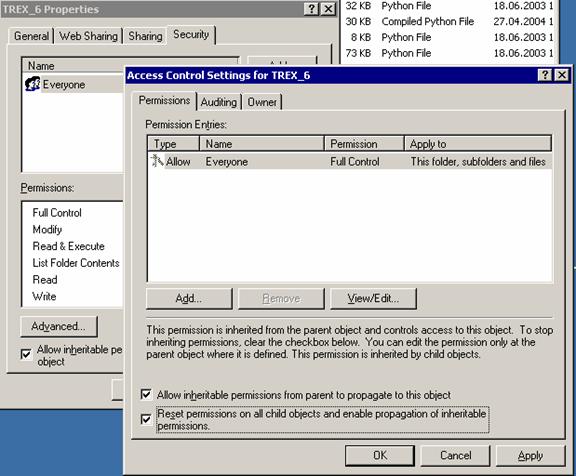
1. Go to the server on which TREX is installed and navigate to the trex installation folder.
2. Right-click on the folder and select Properties.
3. Select the Security tab and then select Advanced.
4. Select the checkbox which states Reset Permissions on all child objects and enable propagation of inheritable permissions and click Apply.
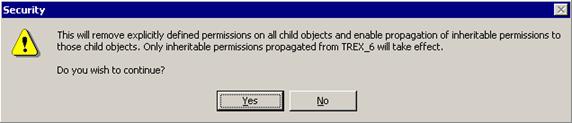
5. If you get a popup which asks if you wish to continue, select Yes.
6. The permissions are now set properly. Restart the IIS by using the iisresetcommand.
7. Check the screenshots below which are associated with this step.
Step 6: OK Connection
When you get the message Ok Server Connection, the TREX Web server / TREX HTTP server is working fine. The search works fine.

Now try to search again from the quick search screen and you will see the results.
Additional Information
TREX 6.1 Requirements and Installation Guide
 Search and
Classification (TREX)
Search and
Classification (TREX)