
 Role Assignment Does Not Work
Correctly
Role Assignment Does Not Work
Correctly

Problem Description
You use roles to assign mobile applications to users. In the Web Console, however, the corresponding mobile application is not assigned to the user with that role.
|
Scenario Type: |
Error analysis |
|
NetWeaver Component: |
MI Client Component MI Web Console MI Server Component |
|
Validity: |
MI
version 2.1 and higher; |
Decision Roadmap
Prerequisites
-
Main Tools
RZ20
Analysis
The following figure gives an overview of the analysis process:

1. Check if role assignment is configured correctly
First of all, verify if you have correctly set up the role assignment:
● Go to transaction PFCG (Role Maintenance) and display the role you want to assign. Click on the User tab and check if the user name appears in the list. If the user is not in the list, the user is not assigned to that role.
● Then click the MiniApps tab and check if the MiniApp you want to assign is in the list. If the MiniApp is not in the list, it is not assigned to that role.
If there was no user or no MiniApp assigned to the role, execute Role Synchronization (see also Step 2 and check if the problem still exists.
2. Execute role synchronization
Role synchronization is executed in this step. All users with a given role are assigned to the MiniApps belonging to this role. Without this synchronization, no updates take effect.
●
Log on to the MI Web Console. It can normally be
found at
http://your_j2ee_engine:your_port/me
● Click on Start Role Synchronization on the right side of the screen
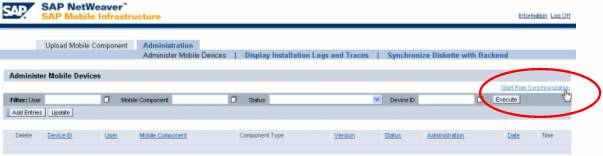
● Check if the assignment is now displayed correctly, otherwise continue with Step 3.
3. Check if there is an MCD with same name as the MiniApp
Check to see if the MCDs and MiniApps are correctly assigned to one another.
● Log on to the system on which the MI Server Component is installed.
● Go to transaction PFCG (Role Maintenance).
● Enter the name of the role and click on the eyeglasses icon to display the role.
● Click on the MiniApps tab.
● Remember the name of the MiniApp in the MiniApp column.

●
Log on to the MI Web Console. It can normally be
found at
http://your_j2ee_engine:your_port/me
● Enter the name of the MiniApp from transaction PFCG in the Mobile Component text field. Choose Update.

● The results should show at least one line containing the name of the mobile component / MiniApp. Otherwise, do one of the following:
○ Change the name of the mobile component in the Web Console (Upload Mobile Component tab, Change button)
○ Upload a mobile component to the Web Console with exactly the same name as shown in transaction PFCG
○ Create a MiniApp in the SAP system with exactly the same name as the mobile component uploaded to the Web Console
4. Check if the MiniApp is flagged for offline use
When a MiniApp is created in the SAP system, the user can define that it should be an offline application. The Offline Application radio button must therefore always be selected when a MiniApp is created. Only offline applications can be used by the Mobile Infrastructure.

● To verify this setting:
|
● Go to Transaction SE80 (ABAP Workbench) |
●
|
|
● Make sure that the Repository Browser is open on the left side of the screen |
|
|
● In the dropdown menu, select Package |
|
|
● In the name field, enter the name of the package to which the MiniApp belongs |
|
|
● In the following tree menu, double-click on MiniApps |
|
|
● From the MiniApps folder, select the MiniApp you want to examine |
|
|
|
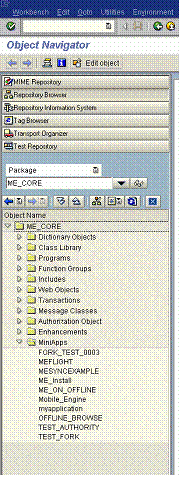
● The properties of the MiniApp are displayed on the right side of the screen.
● If there is a box called Size on the Attributes tab, the application is not flagged for offline use, that is, it is not an offline application.

○ In this case, you have to create a new MiniApp with the correct setting for offline applications
○ Optionally, delete the old MiniApp with the incorrect setting if it is not used elsewhere
5. Check RZ20 for errors in the job protocol
There is usually a job running that synchronizes the role assignments in the system landscape (from the backend systems to Web AS with the MI Server Component and to the Web Console). The job logs are checked in this step, which is only available for MI versions 2.5 and higher.
● Go to Transaction RZ20 (CCMS Monitor Sets)
● Open node SAP Mobile Infrastructure Monitor Templates and double-click on the only leaf Mobile Infrastructure

● The MI CCMS tree is displayed
● Open the node of the system you wish to examine
● Open the Job Monitoring node
● Search for a node with the name Background\...\WAF_DEPLOYMENT_FROM_ROLES and open it. If such a node does not exist, the job is not planned in your system landscape.
● The node leaves may contain information about errors that occurred during role synchronization

The most common error is a failure in the RFC connection to the back end, or the back-end systems are not available at all. Go to transaction SM59 to display and maintain the RFC connections, or look at the back-end systems directly by logging on to them.
Additional Information
● Official MI documentation on the NetWeaver'04 Help Portal (http://help.sap.com/nw4)
 Assigning Applications
to the Users of a Role
Assigning Applications
to the Users of a Role
● MI Installation Guide:
○ ME 2.1: http://service.sap.com/instguides ® SAP Components ® SAP ME 2.1
○ MI 2.5: http://service.sap.com/instguides ® SAP NetWeaver ® Release 04 ® Installation