
 Configuring Tag Commissioning and Label
Printing
Configuring Tag Commissioning and Label
Printing 
Use
You can use this process to provide RFID devices and printers with specific sets of fields for tag commissioning and label printing.
Prerequisites
You must complete the following steps before you can do configuration for tag commissioning and label printing:
● In Customizing, you have defined appropriate print profiles, if needed, by choosing Auto-ID Infrastructure ® Basic Settings ® Data Profile Settings → Maintain Print Profile.
○ You have assigned an element set to the usage Write / Print EPC (1) in this print profile.
The system determines the values of the elements (fields) in the element set and sends the fields and their values in the command message to the device controller. You can flag some of these elements as bar code-relevant by maintaining the attribute BARCODE_TYPE and the attribute BARCODE_FORMAT (if applicable) for the bar code type.
A bar code element could represent a bar code string containing one value or it could represent a string containing multiple values. For example, a bar code string could contain just the current part number or it could contain the CAGE code, the original part number, and the serial number. If your element represents a bar code string with multiple values, then you must compose this element in Customizing by choosing Auto-ID Infrastructure ® Basic Settings ® Bar Code Settings ® Maintain Composite Bar Code Elements.
● On the SAP Easy Access screen, you have assigned your print profiles by choosing Auto-ID Infrastructure ® Master Data ® Settings for Tag Commissioning and Label Printing.
To provide devices with a specific set of fields for tag commissioning and label printing, you can assign print profiles to particular IDs such as GTINs or GRAIs, or, to particular filter values.
The data profile determines the set of fields that SAP AII uses to write or print the selected IDs. This data profile determination process ensures that the RFID device controller automatically determines the correct fields with respect to given IDs or given filter values and sends them to the RFID devices.
You can assign data profiles from the SAP Easy Access screen by choosing Auto-ID Infrastructure ® Master Data ® Settings for Tag Commissioning and Label Printing→…:
○ Assign Profile to GTIN and Filter Value
In this transaction, you assign a data profile to a set of IDs defined by a GTIN and filter value. A given GTIN refers to IDs based on this GTIN with tag encoding type SGTIN-64 or SGTIN-96. The filter value indicates the container type (for example, case or pallet).
○ Assign Profile to GRAI and Filter Value
In this transaction, you assign a data profile to a set of IDs defined by a GRAI and filter value. A specific GRAI refers to IDs based on this GRAI with tag encoding type GRAI-64 or GRAI 96. The filter value indicates the container type (for example, case or pallet).
○ Assign Profile to Filter Value
In this transaction, you assign a data profile to a filter value. You can use this function to assign profiles to SSCCs.
○ Assign Profile to ID Type and Encoding Type
In this transaction, you assign a data profile to ID type and encoding type. You can use this function to assign profiles to UIIs.
● Label formats are available on RFID printers or on the RFID device controller.
● You have assigned label formats to printer device groups and data profiles on the SAP Easy Access screen by choosing Auto-ID Infrastructure ® Master Data ® Settings for Tag Commissioning and Label Printing ® Assign Format to Printer and Profile
You can provide RFID devices with a specific label format for a given data profile by assigning the label formats to a device group/data profile combination. This assignment ensures that the device controller sends the correct label format to the devices with the write command or to the printer so that it uses the correct format to print the label.
Process Flow
In the standard system, the process runs as follows:
You e...
1. You execute tag commissioning and label printing (see also Tag Commissioning).
2. To determine the applicable data profile, the system checks the relevant condition tables in the following sequence:
a. Assignment of data profile to GTIN and filter value
b. Assignment of data profile to GRAI and filter value
c. Assignment of data profile to filter value
d. d. Assignment of data profile to ID type and encoding type
This sequence is determined by condition table set SAP_TAGCOMM_COND_TABS

You can change the sequence in Customizing for Auto-ID Infrastructure by choosing Basic Settings ® Condition Table Settings ® Maintain Condition Tables for Profile Determination.
3. The system determines a data profile with profile type Printing Label and Writing ID. This data profile defines the set of fields for tag commissioning and label printing. The fields are determined by element sets with usage Write / Print EPC (1).
You can define elements such as a document number or an ID. If the element has the barcode type attribute maintained, the system looks up the customizing maintained at Auto-ID Infrastructure ® Basic Settings ® Barcode Settings ® Maintain Composite barcode Elements to determine whether or not this element is composed of other elements.
4. The system determines the values of the elements and construct bar code strings, where applicable, following the customizing maintained at Auto-ID Infrastructure ® Basic Settings ® Barcode Settings.
5. The system provides the device controller with the desired set of fields for tag commissioning and label printing.
The figure below shows how the system determines the profiles for tag commissioning and label printing and then how it provides the device controller with a defined set of fields for tag commissioning and label printing.
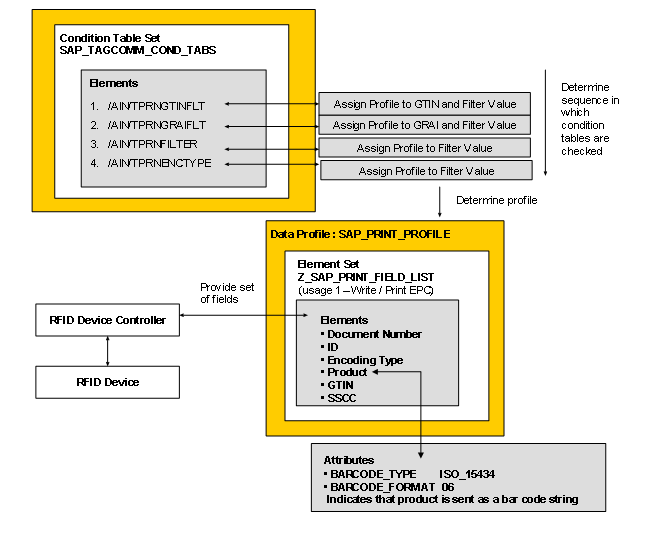
Example: Profile Determination