
 Top-Level Navigation
Use
The contents of the roles that are assigned to a user are displayed within top-level and detailed navigation. Both types of navigation allow end users to navigate through their content.
Before configuring your top-level navigation, you need to develop a concept of the navigation requirements of the particular roles for which you are defining the navigation type. How you define the navigation type affects what is displayed in both top-level and detailed navigation.
You can select one of the following combinations to define the portal navigation type:
Top-Level Navigation |
Detailed Navigation |
Two levels |
Exists |
Two levels |
None (role hierarchy is so flat that everything can be displayed in top-level navigation) |
One level |
Exists |
None |
Everything is displayed in detailed navigation |
After configuring the navigation type, you also need to define, in the folder structure of a role, which nodes of a role should appear as navigation entry points in the top-level and detailed navigations.
Prerequisites
You have created and defined roles with complete hierarchies.
Integration
Top-Level Navigation with Two Levels
· When you define top-level navigation with two levels:
...
¡ The entry points appear on the first level of the navigation bar in the header area
¡ The entries directly under the entry points in the folder structure of a role are displayed on the second level of the navigation bar
¡ The subsequent levels appear in the Detailed Navigation iView in the navigation panel
· Selecting a first-level entry activates an entry of the corresponding second level. This can be the first item in the folder, or an item specially configured to be the opening entry.
· The type of the second-level entry determines what appears in the content area:
¡ Folder: Default entry item (page or iView) of folder is displayed
Any item in the folder can be defined as the default entry item; it is not automatically the first item that appears in the list.
¡ Page: Precisely this page is displayed
¡ iView: Precisely this iView is displayed
¡ Workset Map: An iView that displays the contents of a workset, with descriptions of and direct links to each item

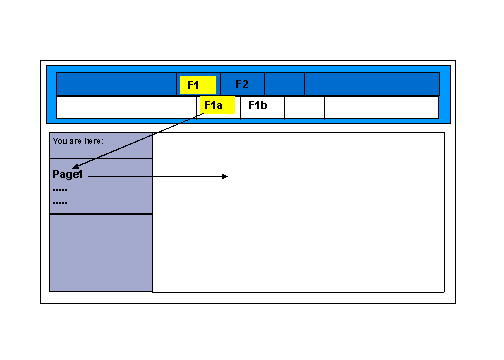
Folders F1 and F2 are defined as entry points and therefore appear on the first level of the top-level navigation bar. When you click F1, the underlying folders F1a and F1b appear on the second level. The first entry (F1a) of the corresponding second level is automatically activated and its contents (subordinate structures) are displayed in the detailed navigation. The default entry item of the contents is displayed in the content area.
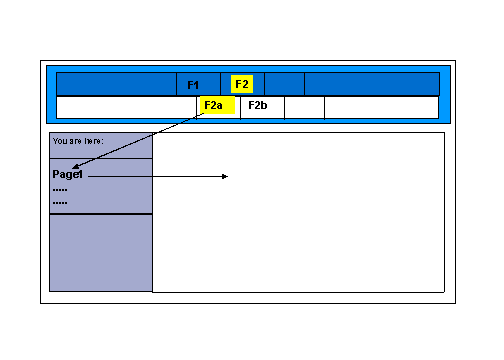
When you click F2, the underlying folders F2a and F2b appear on the second level:
Top-Level Navigation with One Level
When you define top-level navigation with one level:
...
· The entry points always appear on the only level of the navigation bar
· The entries directly under the entry points in the folder structure of a role, as well as all subsequent levels, appear in the Detailed Navigation iView
No Top-Level Navigation
It is possible to remove the top-level navigation so that:
· The navigation bar is not visible in the portal header area
· The entire navigation structure appears in the Detailed Navigation iView