
 Copying an Object or Folder (Copy /
Paste)
Copying an Object or Folder (Copy /
Paste) 
Use
The Portal Catalog lets you create portal objects by copying existing objects using the Copy action followed by the Paste or Paste as Delta Link action available in the Portal Catalog context menu.
Action |
Description |
Copy ® Paste |
Creates a sibling instance of the object you have copied to the clipboard. See the figure in the Example section below. · Sibling objects are not directly related to one another through a delta link; however, they share the same source object via delta link. · At the time the objects are copied, the source object and the new instance are identical; however they may become different over time since they do not belong to the same delta link chain. This option is available also when you copy a folder with objects in it. The source folder and its contents are copied to the new destination. Typically, you would use the Copy ® Paste method when the source object is similar enough to what is needed for another role or location in the Portal Catalog. Adjustments can be made as needed to the new object for its new context or role. |
Copy ® Paste as Delta Link |
Creates a delta link instance (also referred to as the target object) to the original source object. See the figure in the Example section below. This option is only available when you copy individual objects; not when you copy a folder. Use the Copy ® Paste as Delta Link method to create object dependencies and to extend delta link chains (see Delta Links). |
The Copy ® Paste action is controlled by an interactive wizard, which verifies the following to determine if the selected objects can be copied without further action by the user:
Verification |
Description |
Object dependencies |
Dependent objects can be one of the following: · Internal dependency: related object that is amongst the objects you have selected to copy · External dependency: related object that is not in the selection range The wizard does not relate to external dependencies; therefore, if the source objects you are copying have related objects pointing to them, which are not in the selection range, the dependencies will not point to the duplicated objects, as well. The wizard checks for internal dependencies. If found, the wizard creates links between source objects and related objects which are in the selection range. The wizard does not alert you if there are internal dependencies. |
Object locking status |
Objects being edited by you or another user are locked by the system. Objects or folders which are already locked by another user or portal process, prevent the copy action from being executed. For more information, see Object Locking. The wizard lists locked objects preventing completion of the action, and their respective owners. |
Permissions |
Administrator permissions are assigned to every object in the Portal Catalog and determine which actions can be performed by users. To copy an object or folder, the following administrator permissions are required: · Permission to copy the source objects. · Permission to create objects in the destination folder. The wizard informs you if you do not have the necessary permissions. For details about the permission settings required for the aforementioned capabilities, see Permission Levels. |
Hidden or filtered objects |
The Portal Catalog is used by many editors in the portal. Each editor displays only the objects that are relevant to it. For example, in the Portal Content Studio you may be working with iViews in a particular folder, but the iViews are not displayed in the same folder in the System Landscape Editor. The wizard informs you if the source folder contains objects that are filtered out in the current editor. These objects are copied if you instruct the wizard to continue. |
Note the following:
· Use only the copy and paste actions in the Portal Catalog context menu (do not use the copy and paste commands that belong to the Web browser).
· The portal utilizes an internal clipboard to retain items you have copied; items in the clipboard of your operating system are not affected.
· If you want to move an existing object to a new location, use Cut instead of the Copy action (see Moving an Object or Folder (Cut & Paste)).
· The content mirroring tool can also be used to duplicate folders and their content; however the resulting delta links are different to those created when using the Copy ® Paste action on a folder. For more information, see Content Mirroring.
· Certain semantic objects may perform additional background checks, which are not mentioned here.
Procedure
Copying a Folder or Object: Copy > Paste
...
1. In the Portal Catalog, right-click the folder or object you want to copy and choose Copy from the displayed context menu.
2. In the Portal Catalog, right-click the destination folder and choose Paste from the displayed context menu. The Copy wizard appears.

The wizard immediately locks the following objects until the copy action has been completed and the wizard closes:
§ The selected object or folder (and the objects in the selected folder)
§ The destination folder
3. Follow the onscreen instructions in the wizard. Click the Finish button to execute the paste action.
Click Cancel at any time to abort the action.
Copying an Object: Copy > Paste as Delta Link
In this version, the Copy ® Paste as Delta Link is not handled by a wizard. Most of the checks mentioned above are not performed.
...
1. In the Portal Catalog, right-click the folder or object you want to copy and choose Copy from the displayed context menu..
2. Right-click the folder to which you want to copy the object or folder, and choose Paste as Delta Link from the context menu.
Result
You are notified once the selected objects have been successfully copied to the destination folder. All objects that were locked by the system as a result of the action are then released.
The new objects and folders inherit the permissions of the destination folder.
If the action is interrupted, the Portal Catalog is restored to its initial state.
Example
The following figure illustrates the results of using the copy and paste actions available in the Portal Catalog context menu. Note that this example is based on copy and paste actions performed directly on individual objects.
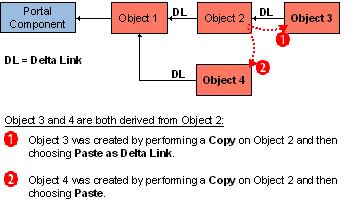
Figure: Creation of objects using copy/paste commands in the portal, illustrating the resulting delta link dependencies between objects
See Also
For more information on object instance types and how they relate to one another, see Content Object Model.
For information on creating objects from scratch, see Object Creation Wizards.