
 Changing Linked Objects in Roles and
Worksets
Changing Linked Objects in Roles and
Worksets 
Use
You can modify all
content objects that are added to roles and worksets as  delta links or copies. Since
a copy is also a delta link, the procedure is the same and does not depend on
whether it is a delta link or a copy.
delta links or copies. Since
a copy is also a delta link, the procedure is the same and does not depend on
whether it is a delta link or a copy.
The following changes can be made:
...
1. Changes to the Source Object
For example, you can add an iView to a role with a delta link or copy and change it by accessing the source object in the role using the linked object. This change therefore affects only the source object of the iView and is not performed locally in the role.
The change has the following effect:
¡ The linked iView within the role takes on the changes of the source object.
¡ All the (target) objects derived from the iView take on the changes made to the source object.
Changing a
source object always results in the change being copied to all the objects
derived from this source object. For more information see Delta Links and Inheriting
Properties.
You can access source objects by using the delta link origin function. With the delta link origin you can look at the position of an object within a delta link chain; you see the source object and the dependent objects. You can localize each object within a delta link chain in the Portal Catalog and load it from there into the corresponding object editor for modification.
For more
information see Tracing Delta Links
Dependencies.

You can only display or change a source object if you have the required permissions.
2. Local Changes
You can add an iView or page to a role with a delta link or copy, and change it within the role. This kind of change only affects the iView or page in the role. The change has no effect on other objects. In this case only the linked object in the role is changed, and not the source object.
If you make local changes to an object that is a delta link, these are visualized. For more information see Visualization of Modified Linked Objects.
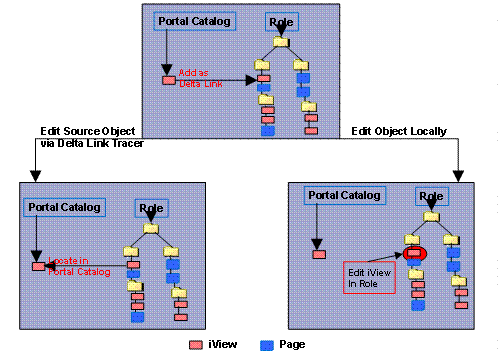
The following graphic shows how you can change a linked iView within a role.
· By changing the source object with the delta link origin
· With local changes in the role
Features
The following modifications are possible when you access source objects:
Object |
Possible Actions |
iView or iView template |
Change or overwrite the property |
Page or page template |
Remove iView from or add iView to page; change page properties |
Workset |
Change hierarchy (add or delete entries); change properties |
Role |
Change hierarchy (add or delete entries); change properties |
The following changes can be made locally:
Object |
Possible Actions on a Linked Object |
iView or iView template |
Change or overwrite the property |
Page or page template |
Remove iView from or add iView to page; change page properties |
Workset |
Change hierarchy (add or delete entries); change properties |
Role |
Change hierarchy (add or delete entries); change properties |
Activities
Place a role or workset in the Role Editor or Workset Editor for editing.
You can change linked objects in the role or workset as follows:
Linked Object |
Function and Procedure |
Type of Change |
Role |
3. Place the cursor on the root node and choose Delta Link Tracer. 4. Localize the source object in the Portal Catalog. 5. Edit the object in the Role Editor. |
Change the source object of the role |
Workset |
6. Place the cursor on the root node and choose Delta Link Tracer. 7. Localize the source object in the Portal Catalog. 8. Edit the object in the Workset Editor. |
Change the source object of the workset |
iView |
9. Place the cursor on the iView and choose Delta Link Tracer. 10. Localize the source object in the Portal Catalog. 11. Edit the object in the iView Editor. |
Change the source object of the iView |
Page |
12. Place the cursor on the page and choose Delta Link Tracer. 13. Localize the source object in the Portal Catalog. 14. Edit the object in the Page Editor. |
Change the source object of the page |
iView |
15. Place the cursor on the iView. 16. Choose Edit. The Property Editor is opened and you can now edit the iView. |
Change the iView locally |
Page |
17. Place the cursor on the page. 18. Choose Edit. The Page Editor is opened and you can now edit the page. |
Change the page locally |
Local Changes to Roles and Worksets
To change a linked role or workset locally:
· Delete entries from the role or workset hierarchy
· Adding entries
· Change linked pages and iViews in roles and worksets
Changes to Delta Link Chains
Delta link chains occur when an object is linked to a second object, the second object is linked to a third object, and so on.
For example, you can link iView A and page B to workset C. You then link workset C to role D.
You can then make the following changes to the objects in the role:
Linked Object |
Possible Function |
Type of Change |
Workset C (exists in role D as a delta link) |
Change the source object with Delta Link Origin or make a local change by deleting or adding workset nodes within the role |
Changes to the original object or local changes |
iView A (exists as a delta link in workset C) |
Edit |
Local change |
Page B (exists as a delta link in workset C) |
Edit |
Local change |