Dynamic Navigation
Use
The portal allows you to assign navigation objects as context-sensitive dynamic navigation iViews to pages and iViews. At runtime, when a user launches an iView or page that has associated dynamic navigation iViews, they appear by default in the portal navigation panel.
Dynamic navigation iViews typically contain user interface controls, such as dropdown lists and links, which retrieve data related to the content displayed in the content area. Each time a user clicks or chooses a control in a dynamic navigation iView, the data currently displayed in the portal content area changes accordingly. For example, a page displaying information about shipping orders may have assigned to it a dynamic navigation iView that comprises a list of customers. Choosing a customer name retrieves data about placed orders specific to that customer.
Integration
When you assign navigation objects as dynamic navigation iViews to the page/iView you are editing in the Dynamic Navigation Editor, the information is written to the Portal Content Directory (PCD).
When an end user launches the page/iView you are currently editing, the semantic object representing the launched iView/page reads the PCD and provides the dynamic page module of the Page Builder with a list of the objects that you assigned. While the Page Builder assembles the page, the dynamic page displays the objects in the dynamic navigation area, making them accessible for navigation operations pertinent to the content in the content area.

You can insert the dynamic navigation area anywhere in the portal framework page; however, placing it in the navigation panel results in cleaner navigation. This positioning prevents this navigation tool from being hidden if a user launches a full-page iView.
If no dynamic navigation iViews were assigned to the displayed content, the dynamic navigation area remains hidden.
For more information about assembling pages, see Page Builder in Portal Components.
Features
It is possible to assign a navigation object as a dynamic navigation iView to:
· Multiple pages, iViews, and roles
· Multiple iViews on the same page
In such an event, the semantic object representing the launched iView/page resolves the duplication during page rendering and displays only one instance of the dynamic navigation iView.
When assigning objects as dynamic navigation iViews, it is important to consider the following:
§ The navigation panel is a one-column container to which you can assign both pages and iViews. If you assign a multi-column page as a dynamic navigation iView, it will display according to its own layout. You may find that you have two or three iViews beside each other in the navigation panel. To avoid UI inconsistency, we recommend that you use a single column layout for pages that you plan to assign as dynamic navigation iViews.
§ The default width of the navigation panel is 220 pixels; therefore, the iViews within it should be no wider than 211 pixels. Before defining an iView/page as a dynamic navigation iView, make sure that the iView’s content can fit the width defined for the navigation panel in your portal.
Example
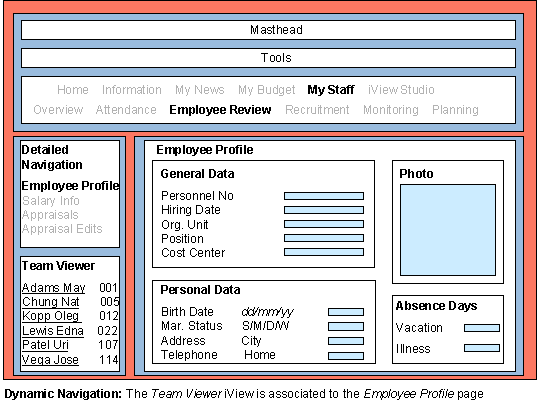
The following figure illustrates the Team Viewer iView, which was assigned as a dynamic navigation iView to the Employee Profile page.
When a user chooses My Staff ® Employee Review ® Employee Profile, the Team Viewer iView appears in the navigation panel, displaying links representing each team member. Clicking a link populates the appropriate areas of the Employee Profile page with data specific to the team member.