
 Characteristic Properties
Use
In the Characteristic Properties dialog box for a specific characteristic, such as order type, you can set a range of functions. These settings then affect all the key figures for this characteristic in a query drilldown.
Features
Description
The name of the characteristic appears automatically. You can overwrite this text. The new text is different to the text provided in InfoObject maintenance and is used in the query display.
Technical Name
The technical name of the characteristic is displayed.
Display As
Here you determine whether and in what format the individual characteristic values of the characteristic are presented:
·
(Standard): The
standard display type for characteristic values corresponds to the setting in
InfoObject maintenance under  Tab Page: Business
Explorer.
Tab Page: Business
Explorer.
· No Display: The characteristic display is hidden. This function is useful, for example, with the currency/unit characteristic as the currencies are also shown in the key figures.
· Key and Text: The characteristic values are displayed by their technical key and text.
· Text: The characteristic values are displayed by their text.
· Key: The characteristic values are displayed by their technical key.
· Text and Key: The characteristic values are displayed by their text and technical key.
In the dropdown box below, you can select the type of text you want to use if you set a display type that contains text. The following options are available:
· Standard: The shortest available text for the characteristic values is used as the text.
· Short text: The short text for the characteristic values is used as the text.
· Long text: The long text for the characteristic values is used as the text.
· Medium text: The medium text for the characteristic values is used as the text.

In the dropdown box for display type, the system offers the setting options as follows:
§ (Standard), No Display and Key are always offered.
§ Key and Text, Text, Text and Key are offered in addition if any text (short, medium or long) has been created for this characteristic.
In the dropdown box for text type, the system only offers texts for selection
that have been created in InfoObject maintenance
for the characteristic. See Tab Page: Master
Data/Texts.
Results Display
Suppress Results Rows
Here you can choose whether to suppress the results rows Never, Always or Only for One Value. Only for One Value means that only those results rows are suppressed that aggregate only one value; the value and the result are identical and the results row repeats the same value.
Normalize to
Here you set the normalization for a specific characteristic. The setting is effective for all key figures displayed in the drilldown and means that normalized query data is displayed for the result that you have chosen for normalization. Query data is displayed as a percentage in relation to the result. The normalization process is applied to one characteristic at a time and various settings can be made independently for each characteristic.
Normalization for the characteristic only has an effect when the characteristic is in the drilldown.

Note that normalization can only be applied to key figures in the drilldown that can be totaled in all dimensions. For example, the system does not use normalization with a structure element that contains a formula with a multiplication.
You can choose from the following settings:
You can choose whether and for which result you want to normalize the values for this characteristic.
· No Normalization
· Result
All values are normalized to the result. The result equals the total result if there is only one characteristic in the drilldown.
· Overall Result
All values are normalized to the overall result. If there are several characteristics in the drilldown, there are different results that are combined to form an overall result.
· Query Result
All values are normalized to the query result. Each key figure for a query has a query result. This is the result of the key figure that results from the aggregation of all characteristics for the query.
The overall result and the query result are identical, providing that none of the characteristics are in the filter.
The values of the results row and the overall results row are not displayed as percentages but as absolute values.

As the Normalize to function
affects all key figures, unwanted results are often delivered. To avoid this,
SAP recommends that you set the Normalize to function key figure by key
figure. For more information, see Calculate Single
Values As....
Cumulated
If you choose this function the system sorts the list in ascending order according to key. All the structure elements (key figures) are subsequently aggregated to the n+1 characteristic value, one after the other, for each of the nth characteristic values. With time characteristics the missing characteristic values are included wherever necessary.

The following example illustrates the concept of the Cumulated function:
Values |
Cumulated Values |
1 |
1 |
2 |
3 |
3 |
6 |
4 |
10 |
If you subsequently choose a different sorting method for this function it becomes difficult to make sense of the numbers.
Do not use the cumulated display function with more than one characteristic.
Since the Cumulated function
affects all key figures, unwanted results are often delivered. To avoid this,
SAP recommends that you set the Cumulative function key figure by key figure.
For more information, see Calculate Single
Values As….
Sorting
Here you can set the sorting within the characteristic according to the Key or Name in Ascending or Descending order.
If a characteristic has attributes you can sort the characteristic by attribute. The attribute involved does not have to be selected for the display.
You want to sort your articles according to specific criteria. To do this you create an attribute for the Article characteristic that contains these criteria and you are able to sort the articles by this attribute.
The values are sorted as they are defined in the query definition by default. If you have not specified a filter value in the query definition, the system sorts the values according to the key.
Presentation Hierarchy
You can
present the characteristic as a hierarchy. Choose  to select a
hierarchy. The hierarchy is flagged automatically as an active
presentation hierarchy. If you deactivate the Active checkbox the characteristic is not
displayed in the query as a hierarchy but as a basic list.
to select a
hierarchy. The hierarchy is flagged automatically as an active
presentation hierarchy. If you deactivate the Active checkbox the characteristic is not
displayed in the query as a hierarchy but as a basic list.
If you restrict the characteristic to a hierarchy node the node hierarchy is adopted automatically as the presentation hierarchy. You can deactivate the presentation hierarchy here if necessary.
You can set the sorting within the hierarchy according to the Key or Name in Ascending or Descending order. If you do not make any entries, the values are sorted as determined in the hierarchy.
Each hierarchy has certain properties that you specify in the hierarchy definition. You can override the following hierarchy properties for the current hierarchy:
· Expand to level
In column B (user settings), select the checkbox and enter a numerical value for the hierarchy level that you want to expand the hierarchy to.
· Position of lower-level nodes
In column B (user settings), select the checkbox and choose whether you want to position lower-level nodes Down or Up. Choose Up if, for example, you want to see the overall result at the bottom.
· Values of posted nodes
In column B (user settings), select the checkbox and choose whether you want to Display or Suppress the values of posted nodes.
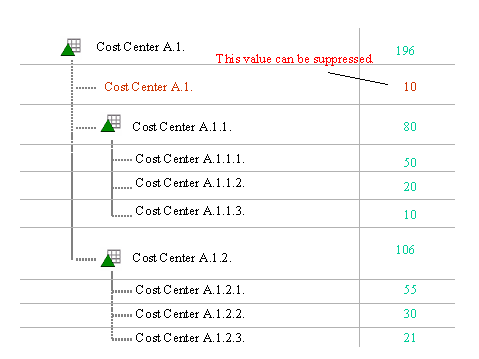
In hierarchies, nodes always display the aggregated values of the subordinate nodes and leaves. If a node has a posted value, you cannot see this. To display this posted value, an additional leaf is inserted that has the same name as the node. This leaf displays the value posted to the node.
In the following example you see that for cost center A1 an additional leaf has been added and the value of cost center A1 itself (10) is displayed. This additional leaf does not exist in the hierarchy. You can display or suppress this leaf (with the value of the posted node).
· Nodes with only one lower-level node
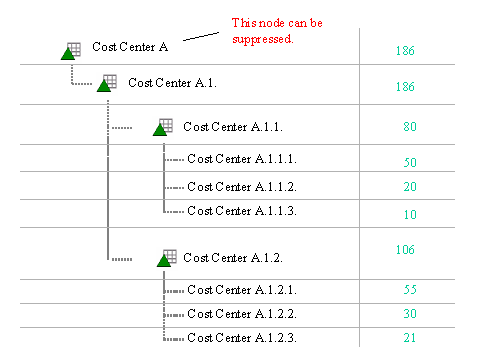
In column B (user settings), select the checkbox and choose whether you want to Display or Suppress the values of nodes with only one lower-level node. Suppressing nodes with only one lower-level node helps you to reach the more detailed information quickly.
In the following example, Cost Center A and Cost Center A.1. contain the same information since Cost Center A has only one lower-level node in the hierarchy. If you are interested in the detailed data for the individual cost centers, you can suppress the uppermost node with only one lower-level node as this does not contain any additional information.
Activities
Drag a characteristic into a directory in the Query Designer (rows, columns, free characteristics or filter), select it and choose Properties from the context menu. You get to the Characteristic Properties dialog box.