
 Modeling BI Data With SAP NetWeaver Visual
Composer
Modeling BI Data With SAP NetWeaver Visual
Composer

This variant allows business users to easily configure business intelligence (BI) applications in a visual modeling environment and deploy the results in the SAP NetWeaver Portal. Like everything in SAP NetWeaver Visual Composer, a BI application is easily modeled using a visual user interface rather than manually writing code.
While the BEx Web Application Designer shipped with the Business Explorer (BEx) Suite is tailored to business analysts working in a pure BI context, SAP NetWeaver Visual Composer is a tool with a broader scope. Because it is a fully Web-based application, business analysts build or customize pages and iViews as needed, which any portal user can then access from any machine.
The power of SAP NetWeaver Visual Composer lies also in its integration potential. For example, with this scenario variant, you can take a query from SAP NetWeaver BI and integrate it with mySAP ERP data. You can model your application based on SAP NetWeaver BI data.
Finally, this scenario variant offers simplicity and guidance to business analysts with a set of query templates that are tailored to address specific business questions.
Scenario Variant Architecture
The following illustration provides an overview of the architecture involved with this variant:
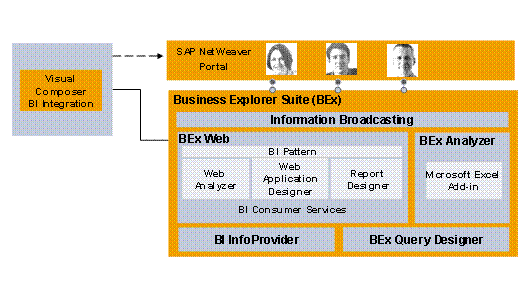
Drawing from the Business Explorer Suite (BEx), you can also base your models on BEx queries and query views by using the SAP BI Connector. You then model your analytical applications using SAP NetWeaver Visual Composer’s visual interface, and finally deploy your business content seamlessly into the SAP NetWeaver Portal.
Required or Optional Installable Units
To use this IT scenario you require the following installable units:
System with activated usage types:
● Enterprise Portal (EP): SAP NetWeaver Portal – Required
● Business Intelligence (BI) and Business Intelligence - Java (BI Java): Optional – To use SAP NetWeaver Business Intelligence together with SAP NetWeaver Visual Composer.
For more information about the required system landscape, see the Master Guide:
● Planning the installation of the IT scenario: See the Master Guide - SAP NetWeaver available on SAP Service Marketplace at service.sap.com/instguidesnw70 ® Installation.
● Planning the upgrade to the IT scenario: See the Upgrade Master Guide - SAP NetWeaver available on SAP Service Marketplace at service.sap.com/instguidesnw70 ® Upgrade.
IT Processes of the Scenario Variant
This scenario variant consists of the following IT processes:
Process |
What You Should Know |
In this process, you select a data service and model your data into queries and content. You can use the SAP BI Connector to select from available BEx queries and query views. You can model content using templates offered by the BI Integration Wizard, or you can configure queries directly in data services.. You can also reconfigure the underlying query. |
|
In this process, you build the model logic, arrange how the UI components of the model will be displayed at runtime, and deploy the model to the portal. Using SAP NetWeaver Visual Composer's storyboard, you configure which UI components are presented in the model at runtime and how the end-user may interact with the components. You can, for example, configure different inputs and outputs for your data service such as forms and charts. By simply dragging and dropping, you can move these UI components around the layout in order to size and position them. Then, when your model is the way you want it, you simply click to deploy directly to the portal. |
|
In this process, you view the query content in the model running in Flash format on the portal. You can interact with tables and charts and check your results. Note that not all process steps in this process apply to this scenario. |