2.8 Navigation Panels and Quick Launch 
You might prefer to have all the shell, i.e. the navigation structure, left navigation as well as top-level navigation, be blended away, so that the canvas area will have more space. To achieve this choose  Personalize
  Customize Panels
 and uncheck Show Navigation Panels.
In addition, there is a new feature to allow a quick navigation. This second form of navigation is optional and can be used either as enhancement of the normal navigation or as replacement of the normal navigation (for power users). You can display a quick launch where
you can trigger a search and you can quickly navigate within NWBC. To achieve this choose Personalize Customize Panels and check Use Quick Launch instead of Search Bar.
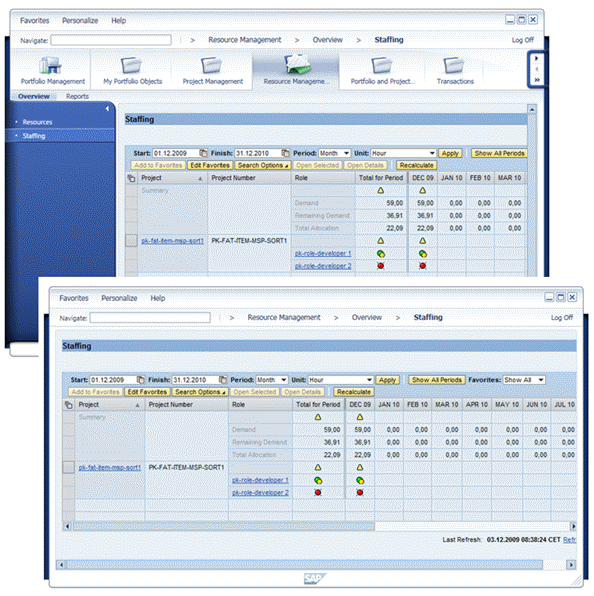 (Example of NWBC with and without navigation panels and quick launch)
The basic idea is that for power users there is an input field where a type-ahead input can be done to find any entry within the navigation tree. Type in a query string in the quick launch and all matches in all roles are displayed. You can now start a search in all categories that have been configured or, in case of a transaction in an ABAP system, start the transaction in the ABAP system directly, or you can navigate to the work center listed below.
Note that in quick launch the search for transactions is case-sensitive. If you are not sure whether the transaction you are looking for begins with an upper case letter or not, you could always begin your search with the second letter in lower case. Usually, this will lead to the results you require. For example, when searching for Infosatz (ME11), you could search for nfosatz instead, and the result will be ME11 or Infosatz hinzufügen. In this context, note that the search in the normal navigation tree is not case-sensitive, but camel case is supported.
The sort order of the quick launch is as follows: In the first section you can navigate to an URL directly via Navigate to Web Address if you've typed in an URL in the format www.xyz.com:
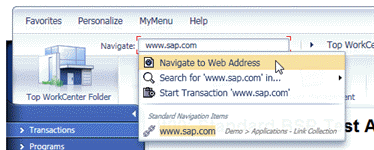 (URL example)
In the next section you can start a search in your pre-defined search providers. Then all transactions are displayed. You can start every transaction in the ABAP system directly. The second section shows the recently opened and favorite entries. And after that every match is ordered alphabetically. With a click on the matching item you can open the corresponding application.
Also a breadcrumb-like navigation is available that shows the path to the actual canvas and enables relative navigation at any level (press on the > button to select another sibling).
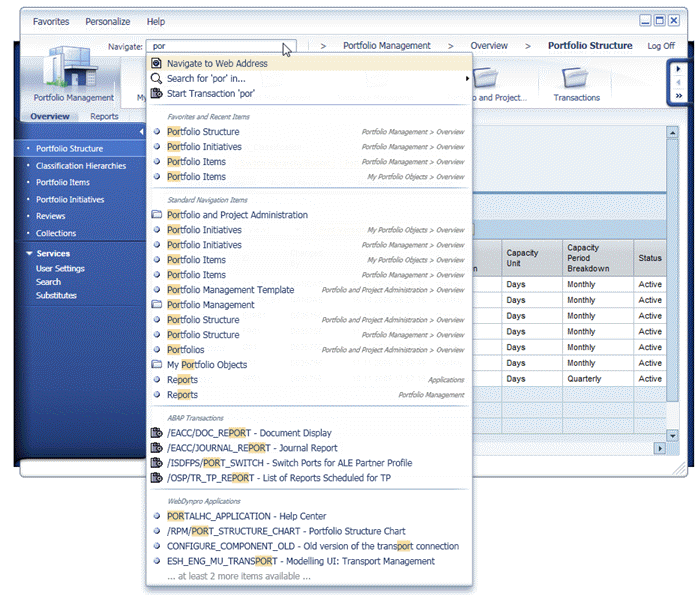 (Quick launch example in PLM with query string por)
Special Features
There are a few special features in quick launch that can help to improve productivity even more:
It is possible to use the same /n or /o sequence from SAP GUI to launch a SAP GUI transaction, for example /oME21 is possible.
It is possible to start directly a new web page from quick launch by just typing in the address, for example www.sap.com or http://www.sap.com.
Within quick launch, a normal click starts the selected application into the main window, whereas a shift-click opens a new window.