
 Box and Shading

Use
You use the settings in the Box and Shading group box of an output node to determine which border lines of a box you want to draw and whether to shade the inside of the box.
Prerequisites
Whether colored boxes and shadings are printed in the selected colors depends on your printer type. Black/white printers always print any color with a saturation specified as 100% as black (even if you selected gray, for example). To create shades of gray with these printers, you must change the saturation settings.
Features
Spacing
Default Settings
The spacing of both the box and the shading depends on the node type and on the output area. If you specify no spacing, the following rules apply:
- For windows as well as for output areas for addresses and graphics, SAP Smart Forms draws the box along the window borders; the shading covers everything up to the window borders.
- For inferior nodes of windows the right and left box borders and the shading go as far as the right and left window borders. The vertical spacing again depends on the node type:
- For graphic nodes the box and shading height meets the size of the graphic.
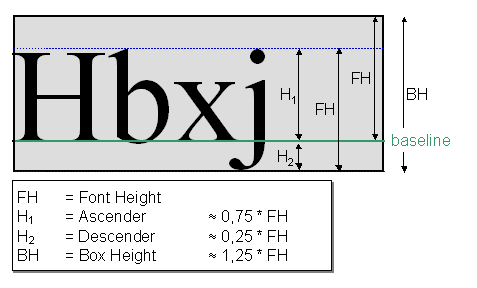
- For text or address nodes the bottom box line appears right below the writing. For the top box line a little bit more space is left (see figure).
Individual Settings
You can use the Box and Shading group box to set the attributes of the box and the shading individually:
- Under Box enter the Spacing between the box and the preset box border as well as the Color and the Thickness of the box lines.
- Under Shading determine the color and the saturation scale of the shading. The space the shading covers is determined by the box borders.

The box borders of windows match the window borders (see above). If you set the spacing for the right border to 1 cm (using Details), the box on the right window side is drawn 1 cm farther to the right.
Activities
Details Settings
The settings under Box apply for all pages that have these box borders. However, you can set these attributes individually for each page of the same borders:
- Choose
Details
. On the
Box Details dialog box you can set the spacing, the color, and the thickness for each page individually. Confirm your entries with the
Enter
key.
If the details settings of the box borders are different for individual pages, SAP Smart Forms disables the input fields in the Box group box (even though the checkbox Lines With is marked). If you want to delete your details settings, choose Undo. The details settings are deleted and the input fields in the Box group box are input-enabled again.