9.1 How To Integrate NWBC into a Microsoft SharePoint Portal 
In this example we want to show how the NWBC for HTML can be integrated into Microsoft SharePoint 2007 using the standard tools and components that are delivered by MS SharePoint 2007 out of the box. We will create a small site hierarchy using shared left-hand navigation. Each role can thereby be accessed using its own link that is always visible since appropriate site navigation settings have been chosen.
 (Example)
We will start the process by creating a site that will contain sub sites for each SAP role. Each sub site shows the service map of the respective role.
Create a new site.
Create a sub site under the new site.
Add a page viewer web part in the site ESS.
Customize the web part properties so that it displays the content of the service map of the role using NWBC for HTML.
Step 1: Create a New Site
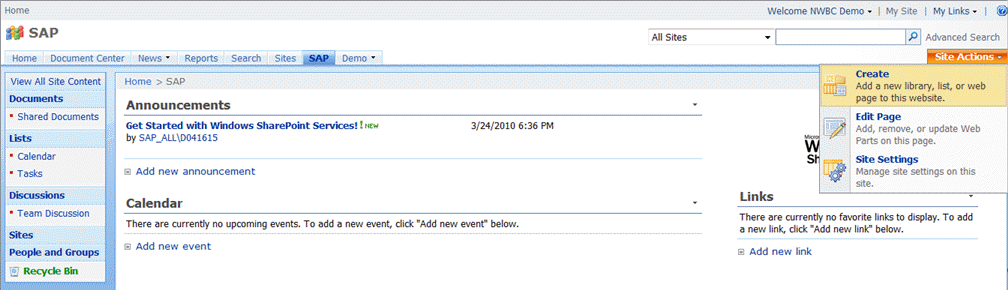
In the Site Actions menu select Create Site. In the following dialogue you have to enter some mandatory values.
In the Title and Description section enter a title for your site, for example SAP.
In the Web Site Address section, enter a name for the new subweb that will be part of the URL for your site. In this example we also choose the value SAP.
In the Template Selection section select the template you want. In our example we choose a Team Site template.
Maintain all other settings as needed. In our example we leave the default values unchanged.
Choose Create.
In the Site Actions menu select Site Settings.
Under Look and Feel choose Navigation. In the following dialogue we want to change some settings, so that the left-hand navigation contains the links to all SAP subsites.
In the Subsites and Pages section activate the checkbox Show subsites.
Step 2: Create a Sub Site under the New Site
Make sure that you are at the location on the site that you have created in Step 1.
In the Site Actions menu select Create Site.
Under Web Pages select Sites and Workspaces. In the following dialogue you have to enter some mandatory values.
In the Title and Description section enter a title for your site, for example Employee Self Services.
In the Web Site Address section, enter a name for the new subweb that will be part of the URL for your site. Here we choose the value ESS since the URL should be short.
In the Template Selection section select the template you want. In our example we choose a Blank Site template.
Maintain all other settings as needed. In our example we leave the default values unchanged.
Choose Create.
In the Site Actions menu select Site Settings.
Under Look and Feel select Navigation. In the following dialogue we want to change some settings, so that the left-hand navigation contains the links to all SAP sites.
In the Current Navigation section select the radio button Display the same navigation items as the parent site.
 (Example)
Step 3: Add a Page Viewer Web Part in the Site ESS
Make sure that you are at the location on the site that we have created in Step 2.
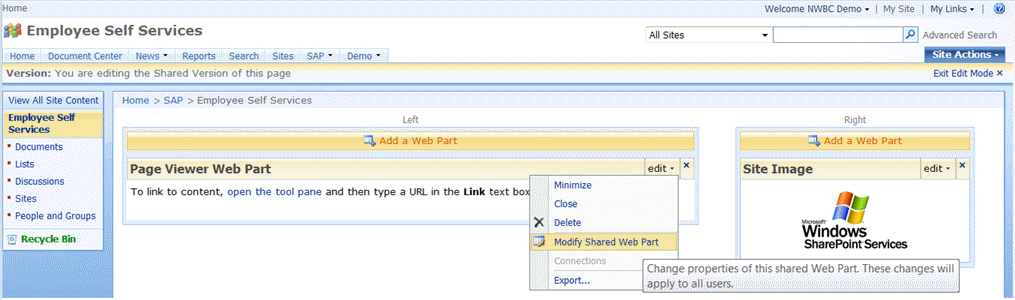
In the Site Actions menu select Edit Page.
In the Web Part zone where you want to add the web part, select Add a Web Part.
In the Add Web Parts dialog box, select the checkbox for the Page Viewer Web Part that you want to add to the page.
Choose Add.
 (Example)
Step 4: Customize the Web Part Properties so that it Displays the Content of the Service Map of the Role Using NWBC for HTML
In the Web Part menu of the Page Viewer Web Part choose Edit and then Modify Shared Web Part.
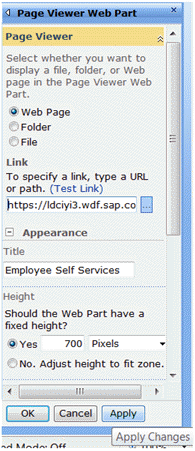
Enter the link that points to the NWBC for HTML role in the field link.
Since the Page Viewer Web Part does not resize automatically you should choose an appropriate fixed height, for example 700 pixel.
Change the title from its default value to Employee Self Services.
Change all other properties you want to maintain. In our example we leave all other default values unchanged.
Save your changes by closing the tool pane and choosing OK.
Leave the Edit Mode by clicking on Exit Edit Mode.
 (Example)
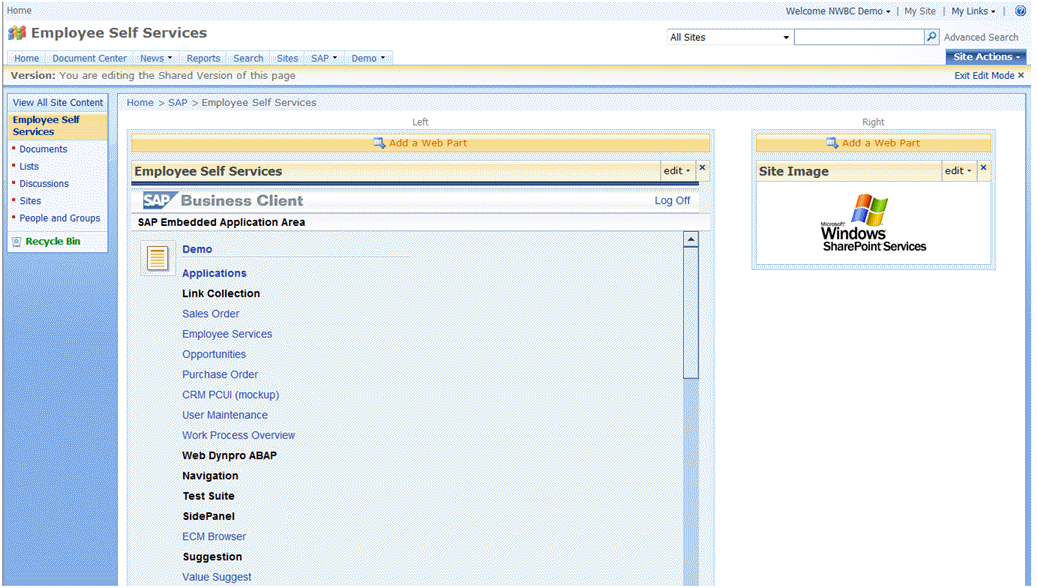
The site does now looks as follows:
 (Example)
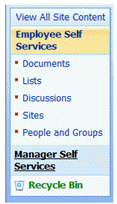
You can now add additional sub sites to the site SAP that has been created in step 1 by repeating the steps 2-5. In our sample we have added a second sub site for Manager Self Services. Because of the navigation settings chosen in step 1 the links to the other SAP roles are accessible from all sub sites that reside beneath the site SAP that has been created in step1.
 (example)
More Information
For more information on creating sites and the integration of third party content into MS SharePoint, see the SharePoint online help.