5.5 Navigation Tree 
The complete menu tree in the NWBC and extra attributes for the NWBC are configured on the Menu tab page.
Tree Structure
Create the role menu tree according to the usual PFCG procedures. For more information, see Creating Role Menus and the documentation which is displayed via the  (i) button on the Menu tab page.
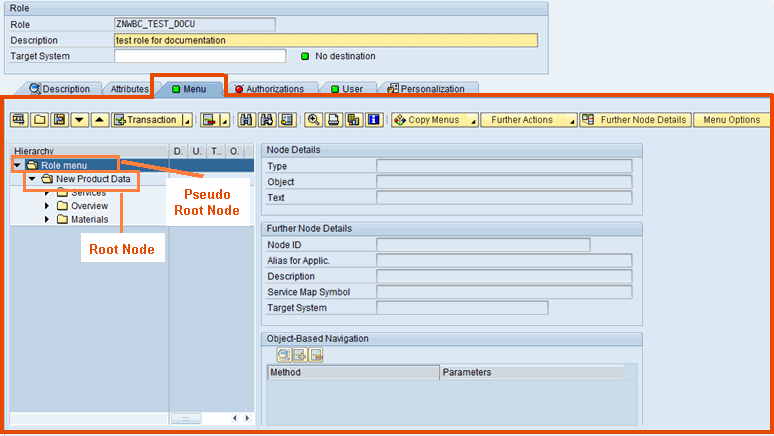 (Menu)
The very first node in the tree, labeled Role menu, is just a pseudo node that is used to contain the root folder (or folders) as children. This specific node is not part of the navigation tree and is not visualized in NWBC.
A menu tree contains a root folder as the starting point. The root folder is the navigation element at the first level. The root folder will be the first element that is rendered within the client. Usually, there is only one root folder per node, but you can specify several root folders.
Below the root folder a menu tree can contain any number of levels. Each level is represented by a folder in the tree. Recommended is a two or three level menu at the start of your development work. With a two-level menu the first level is in the root folder, and the second level contains the transaction items. Whereas with a three-level menu a second folder level comes after the first level, and the transaction items are on the third level.
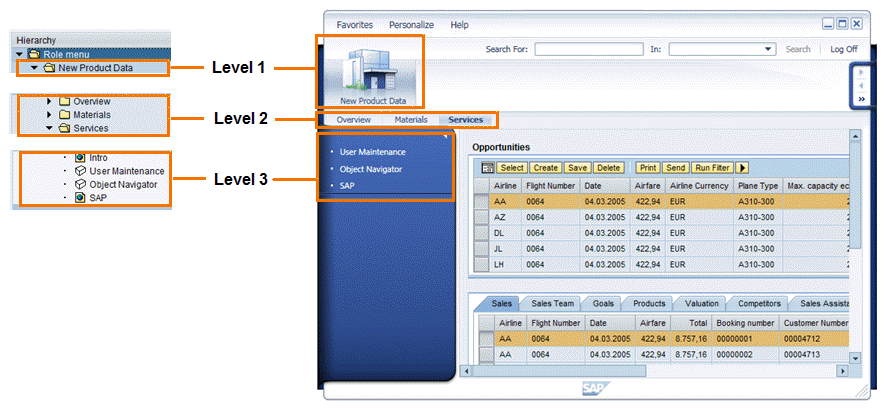 (Mapping of PFCG menu tree onto NWBC shell)
You can change the sort sequence of folders and individual menu items via the arrow buttons with which you move items up or down:
 (arrow buttons)
Use drag and drop to move folders to different positions in the tree. For information on troubleshooting-related functions offered in the button bar, see PFCG.01 Searching for Technical Names.
Types of Programs
Diverse objects can be specified as items in the menu tree according to normal PFCG procedures. To do this, choose the appropriate option of the dropdown list of function Insert node in change mode. Note that each application has its own attribute screen that is dependent on its application type.
 (insert mode)
Note that you cannot insert applications at level 1 but only folders. For NWBC you can insert the following objects in the menu tree:
Transaction code
Web Dynpro ABAP application
BSP application
Web address or file
Generic Web address (URL template)
WebClient UI Applications (for systems with WEBCUIF 7.02 upwards, e.g. CRM 7.0 EHP1). Note that navigation with NWBC may differ from common look and feel in CRM.
This integration is aimed primarily at users whose applications are not based on WebClient UI with NWBC and need to access only a few WebClient UI applications. For example, you use Financial Accounting in SAP Enterprise Resource Planning (SAP ERP) and, in addition, you wish to use account details of SAP Customer Relationship Management (SAP CRM).
Users who work primarily with WebClient UI applications should continue to use the standalone WebClient UI to have the full set of features available with WebClient UI components and the roles that were designed for the WebClient UI.
 Caution
All other menu types cannot be displayed in NWBC.
For each folder you can specify a description which will be used as tooltip in NWBC. You can edit the short text by selecting the folder in question and choosing Change Folder in the context menu.
If you use Web Dynpro ABAP applications, you can also specify additional application parameters. For more information, see Application Parameters and URL Parameters.
 (Example of inserting a Web Dynpro ABAP application)
Other Node Details
For NWBC, detailed attributes are available in PFCG for each folder or node. These additional attributes are used to achieve very specific runtime effects on the NWBC shell. To maintain these attributes select the relevant folder or node and choose Other Node Details. See also 5.2 Improvements in PFCG User Interface.
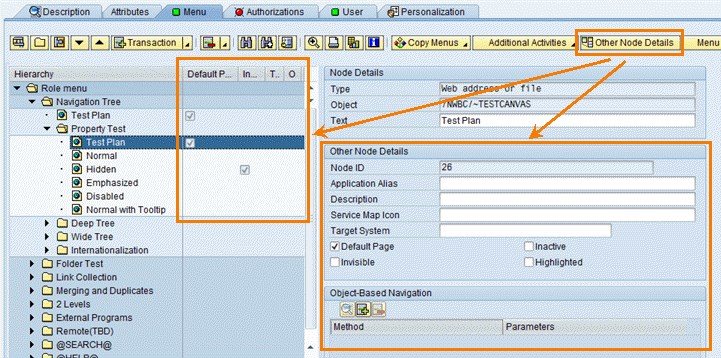 (Other Node Details)
All folders at root level can have these attributes: Service Map, Link Collection, Single Top Level or Menu. All other folders can only have attributes: Service Map or Link Collection. All single entries (nodes) can have the attributes Hidden, Home Page, Inactive or Emphasized. The chosen format leads to different visualizations on the NWBC shell and canvas.
Name |
Where/Levels |
Description |
|---|---|---|
Service Map |
Folder / * |
Flags this folder to have a special canvas with visualization of the next level navigation entries. For more information, see 5.6 Default Pages and Service Maps |
Link Collection |
Folder / >1 |
Flags this folder with its entries to be a collection of links with additional functionality, for example See Also links. For more information, see 5.7 Link Collections |
Single Top Level |
Folder / =1 |
Flags this folder to be displayed with the root folder on the top of the shell and second level navigation entries on the left panel of the shell. For more information, see 5.8 Single Top Level |
Menu |
Folder / =1 |
Flags this folder to be displayed as additional menu entry in the NWBC menu bar. For more information, see 5.9 Menu. |
Hidden |
Folder / * |
The link for this application is not displayed in the navigation panel |
Home Page |
Folder / * |
Flags an application to be displayed when the folder is selected. For more information, see 5.6 Default Pages and Service Maps |
Disabled |
Folder / * |
The link for this application is displayed grayed out to indicate that it cannot be clicked by the user |
Emphasized |
Folder / * |
Displays the link for this application in bold letters in the left navigation panel for more emphasis |