3.2 Installation together with SAP GUI 
Apart from the method of having every end-user installing the NWBC on their computer, there is also the possibility of installing the NWBC without end-user interaction, namely by installing the NWBC front-end in an automated process. Thus, the NWBC can be added to an existing 7.10 SAP GUI installation server.
This unified procedure allows the administrator to collect many SAP front-end components (or front-end products) on an installation server, and then perform installations, updates or un-installations on workstations via a network.
Proceed as follows:
To create an installation server on your computer, take a SAP GUI 7.10 CD and start setup\NwCreateInstServer.exe.
The SAP NetWeaver Installation Server wizard starts.
 (installation wizard)
Follow the steps outlined in the wizard and choose an adequate directory on your computer, for example, C:\TestServer.
Take the xNwBc.exe which you can download from the SAP Service Marketplace and start xNwBC.exe /CreateServer to add the contents of the xNwBC to the existing SAP GUI 7.10 installation server.
Follow the steps outlined in the subsequent dialogs.
Enter C:\TestServer in the folder path dialog.
Start C:\TestServer\SetupAll.exe to see that NWBC is now part of the installation source.
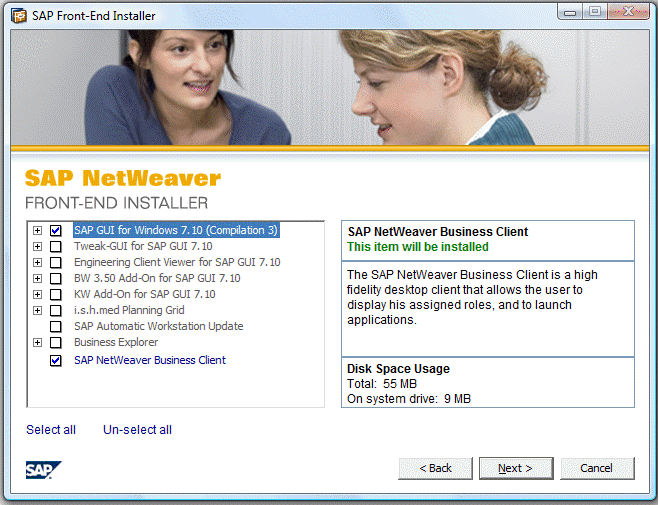 (NWBC as part of SAP GUI installation)
Select the option for the SAP NetWeaver Business Client and follow the steps in the installation wizard.
More Information
For further information about adding the NWBC to the installation server, see Front-End Installation Guide, which is stored in the Docu directory on the CD as well as the guide NetWeaver SAPSetup – SAP’s Front-End Software Deployment Tool (Workstation Installation Help.chm).